> ## Documentation Index
> Fetch the complete documentation index at: https://onextel-09023014.mintlify.site/llms.txt
> Use this file to discover all available pages before exploring further.
# Blacklist
> Suppress specific numbers from receiving messages, grouped into categories you can manage individually or in bulk.
A **blacklist** stops messages reaching numbers you have chosen to suppress — customers who have
opted out, complainants, known bad numbers, or internal test lines you do not want included in a
live campaign.
Blacklisted numbers are organised into **categories**. A category groups numbers under one
purpose and can be switched off without deleting its contents, so you can suspend a suppression
rule temporarily rather than rebuilding the list later.
Blacklisting is a suppression list you control. It is separate from channel-level opt-out, which
is driven by the recipient sending a keyword — see
[WhatsApp opt-in / opt-out](/api-reference/whatsapp/opt-in-opt-out) and
[RCS opt-in / opt-out](/api-reference/rcs/opt-in-opt-out).
## Categories
### Add a category
In the left pane, click **Config**, select the **Blacklist Category** tab, and click
**+ Add Blacklist**.
| Field | Description |
| - | - |
| Channel | The channel this blacklist applies to |
| Category Name | A name for the group |
| Category Status | Whether the category is active and in use |
| Category Description | A short description of what the category is for |
Click **Add**.
Categories are bound to a **channel**. A number blacklisted under an SMS category is not
suppressed on WhatsApp or RCS — add it to a category on each channel you want it blocked on.
### View categories
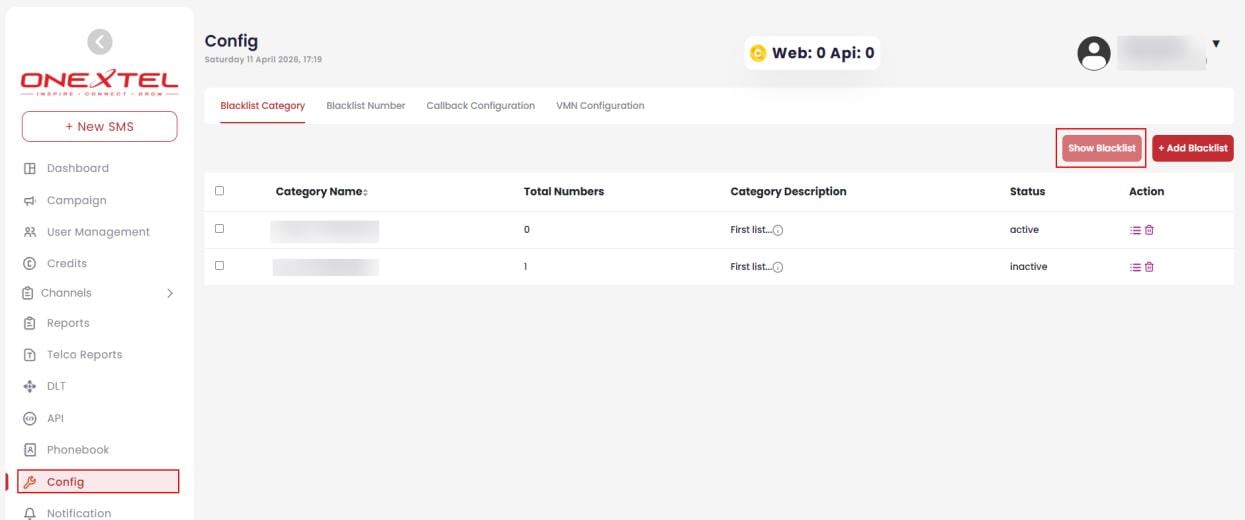
Click **Config**, select the **Blacklist Category** tab, then click **Show Blacklist**. The list
shows each category's name, total numbers, description, and status.
 ## Numbers
### Add a number
Click **Config**, select the **Blacklist Number** tab, and click **+ Add Blacklist Number**.
| Field | Description |
| - | - |
| Category | The category to add this number to |
| Name | The name of the person the number belongs to |
| Number | The number to suppress |
| Description | A short note about why |
Click **Add**.
Fill in the Description. Six months on, a suppression list with no reasons attached is one
nobody is willing to prune — and an over-broad blacklist quietly suppresses traffic you intended
to send.
### Upload numbers in bulk
Click **Config**, select the **Blacklist Number** tab, then click **Upload Blacklist
Number**.
Use **Download Sample File** to get a correctly formatted file before preparing your own.
Click **Choose File** and select the file to upload.
Choose the **Category** the numbers should be added to.
Click **Add Records to Category**.
### Download numbers
Click **Config**, select the **Blacklist Number** tab, then click **Download Blacklist
Number**.
Select the **Category** and the **File Type** from the dropdowns.
Click **Download**.
### Find and remove numbers
On the **Blacklist Number** tab, select a category and optionally enter a number, set a record
limit, and click **Search**.
To remove entries, use **Delete Selected** for specific numbers, or **Delete All** to clear the
results.
**Delete All** clears every number matching the current filter, not just the rows on screen.
Check the filter before using it — and export the category first if you might need it back.
## Related
* [Platform overview](/guides/platform/overview)
* [Phonebook](/guides/platform/phonebook)
This documentation is built and hosted on [Mintlify](https://mintlify.com), a developer documentation platform.
## Numbers
### Add a number
Click **Config**, select the **Blacklist Number** tab, and click **+ Add Blacklist Number**.
| Field | Description |
| - | - |
| Category | The category to add this number to |
| Name | The name of the person the number belongs to |
| Number | The number to suppress |
| Description | A short note about why |
Click **Add**.
Fill in the Description. Six months on, a suppression list with no reasons attached is one
nobody is willing to prune — and an over-broad blacklist quietly suppresses traffic you intended
to send.
### Upload numbers in bulk
Click **Config**, select the **Blacklist Number** tab, then click **Upload Blacklist
Number**.
Use **Download Sample File** to get a correctly formatted file before preparing your own.
Click **Choose File** and select the file to upload.
Choose the **Category** the numbers should be added to.
Click **Add Records to Category**.
### Download numbers
Click **Config**, select the **Blacklist Number** tab, then click **Download Blacklist
Number**.
Select the **Category** and the **File Type** from the dropdowns.
Click **Download**.
### Find and remove numbers
On the **Blacklist Number** tab, select a category and optionally enter a number, set a record
limit, and click **Search**.
To remove entries, use **Delete Selected** for specific numbers, or **Delete All** to clear the
results.
**Delete All** clears every number matching the current filter, not just the rows on screen.
Check the filter before using it — and export the category first if you might need it back.
## Related
* [Platform overview](/guides/platform/overview)
* [Phonebook](/guides/platform/phonebook)
This documentation is built and hosted on [Mintlify](https://mintlify.com), a developer documentation platform.