> ## Documentation Index
> Fetch the complete documentation index at: https://onextel-09023014.mintlify.site/llms.txt
> Use this file to discover all available pages before exploring further.
# Credits
> View credit allocation across accounts, review allocation history, and add or deduct credits from a TUC.
Credits are what messages are paid for with. OneXtel allocates credits to the tenant, the tenant
distributes them to each TUC, and every message sent draws down that TUC's balance.
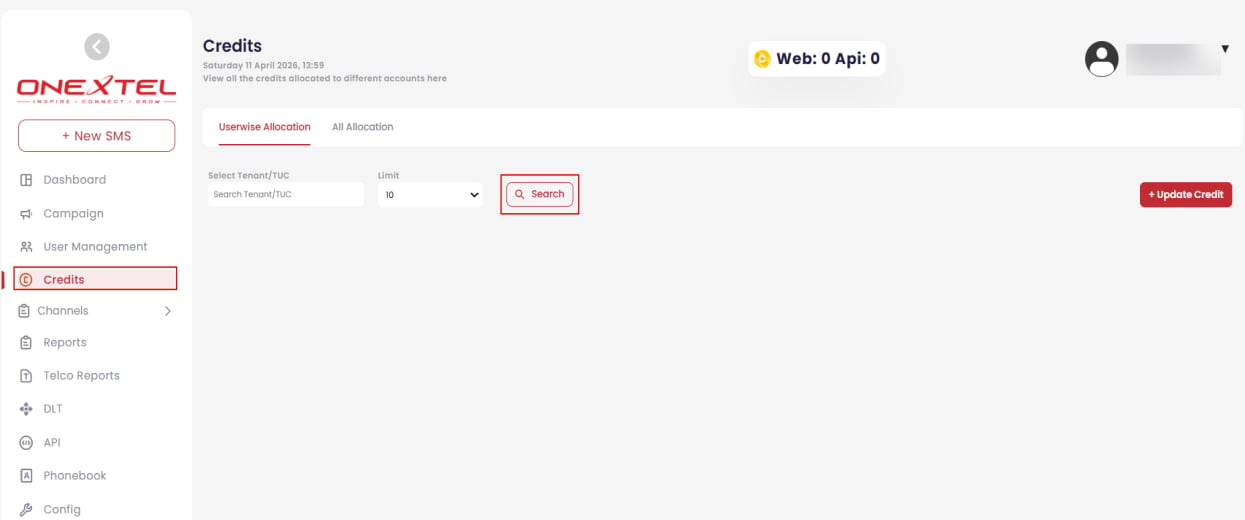
Your available balance is shown in the portal header, split by **Web** and **API** — traffic
sent from the portal and traffic sent programmatically are metered separately.
## View allocation by account
In the left pane, click **Credits**. The **Userwise Allocation** tab opens by default.
Enter the **TUC Name** in the search box, set the credit limit, and click **Search**. The
account's credit information is displayed.
 ## Review allocation history
The **All Allocation** tab shows the full history of credit movements, which is where to look
when a balance is lower than expected.
Click **Credits**, then select the **All Allocation** tab.
Enter a **From date** and **To date** to see allocation updates for that period, then click
**Search**.
## Add or deduct credits
Click **Credits**, and on the **Userwise Allocation** tab click **+ Update Credit**.
Choose the **TUC** from the dropdown. The Update button stays disabled until a TUC is
selected.
Select the **Credit Type** for this movement.
Select **Add-Credits** or **Deduct-Credits**, then enter the number of credits.
Enter a **Remark** explaining the movement.
Click **Update**.
The Remark field is what makes the allocation history readable months later. A movement with no
explanation is indistinguishable from an error when you are reconciling a balance — fill it in
even for routine top-ups.
## Related
* [User management](/guides/platform/user-management)
* [Platform overview](/guides/platform/overview#charging-and-billing)
This documentation is built and hosted on [Mintlify](https://mintlify.com), a developer documentation platform.
## Review allocation history
The **All Allocation** tab shows the full history of credit movements, which is where to look
when a balance is lower than expected.
Click **Credits**, then select the **All Allocation** tab.
Enter a **From date** and **To date** to see allocation updates for that period, then click
**Search**.
## Add or deduct credits
Click **Credits**, and on the **Userwise Allocation** tab click **+ Update Credit**.
Choose the **TUC** from the dropdown. The Update button stays disabled until a TUC is
selected.
Select the **Credit Type** for this movement.
Select **Add-Credits** or **Deduct-Credits**, then enter the number of credits.
Enter a **Remark** explaining the movement.
Click **Update**.
The Remark field is what makes the allocation history readable months later. A movement with no
explanation is indistinguishable from an error when you are reconciling a balance — fill it in
even for routine top-ups.
## Related
* [User management](/guides/platform/user-management)
* [Platform overview](/guides/platform/overview#charging-and-billing)
This documentation is built and hosted on [Mintlify](https://mintlify.com), a developer documentation platform.