> ## Documentation Index
> Fetch the complete documentation index at: https://onextel-09023014.mintlify.site/llms.txt
> Use this file to discover all available pages before exploring further.
# Signing In
> Sign in to the OneXtel portal, read the dashboard, and understand what your account level lets you do.
The OneXtel portal is where campaigns are built, templates are managed, reports are read, and
the account is administered. Everything below is available to any signed-in user, subject to
the [role](/guides/platform/roles) they have been given.
## Sign in
Go to the OneXtel portal URL in a web browser. Your account manager provides this during
onboarding.
Enter the **Username** and **Password** for your account.
Select the **I accept the Terms and Conditions** checkbox.
Click **Sign In**. The dashboard appears once you are authenticated.
Forgotten your password? Use **Forgot Password?** on the sign-in screen rather than asking an
administrator to reset it — credentials should never be shared.
If two-factor authentication is enabled on your account, you are prompted for a second
verification step after your password. 2FA is switched on per account — see
[Platform overview](/guides/platform/overview).
## The dashboard
The dashboard is the landing page after sign-in and gives a real-time view of message
performance.
| Panel | Shows |
| - | - |
| Summary Overview | Submitted, delivered, failed, and awaited volumes, toggleable between **Week** and **Month** |
| Today's Delivered Percent | The proportion of today's traffic that reached recipients |
| Quick Stats | Volumes submitted today, this week, and this month |
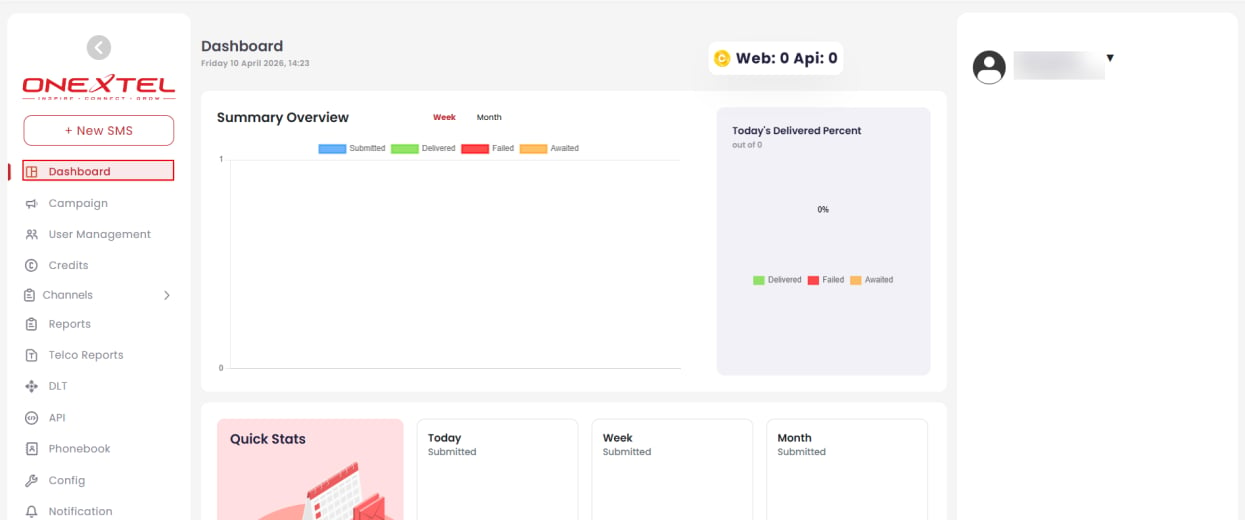 Your available credit is shown in the header at all times, split into **Web** and **API** —
traffic sent from the portal and traffic sent programmatically are metered separately. See
[Credits](/guides/platform/credits).
**Submitted** counts messages the platform accepted, not messages that arrived. The gap between
Submitted and Delivered is where delivery problems show up first — if it widens, check the
delivery reports before assuming a send succeeded.
## What you can do
A TUC account manages day-to-day messaging operations under a tenant. From the portal you can:
* **Send messages** — one-off, dynamic, or campaign sends, via web, API, or SMPP
* **Create and manage templates** for each channel
* **Manage users** within your account's scope, and assign their roles
* **Generate reports** on delivery, sender IDs, campaigns, templates, and click data
* **Allocate credit** to users and sub-accounts
* **Maintain the phonebook** of contacts and groups
* **Configure blacklisted numbers** to suppress specific recipients
Administrative control beyond your own account — creating tenants, or changing account-level
entitlements — sits with the tenant administrator.
## Next steps
Create accounts for your team and assign roles.
Required for API sends and every plugin.
So delivery reports and replies reach your systems.
Tenants, TUCs, users, roles, and credits.
This documentation is built and hosted on [Mintlify](https://mintlify.com), a developer documentation platform.
Your available credit is shown in the header at all times, split into **Web** and **API** —
traffic sent from the portal and traffic sent programmatically are metered separately. See
[Credits](/guides/platform/credits).
**Submitted** counts messages the platform accepted, not messages that arrived. The gap between
Submitted and Delivered is where delivery problems show up first — if it widens, check the
delivery reports before assuming a send succeeded.
## What you can do
A TUC account manages day-to-day messaging operations under a tenant. From the portal you can:
* **Send messages** — one-off, dynamic, or campaign sends, via web, API, or SMPP
* **Create and manage templates** for each channel
* **Manage users** within your account's scope, and assign their roles
* **Generate reports** on delivery, sender IDs, campaigns, templates, and click data
* **Allocate credit** to users and sub-accounts
* **Maintain the phonebook** of contacts and groups
* **Configure blacklisted numbers** to suppress specific recipients
Administrative control beyond your own account — creating tenants, or changing account-level
entitlements — sits with the tenant administrator.
## Next steps
Create accounts for your team and assign roles.
Required for API sends and every plugin.
So delivery reports and replies reach your systems.
Tenants, TUCs, users, roles, and credits.
This documentation is built and hosted on [Mintlify](https://mintlify.com), a developer documentation platform.