> ## Documentation Index
> Fetch the complete documentation index at: https://onextel-09023014.mintlify.site/llms.txt
> Use this file to discover all available pages before exploring further.
# Notifications
> Create and manage system-wide notifications shown to users in one account or across all of them.
Notifications are messages you publish to the people who use the platform — planned maintenance,
policy changes, a campaign freeze over a holiday period. They are addressed to platform users,
not to message recipients.
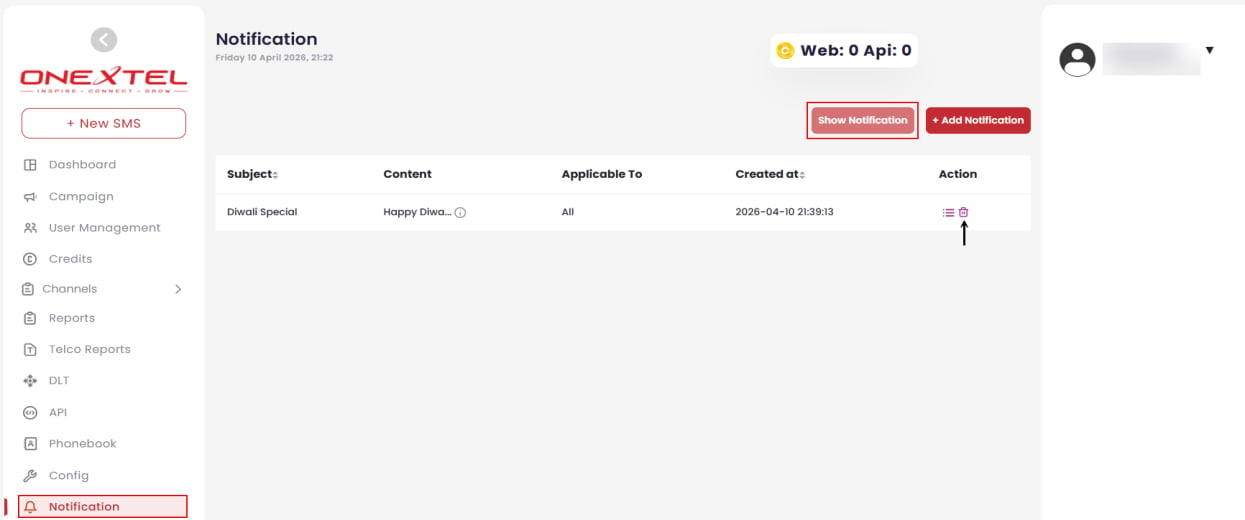
Each notification shows its subject, content, target audience, and creation time.
## Add a notification
In the left pane, click **Notification**.
Click **+ Add Notification**.
Enter the **Subject** and **Content**, then choose whether it applies to a particular TUC or
to all of them.
Click **Add**.
## View notifications
In the left pane, click **Notification**, then **Show Notification** to list them.
 ## Edit a notification
Click **Notification**, then **Show Notification**.
In the **Action** column, click the ellipsis (**...**) icon.
Make your changes and click **Update**.
## Delete a notification
Click **Notification**, then **Show Notification**.
In the **Action** column, click the **Delete** icon next to the notification.
A warning appears. Click **Delete**.
## Related
* [Account settings](/guides/platform/account-settings) — for personal credit alerts
* [Platform overview](/guides/platform/overview)
This documentation is built and hosted on [Mintlify](https://mintlify.com), a developer documentation platform.
## Edit a notification
Click **Notification**, then **Show Notification**.
In the **Action** column, click the ellipsis (**...**) icon.
Make your changes and click **Update**.
## Delete a notification
Click **Notification**, then **Show Notification**.
In the **Action** column, click the **Delete** icon next to the notification.
A warning appears. Click **Delete**.
## Related
* [Account settings](/guides/platform/account-settings) — for personal credit alerts
* [Platform overview](/guides/platform/overview)
This documentation is built and hosted on [Mintlify](https://mintlify.com), a developer documentation platform.