> ## Documentation Index
> Fetch the complete documentation index at: https://onextel-09023014.mintlify.site/llms.txt
> Use this file to discover all available pages before exploring further.
# User Management
> Create and manage TUCs and users in the OneXtel portal, including charging rules, channel entitlements, and licence limits.
User Management is where accounts and the people who use them are created. It has three tabs —
**TUC**, **User**, and **Roles** — reached from **User Management** in the left pane.
Which tabs you can act on depends on your access level. Most customers work in the **User** tab
only; the **TUC** tab requires tenant-level access and child-TUC licences. See
[Platform overview](/guides/platform/overview#the-account-model).
## Users
### Add a user
Click **User Management**, select the **User** tab, and click **+ Add User**.
| Field | Value |
| - | - |
| Full Name | The user's full name |
| Email | A valid email address |
| Mobile Number | Their primary mobile number |
| Other Mobile Number | An alternate number (optional) |
| Company Name | The company name |
| Website | The company URL |
| TUC | The account this user belongs to |
| Role Type | What the user is allowed to do — see [Roles](/guides/platform/roles) |
| Username | The username for signing in |
| Password | A secure password |
Click **Create**.
Passwords must be **at least 8 characters** and include an uppercase letter, a lowercase letter,
a number, and a special character.
### View users
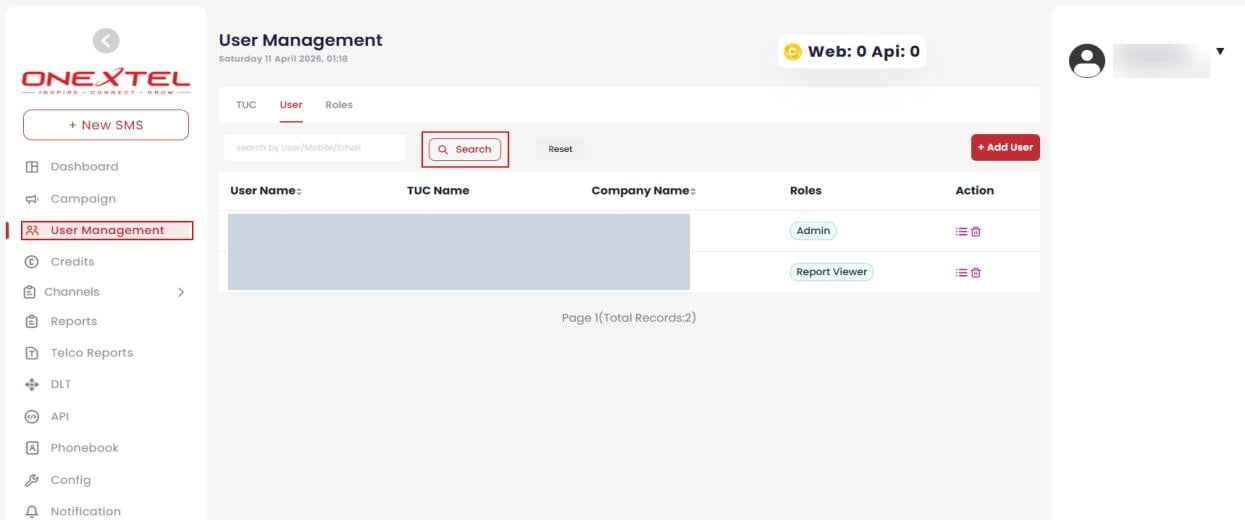
Click **User Management**, select the **User** tab, then click **Search** to list all users — or
enter a username in the search field first to filter. The list shows each user's username, TUC,
company, and assigned role.
 ### Edit a user
Find the user as above, click the **Edit** icon in the Action column, make your changes, and
click **Update**.
### Delete a user
Find the user, click the **Delete** icon in the Action column, then confirm in the warning
dialog by clicking **Delete**.
## TUCs
A TUC is the billable account. Creating one sets its charging rules, which channels it may use,
and how many sub-accounts and API instances it is licensed for.
### Add a TUC
Click **User Management**, and on the **TUC** tab click **Add TUC**.
| Field | Value |
| - | - |
| Name | The tenant name |
| OTP Charges Type | `On Submission` or `On Delivery` |
| Trans Charges Type | `On Submission` or `On Delivery` |
| Promo Charges Type | `On Submission` or `On Delivery` |
| Govt. Charges Type | `On Submission` or `On Delivery` |
| Sim Route Charges Type | `On Submission` or `On Delivery` |
| Default Charges Type | `On Submission` or `On Delivery` |
| Billing Type | `Prepaid` or `Postpaid` |
| Validity | Number of days the charging configuration stays active |
| Mask Phone | `Yes` to hide recipient numbers in reports |
| Mask Content | `Yes` to hide message content in reports |
**On Submission** charges the moment the platform accepts the message. **On Delivery**
charges only once it reaches the recipient. The distinction matters most for promotional
traffic, where delivery rates vary.
| Option | Description |
| - | - |
| 2FA | Requires a second verification step after the password at sign-in |
| Channels | Which channels this TUC may use — SMS, WhatsApp, RCS |
| SMS Settings | Optional per-account features, below |
Available SMS settings:
| Setting | Enables |
| - | - |
| Config | SMS configuration settings |
| Pull VMN Configuration | [VMN configuration](/guides/platform/vmn-configuration) for pull-based messaging |
| Maker Checker | An approval workflow for SMS activities |
| Callback Configuration | [Callback settings](/guides/platform/callback-configuration) for delivery and response handling |
| SMS Time Window | Time-based restrictions on when SMS may be sent |
| Template Auto Match | Automatic matching of messages to approved templates |
| Multipart Failed | Handling for failed multipart messages |
| Message Expiry | A validity period for delivery attempts |
| Licence | Description |
| - | - |
| Child TUC | How many sub-accounts this TUC may create. `0` for a direct enterprise; higher for an aggregator onboarding its own customers |
| TUC Type | The access mode — `Web/API` |
| SMS API | How many SMS API instances are permitted |
Each field shows its own maximum. Values entered must not exceed it.
Click **Create**.
### View TUCs
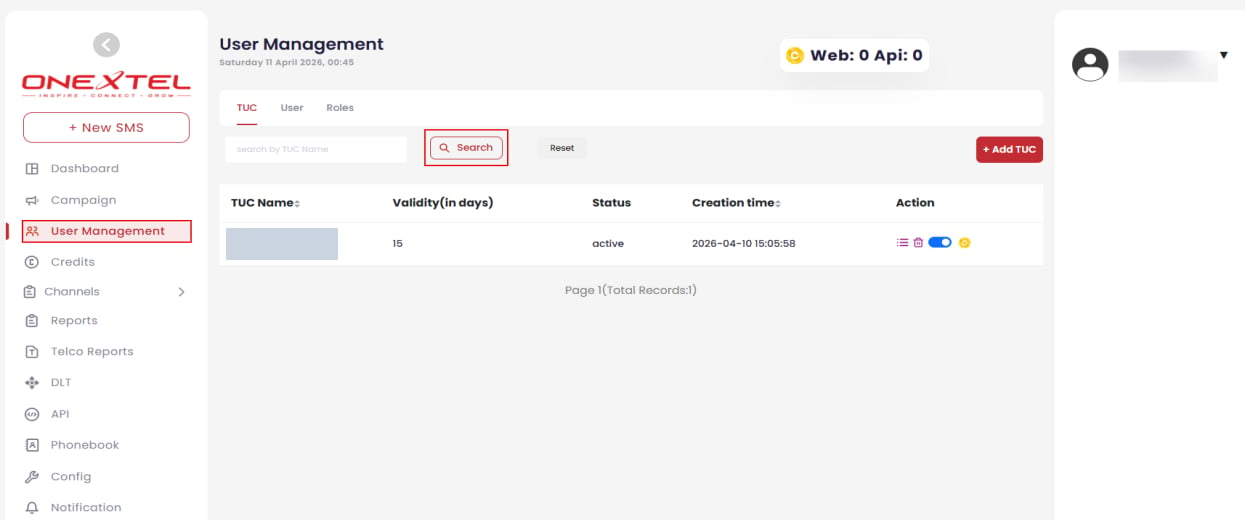
Click **User Management**, then **Search** to list all TUCs. The list shows each TUC's name,
validity in days, status, and creation time.
### Edit a user
Find the user as above, click the **Edit** icon in the Action column, make your changes, and
click **Update**.
### Delete a user
Find the user, click the **Delete** icon in the Action column, then confirm in the warning
dialog by clicking **Delete**.
## TUCs
A TUC is the billable account. Creating one sets its charging rules, which channels it may use,
and how many sub-accounts and API instances it is licensed for.
### Add a TUC
Click **User Management**, and on the **TUC** tab click **Add TUC**.
| Field | Value |
| - | - |
| Name | The tenant name |
| OTP Charges Type | `On Submission` or `On Delivery` |
| Trans Charges Type | `On Submission` or `On Delivery` |
| Promo Charges Type | `On Submission` or `On Delivery` |
| Govt. Charges Type | `On Submission` or `On Delivery` |
| Sim Route Charges Type | `On Submission` or `On Delivery` |
| Default Charges Type | `On Submission` or `On Delivery` |
| Billing Type | `Prepaid` or `Postpaid` |
| Validity | Number of days the charging configuration stays active |
| Mask Phone | `Yes` to hide recipient numbers in reports |
| Mask Content | `Yes` to hide message content in reports |
**On Submission** charges the moment the platform accepts the message. **On Delivery**
charges only once it reaches the recipient. The distinction matters most for promotional
traffic, where delivery rates vary.
| Option | Description |
| - | - |
| 2FA | Requires a second verification step after the password at sign-in |
| Channels | Which channels this TUC may use — SMS, WhatsApp, RCS |
| SMS Settings | Optional per-account features, below |
Available SMS settings:
| Setting | Enables |
| - | - |
| Config | SMS configuration settings |
| Pull VMN Configuration | [VMN configuration](/guides/platform/vmn-configuration) for pull-based messaging |
| Maker Checker | An approval workflow for SMS activities |
| Callback Configuration | [Callback settings](/guides/platform/callback-configuration) for delivery and response handling |
| SMS Time Window | Time-based restrictions on when SMS may be sent |
| Template Auto Match | Automatic matching of messages to approved templates |
| Multipart Failed | Handling for failed multipart messages |
| Message Expiry | A validity period for delivery attempts |
| Licence | Description |
| - | - |
| Child TUC | How many sub-accounts this TUC may create. `0` for a direct enterprise; higher for an aggregator onboarding its own customers |
| TUC Type | The access mode — `Web/API` |
| SMS API | How many SMS API instances are permitted |
Each field shows its own maximum. Values entered must not exceed it.
Click **Create**.
### View TUCs
Click **User Management**, then **Search** to list all TUCs. The list shows each TUC's name,
validity in days, status, and creation time.
 ### Edit a TUC
Enter the TUC name in the **Search By** field and click **Search**. In the Action column, click
the **Ellipsis** icon, make your changes, and click **Update**.
### Delete a TUC
Find the TUC as above, click the **Delete** icon in the Action column, then confirm by clicking
**Delete** in the warning dialog.
Deleting a TUC removes the account and everything scoped to it. Reassign any users that still
need access before deleting.
## Related
* [Roles](/guides/platform/roles)
* [Credits](/guides/platform/credits)
* [Platform overview](/guides/platform/overview)
This documentation is built and hosted on [Mintlify](https://mintlify.com), a developer documentation platform.
### Edit a TUC
Enter the TUC name in the **Search By** field and click **Search**. In the Action column, click
the **Ellipsis** icon, make your changes, and click **Update**.
### Delete a TUC
Find the TUC as above, click the **Delete** icon in the Action column, then confirm by clicking
**Delete** in the warning dialog.
Deleting a TUC removes the account and everything scoped to it. Reassign any users that still
need access before deleting.
## Related
* [Roles](/guides/platform/roles)
* [Credits](/guides/platform/credits)
* [Platform overview](/guides/platform/overview)
This documentation is built and hosted on [Mintlify](https://mintlify.com), a developer documentation platform.