> ## Documentation Index
> Fetch the complete documentation index at: https://onextel-09023014.mintlify.site/llms.txt
> Use this file to discover all available pages before exploring further.
# DLT Registration
> Register entity IDs, sender IDs, and message templates for TRAI-mandated DLT compliance before sending SMS in India.
**DLT (Distributed Ledger Technology)** is a TRAI-mandated system in India that brings
transparency to commercial SMS and prevents spam. Before you can send, your business, your
sender IDs, and every message template must be registered on a DLT platform.
Registration happens in a fixed order, because each step depends on the one before it:
Your business is identified by a 19-digit government-issued **Entity ID**.
Each sender ID is linked to an entity and approved individually.
Each template is linked to both an entity and a sender ID, and carries a consent type.
Everything below lives under **DLT** in the left pane.
DLT applies to SMS sent within India. For international SMS, see
[Sender IDs](/guides/sms/sender-id) and [Templates](/guides/sms/templates).
## Entity IDs
An Entity ID uniquely identifies your business using a 19-digit government-issued number,
verifying its identity for sending SMS through telecom operators under TRAI rules.
### Add an Entity ID
Click **DLT**, select the **Entity IDs** tab, and click **+ Add Entity Id**.
| Field | Description |
| - | - |
| Entity ID | The unique identifier assigned to your registered business |
| Entity Name | The registered name of the business that intends to send SMS |
Click **Add**.
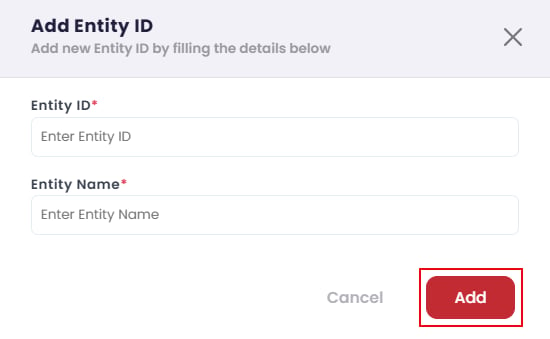 **Entity Name must match the name used during DLT registration exactly.** It is linked to the
Entity ID for authentication and compliance — a mismatch fails validation downstream, not at the
point you enter it.
### View, edit, and delete
Click **DLT → Entity IDs → Show Entity Id** to list your entities with their ID, name, and
status.
**Entity Name must match the name used during DLT registration exactly.** It is linked to the
Entity ID for authentication and compliance — a mismatch fails validation downstream, not at the
point you enter it.
### View, edit, and delete
Click **DLT → Entity IDs → Show Entity Id** to list your entities with their ID, name, and
status.
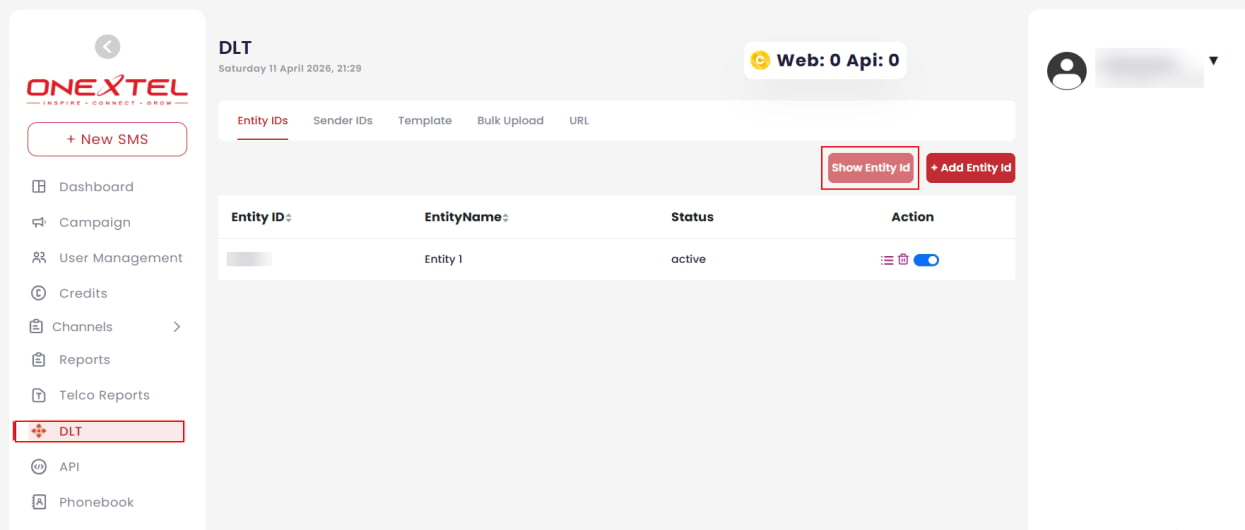 To edit, click the **Ellipsis** icon in the Action column, make your changes, and click
**Update**. To delete, click the **Delete** icon and confirm in the warning dialog.
## Sender IDs
A Sender ID identifies the origin of your messages to recipients, and is also used to filter
report data by sender.
### Add a Sender ID
Click **DLT**, select the **Sender IDs** tab, and click **+ Add Sender ID**.
Enter the sender ID, then select the **Entity Name** it belongs to from the dropdown.
| Option | Effect |
| - | - |
| Set as Default | This sender ID is used by default for message sending |
| Is Govt. Exempted | Marks the sender ID as exempted under government regulations |
Click **Add**.
To edit, click the **Ellipsis** icon in the Action column, make your changes, and click
**Update**. To delete, click the **Delete** icon and confirm in the warning dialog.
## Sender IDs
A Sender ID identifies the origin of your messages to recipients, and is also used to filter
report data by sender.
### Add a Sender ID
Click **DLT**, select the **Sender IDs** tab, and click **+ Add Sender ID**.
Enter the sender ID, then select the **Entity Name** it belongs to from the dropdown.
| Option | Effect |
| - | - |
| Set as Default | This sender ID is used by default for message sending |
| Is Govt. Exempted | Marks the sender ID as exempted under government regulations |
Click **Add**.
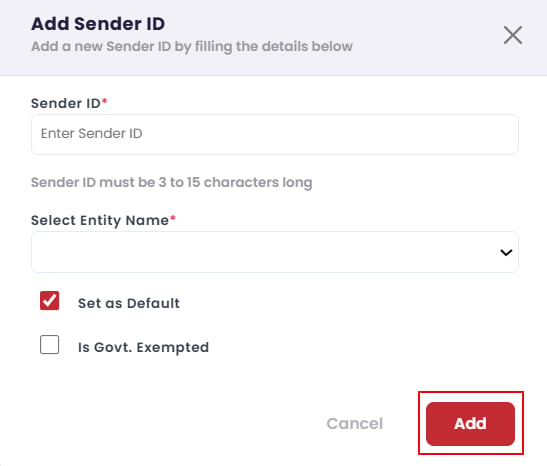 The form accepts 3 to 15 characters, but registered Indian sender IDs are six characters. Use
the value exactly as approved on the DLT platform.
### View Sender IDs
Click **DLT → Show Sender ID**. The table shows:
| Column | Description |
| - | - |
| Sender ID | The government-issued sender ID |
| Entity ID | The entity this sender belongs to |
| Approved By | Who approved the registration |
| Approved On | Date of approval |
| Status | `Approved` or `Rejected` |
| Default | Whether it is the default for sending |
| Action | Update or remove the entry |
The form accepts 3 to 15 characters, but registered Indian sender IDs are six characters. Use
the value exactly as approved on the DLT platform.
### View Sender IDs
Click **DLT → Show Sender ID**. The table shows:
| Column | Description |
| - | - |
| Sender ID | The government-issued sender ID |
| Entity ID | The entity this sender belongs to |
| Approved By | Who approved the registration |
| Approved On | Date of approval |
| Status | `Approved` or `Rejected` |
| Default | Whether it is the default for sending |
| Action | Update or remove the entry |
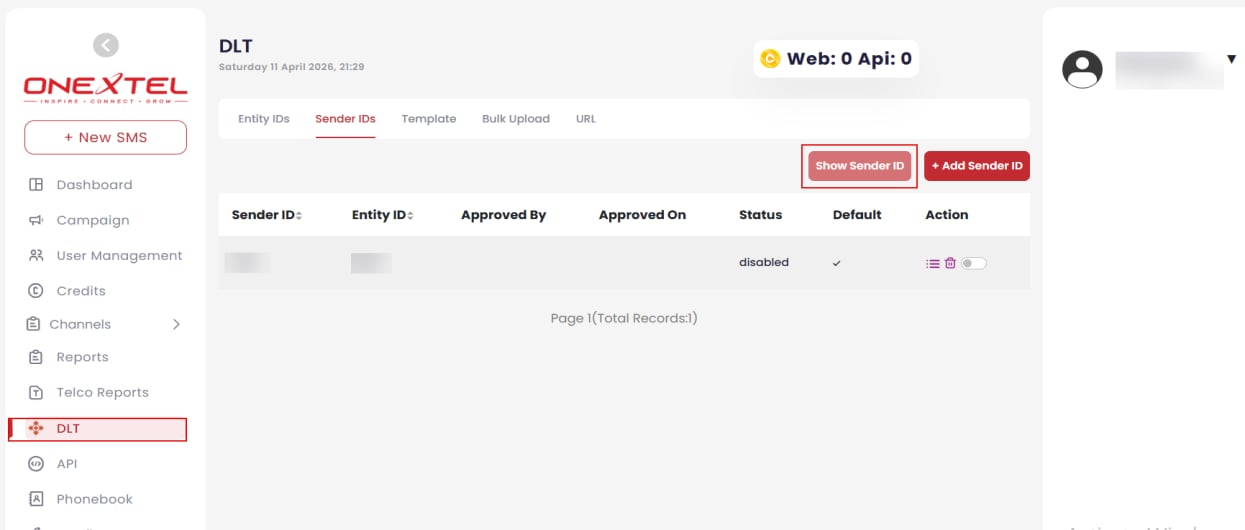 A sender ID only works once **Status** reads `Approved`. Adding it here does not approve it —
check the status before building a campaign around it.
### Edit and delete
Click **Show Sender ID**, then the **Ellipsis** icon in the Action column to edit and
**Update**, or the **Delete** icon and confirm to remove.
## Templates
Templates are the predefined, approved message formats you are permitted to send. Every DLT
template is bound to an entity, a sender ID, and a consent type.
### Add a template
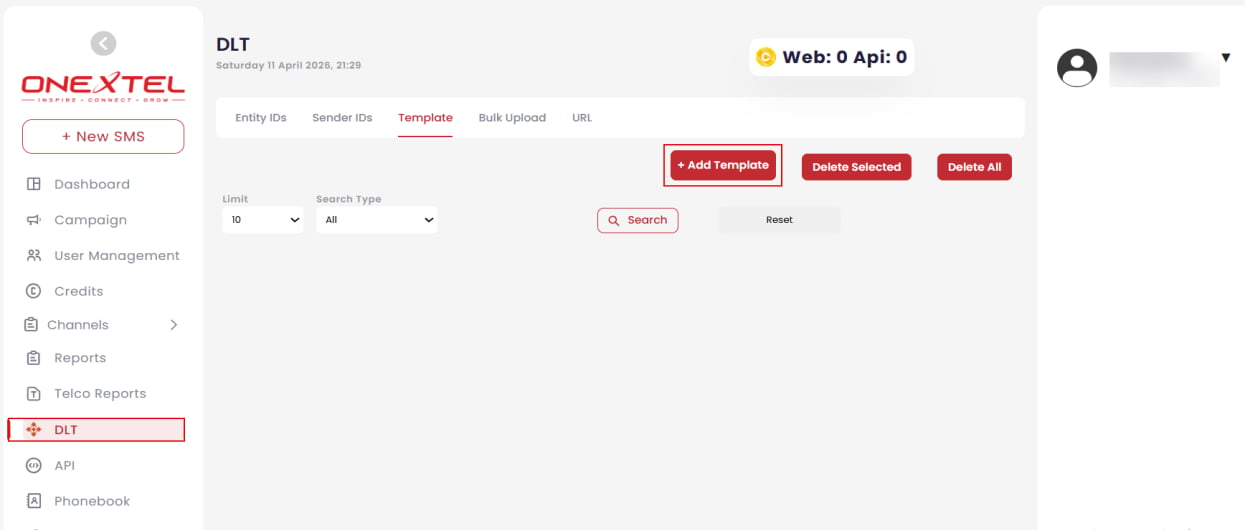
Click **DLT**, select the **Template** tab, and click **+ Add Template**.
| Field | Description |
| - | - |
| Template Name | A name for the template |
| Template ID | The unique identifier assigned to the template, used for reference and tracking |
| Select Type | The consent category — see below |
| Select Entity ID | The registered entity |
| Select Sender ID | The sender ID this template sends from |
| Description | A short description |
| Content | The SMS content |
Click **Add**.
A sender ID only works once **Status** reads `Approved`. Adding it here does not approve it —
check the status before building a campaign around it.
### Edit and delete
Click **Show Sender ID**, then the **Ellipsis** icon in the Action column to edit and
**Update**, or the **Delete** icon and confirm to remove.
## Templates
Templates are the predefined, approved message formats you are permitted to send. Every DLT
template is bound to an entity, a sender ID, and a consent type.
### Add a template
Click **DLT**, select the **Template** tab, and click **+ Add Template**.
| Field | Description |
| - | - |
| Template Name | A name for the template |
| Template ID | The unique identifier assigned to the template, used for reference and tracking |
| Select Type | The consent category — see below |
| Select Entity ID | The registered entity |
| Select Sender ID | The sender ID this template sends from |
| Description | A short description |
| Content | The SMS content |
Click **Add**.
 ### Template types
| Type | Use for |
| - | - |
| **Promo** | Promotional messages |
| **Service Implicit** | Service-related messages that do not require explicit user consent |
| **Service Explicit** | Service-related messages that require explicit user consent |
The type determines who may legally receive the message and when. Registering promotional
content as Service Implicit to bypass DND filtering is a compliance breach, not a shortcut, and
risks the sender ID being blocked.
### View and search templates
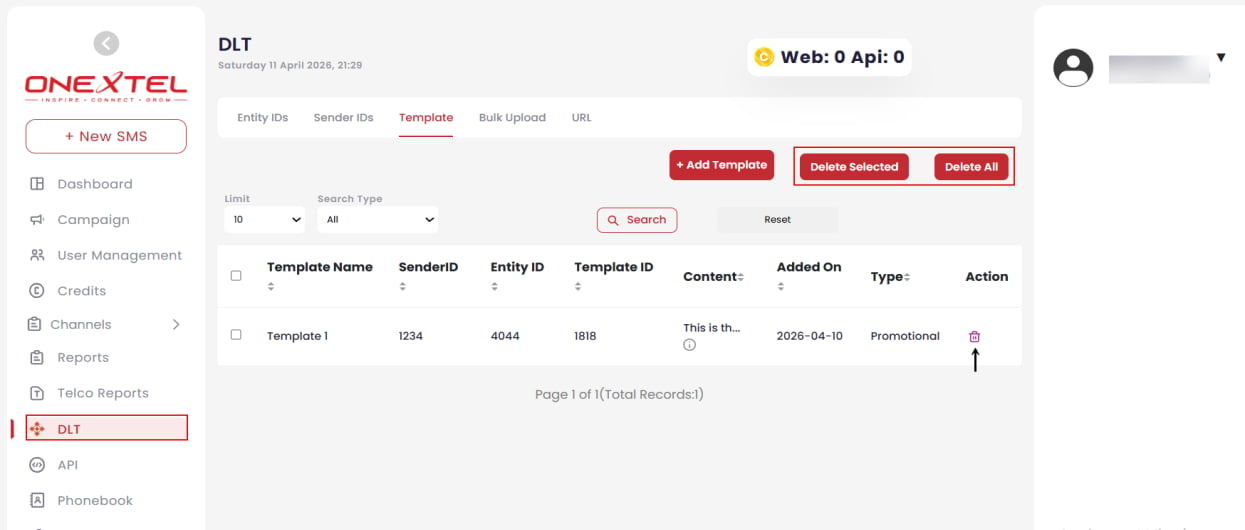
On the **Template** tab, set a **Limit** and **Search Type**, then click **Search**. Use
**Reset** to clear the filters. The list shows template name, sender ID, entity ID, template ID,
content, date added, and type.
### Template types
| Type | Use for |
| - | - |
| **Promo** | Promotional messages |
| **Service Implicit** | Service-related messages that do not require explicit user consent |
| **Service Explicit** | Service-related messages that require explicit user consent |
The type determines who may legally receive the message and when. Registering promotional
content as Service Implicit to bypass DND filtering is a compliance breach, not a shortcut, and
risks the sender ID being blocked.
### View and search templates
On the **Template** tab, set a **Limit** and **Search Type**, then click **Search**. Use
**Reset** to clear the filters. The list shows template name, sender ID, entity ID, template ID,
content, date added, and type.
 ### Delete templates
Click **DLT → Template → Search**.
Use the **Delete** icon in the Action column for one template, **Delete Selected** for the
templates you have ticked, or **Delete All** to remove every template at once.
Confirm in the warning dialog.
**Delete All** removes every template, not just those matching your current search. A deleted
template must be re-registered on the DLT platform before it can be used again.
## Bulk upload
Upload many templates at once instead of adding them one at a time.
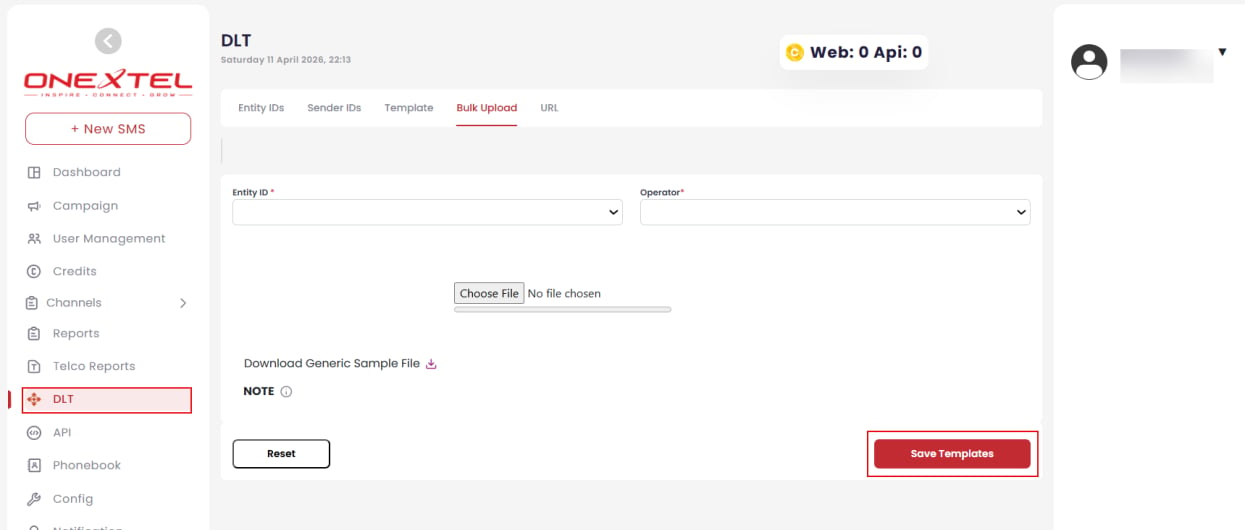
Click **DLT**, then select the **Bulk Upload** tab.
| Field | Description |
| - | - |
| Entity ID | The entity these templates are uploaded for |
| Operator | The operator for template submission |
Use **Download Generic Sample File** to get a correctly formatted reference file before
preparing your own.
Click **Choose File**, select your file, then click **Save Templates**.
### Delete templates
Click **DLT → Template → Search**.
Use the **Delete** icon in the Action column for one template, **Delete Selected** for the
templates you have ticked, or **Delete All** to remove every template at once.
Confirm in the warning dialog.
**Delete All** removes every template, not just those matching your current search. A deleted
template must be re-registered on the DLT platform before it can be used again.
## Bulk upload
Upload many templates at once instead of adding them one at a time.
Click **DLT**, then select the **Bulk Upload** tab.
| Field | Description |
| - | - |
| Entity ID | The entity these templates are uploaded for |
| Operator | The operator for template submission |
Use **Download Generic Sample File** to get a correctly formatted reference file before
preparing your own.
Click **Choose File**, select your file, then click **Save Templates**.
 ## Short URLs
The **URL** tab manages short URLs — creating them, tracking their status, and managing
actions against them.
Link click data captured through shortened URLs is returned in the
[URL click callback](/api-reference/whatsapp/callback-url-click).
## Related
* [API keys](/guides/platform/api-keys) — restrict a key to DLT-approved messages only
* [Send SMS](/guides/sms/send-sms)
* [Platform overview](/guides/platform/overview)
This documentation is built and hosted on [Mintlify](https://mintlify.com), a developer documentation platform.
## Short URLs
The **URL** tab manages short URLs — creating them, tracking their status, and managing
actions against them.
Link click data captured through shortened URLs is returned in the
[URL click callback](/api-reference/whatsapp/callback-url-click).
## Related
* [API keys](/guides/platform/api-keys) — restrict a key to DLT-approved messages only
* [Send SMS](/guides/sms/send-sms)
* [Platform overview](/guides/platform/overview)
This documentation is built and hosted on [Mintlify](https://mintlify.com), a developer documentation platform.