> ## Documentation Index
> Fetch the complete documentation index at: https://onextel-09023014.mintlify.site/llms.txt
> Use this file to discover all available pages before exploring further.
# MoEngage
> Set up OneXtel WhatsApp, RCS and SMS in MoEngage — senders, providers, templates, campaigns, callbacks, SMS fallback, and how each OneXtel error code reaches MoEngage.
The MoEngage connector adds WhatsApp, RCS and SMS as sendable channels inside MoEngage. You build
and segment campaigns exactly as you do today; the connector translates each campaign payload
into a OneXtel message and returns delivery status to MoEngage.
**Pick your channel once.** The sections below have **WhatsApp**, **RCS** and **SMS** tabs.
Choosing a tab in any section switches every section on the page to that channel.
## Scope
**Outbound**
| Type | Supported |
| - | - |
| Text | ✅ |
| Image | ✅ |
| Video | ✅ |
| Document | ✅ |
| Location | ✅ |
| Quick Reply buttons | ✅ |
| Call-to-action buttons — static and dynamic | ✅ |
**Inbound**
Text replies and quick-reply button clicks are routed back to MoEngage.
**Outbound**
| Type | Supported |
| - | - |
| Text | ✅ |
| Rich Card | ✅ |
| Rich Media | ✅ |
| Suggestions | ✅ |
| Webview | ✅ |
| Audio | ❌ |
| PDF / document | ❌ |
Media URLs can be personalised from the MoEngage side, so a single template can render a
different image or video per recipient.
**Supported suggestion actions**
`OPEN_URL`, `DIAL_PHONE`, `SHOW_LOCATION`, `QUERY_LOCATION`, `REQUEST_LOCATION`, and
`CREATE_CAL_EVENT`.
**SMS fallback**
Supported. If RCS is not delivered, OneXtel retries over SMS — see the **RCS** tab under
[Set up](#set-up).
**Inbound**
Suggestion interaction callbacks are returned. Inbound *messages* are not supported —
see [Limitations](#limitations).
**Outbound**
| Type | Supported |
| - | - |
| DLT-registered SMS to India — `SI`, `SE` and `OTP` templates | ✅ |
| Unicode (non-ASCII) text | ✅ |
| Personalization through MoEngage's message macros | ✅ |
**Delivery reports**
Delivered and failed reports return to MoEngage through the connector, with OneXtel's code
mapped onto MoEngage's SMS error codes — see [Error code mapping](#error-code-mapping).
**Inbound**
Not supported — see [Limitations](#limitations).
## Before you start
* A MoEngage account with the custom-provider channel available. RCS requires MoEngage to
register OneXtel as a partner — raise this with your MoEngage account team before starting.
* A OneXtel account with the relevant channels enabled.
* Pre-approved templates in OneXtel. See
[RCS templates](/api-reference/rcs/templates) and
[WhatsApp templates](/api-reference/whatsapp/templates-create).
* For SMS, and for SMS fallback on RCS, a DLT-registered sender ID, your DLT entity ID, and
DLT-approved SMS templates in OneXtel. See [DLT registration](/guides/sms/dlt).
### Connector endpoints
Every URL this connector uses sits on one host, `https://mo.onexaura.com`. Copy them from here
rather than retyping — MoEngage rejects nothing at save time, so a wrong path fails silently at
send.
| Channel | Purpose | Where you enter it | URL |
| - | - | - | - |
| WhatsApp | Outbound | MoEngage sender — URL | `https://mo.onexaura.com/moengage/whatsapp/outbound` |
| WhatsApp | Inbound and button clicks | OneXtel callback — Callback URL | `https://mo.onexaura.com/moengage/whatsapp/inbound` |
| RCS | Outbound | MoEngage sender — API URL | `https://mo.onexaura.com/moengage/rcs/outbound` |
| RCS | Button clicks | OneXtel callback — Callback URL, header `callback` | `https://mo.onexaura.com/moengage/rcs/inbound` |
| RCS | Delivery reports | OneXtel callback — Callback URL, header `callback` | `https://mo.onexaura.com/moengage/rcs/dlr` |
| SMS | Outbound — plain SMS campaigns, and the provider RCS fallback needs | MoEngage SMS provider — API URL | `https://mo.onexaura.com/moengage/sms/outbound` |
| SMS | Delivery reports — plain SMS, and the SMS leg of an RCS fallback | OneXtel callback — Callback URL, header `callback` | `https://mo.onexaura.com/moengage/sms/dlr` |
The WhatsApp **delivery notification** callback is the exception — it takes the callback URL
MoEngage generates for you and goes straight to MoEngage. Every RCS and SMS callback goes through
the connector, with MoEngage's URL in the `callback` header. That puts every receipt in the
connector's logs, which is the only way to tell later whether OneXtel sent a report that MoEngage
did not count.
**OneXtel fixes a callback's settings when the message is sent, not when the report is sent.** If
you change a callback's URL or header, messages already sent keep reporting to the old one. After
any callback change, judge it only on messages sent afterwards.
This host has **no hyphen** — `onexaura.com`. OneXtel runs other connectors on similar-looking
hosts, so check it before saving.
## Set up
Log in to OneXtel, go to the **API** section, and click **Show API Key**. If no key
exists, click **Generate API Key**. Copy it — you need it in two later steps.
In MoEngage, go to **Settings → WhatsApp → Sender Configuration**. Select **OneXtel** from
the left menu and click **+ Sender**, then enter:
| Field | Value |
| - | - |
| URL | `https://mo.onexaura.com/moengage/whatsapp/outbound` |
| WABA ID | From the OneXtel dashboard under **Channel → WhatsApp** |
| Authorization | The API key from step 1 |
| WABA Number | Your registered WhatsApp Business number |
Click **Save**.
In OneXtel, go to **Configuration → Add New Callback**. Give it a title, set **Channel**
to `WhatsApp` and **Callback Format Type** to `MoEngage`, and select the same API key you
used in MoEngage.
Under **Request Configuration**, set **Type** to `Delivery Notification` and **HTTP
Method** to `POST`. Paste the callback URL copied from your MoEngage dashboard, then save.
Add a second callback in OneXtel with the same channel, format type, and API key. Under
**Request Configuration**, set **Type** to `Incoming` and **HTTP Method** to `POST`, and
enter this URL:
```
https://mo.onexaura.com/moengage/whatsapp/inbound
```
In the **Header** section, add the key `callback_url` with your MoEngage DLR URL as the
value. Save.
Repeat step 4 exactly, changing **Type** to `Button Click`. The URL, header key, and
header value are all identical to the inbound callback.
If an RCS message is not delivered, OneXtel can retry it over SMS. Fallback spans both
platforms: you create the fallback configuration and its DLR in OneXtel, then reference it from
MoEngage in two places — the RCS provider's Authorization value, and a separate SMS provider that
carries the actual fallback message. Fallback is optional; skip the steps marked
**(SMS fallback)** if you send RCS only.
Work through the parts in order.
| Part | What you do | Where |
| - | - | - |
| [A](#part-a--create-the-rcs-sender-and-configure-sms) | Create the RCS sender and configure SMS fallback | OneXtel and MoEngage |
| [B](#part-b--create-templates-in-moengage) | Create templates | MoEngage |
| [C](#part-c--build-the-campaign) | Build the campaign and fill its variables | MoEngage |
| [D](#part-d--configure-the-callbacks-before-you-send) | Configure the callbacks | OneXtel |
| [E](#part-e--test-then-launch) | Test, then launch | Both |
### Part A — Create the RCS sender and configure SMS
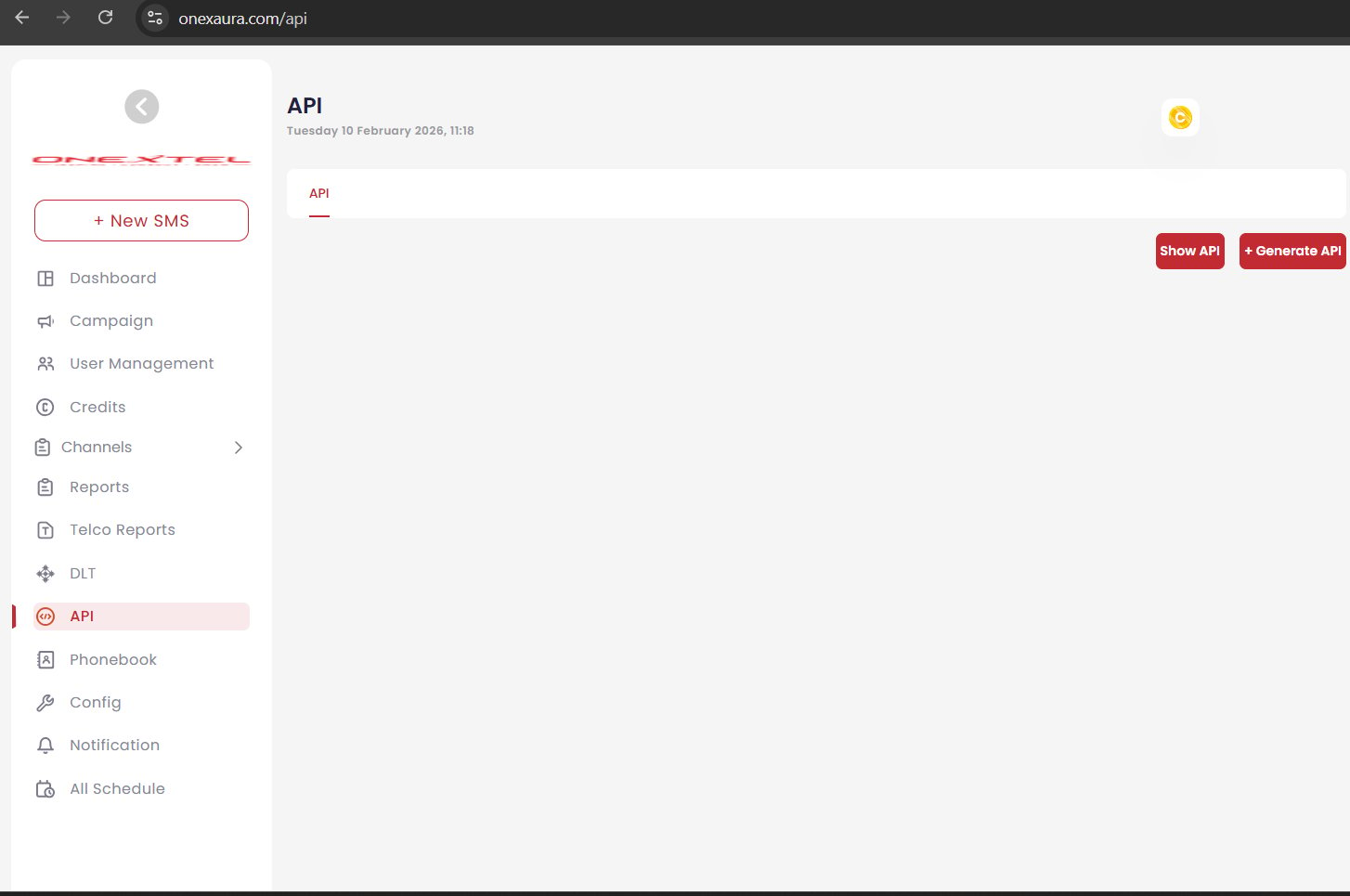
In the OneXtel portal, go to **API** and click **Show API Key**. If no key exists, click
**Generate API Key**. Copy it — you need it twice below.
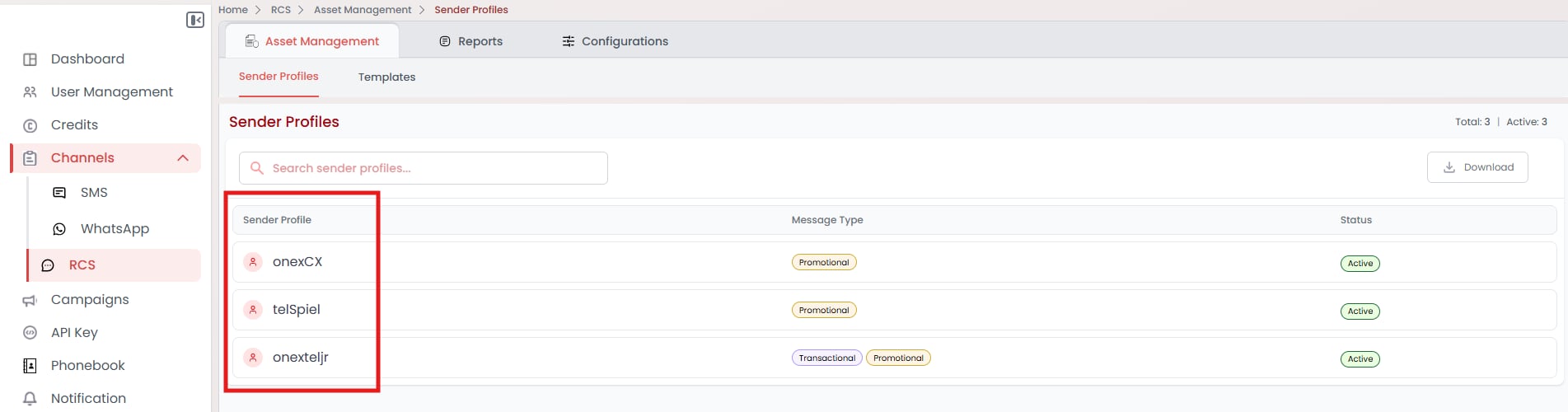
 In OneXtel, go to **Channels → RCS → Asset Management → Sender Profiles** and note the
sender profile you want to send from, along with its message type.
In OneXtel, go to **Channels → RCS → Asset Management → Sender Profiles** and note the
sender profile you want to send from, along with its message type.
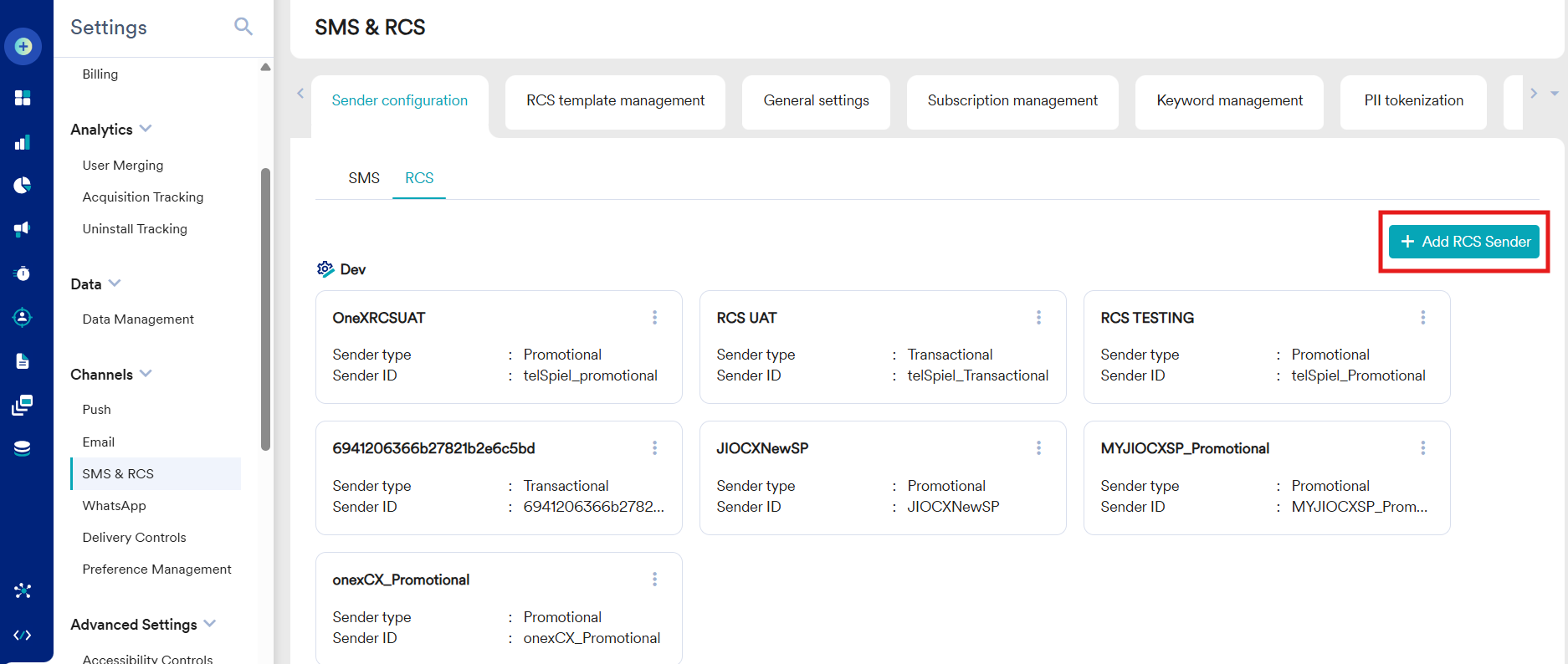
 In MoEngage, go to **Settings → SMS & RCS**, switch to the **RCS** tab, and click
**+ Add RCS Sender**.
In MoEngage, go to **Settings → SMS & RCS**, switch to the **RCS** tab, and click
**+ Add RCS Sender**.
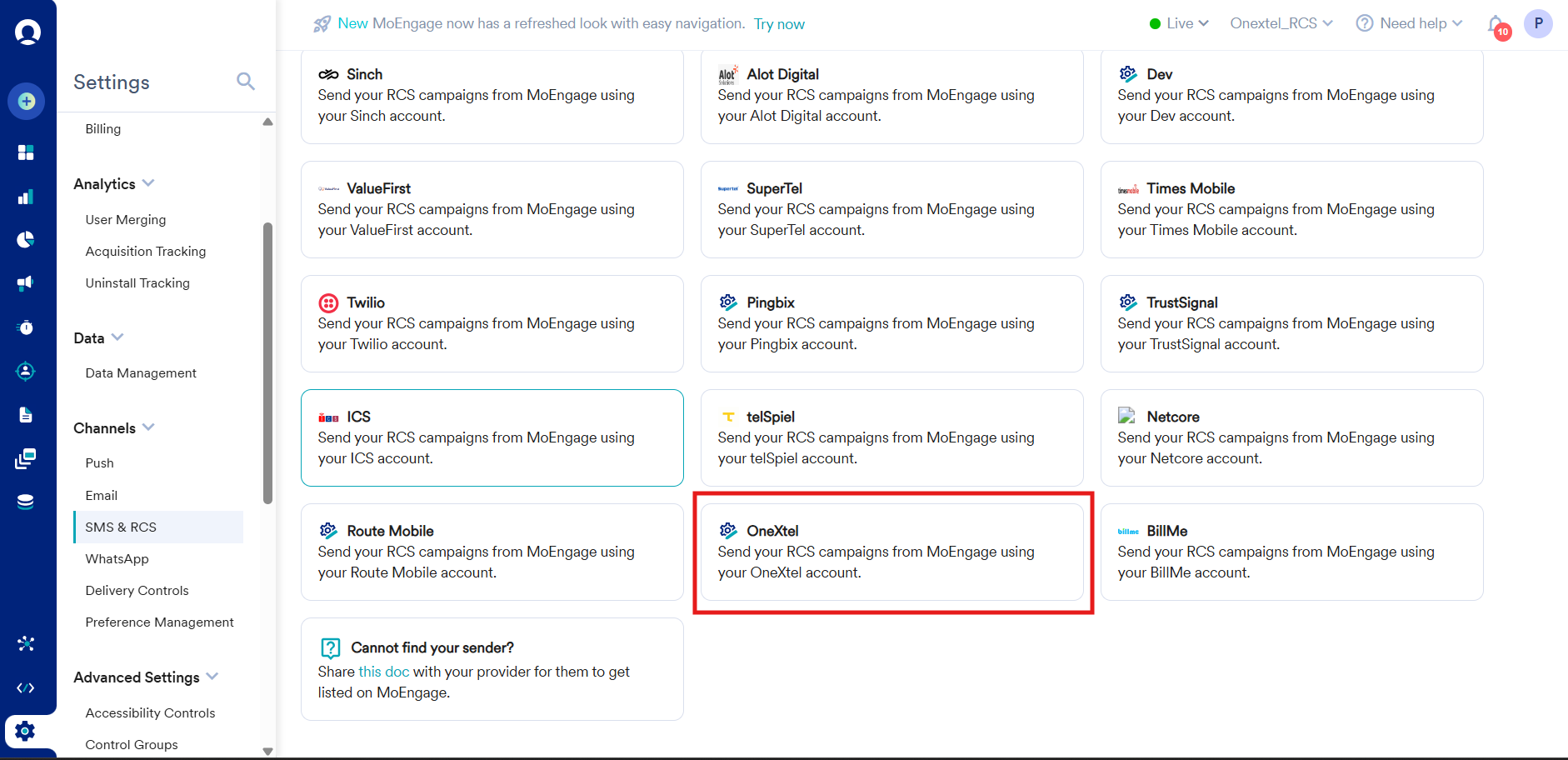
 Select **OneXtel** from the provider list.
 | Field | Value |
| - | - |
| Sender type | The message type this sender carries — **Transactional or Promotional** |
| Sender Name | Your sender name, suffixed with the message type |
| Sender ID | Your OneXtel sender profile, suffixed with the message type |
| API URL | `https://mo.onexaura.com/moengage/rcs/outbound` |
| Authorization | The API key from step 1. To add a TTL or SMS fallback, see [the Authorization step](#authorization-value) below |
| Field | Value |
| - | - |
| Sender type | The message type this sender carries — **Transactional or Promotional** |
| Sender Name | Your sender name, suffixed with the message type |
| Sender ID | Your OneXtel sender profile, suffixed with the message type |
| API URL | `https://mo.onexaura.com/moengage/rcs/outbound` |
| Authorization | The API key from step 1. To add a TTL or SMS fallback, see [the Authorization step](#authorization-value) below |
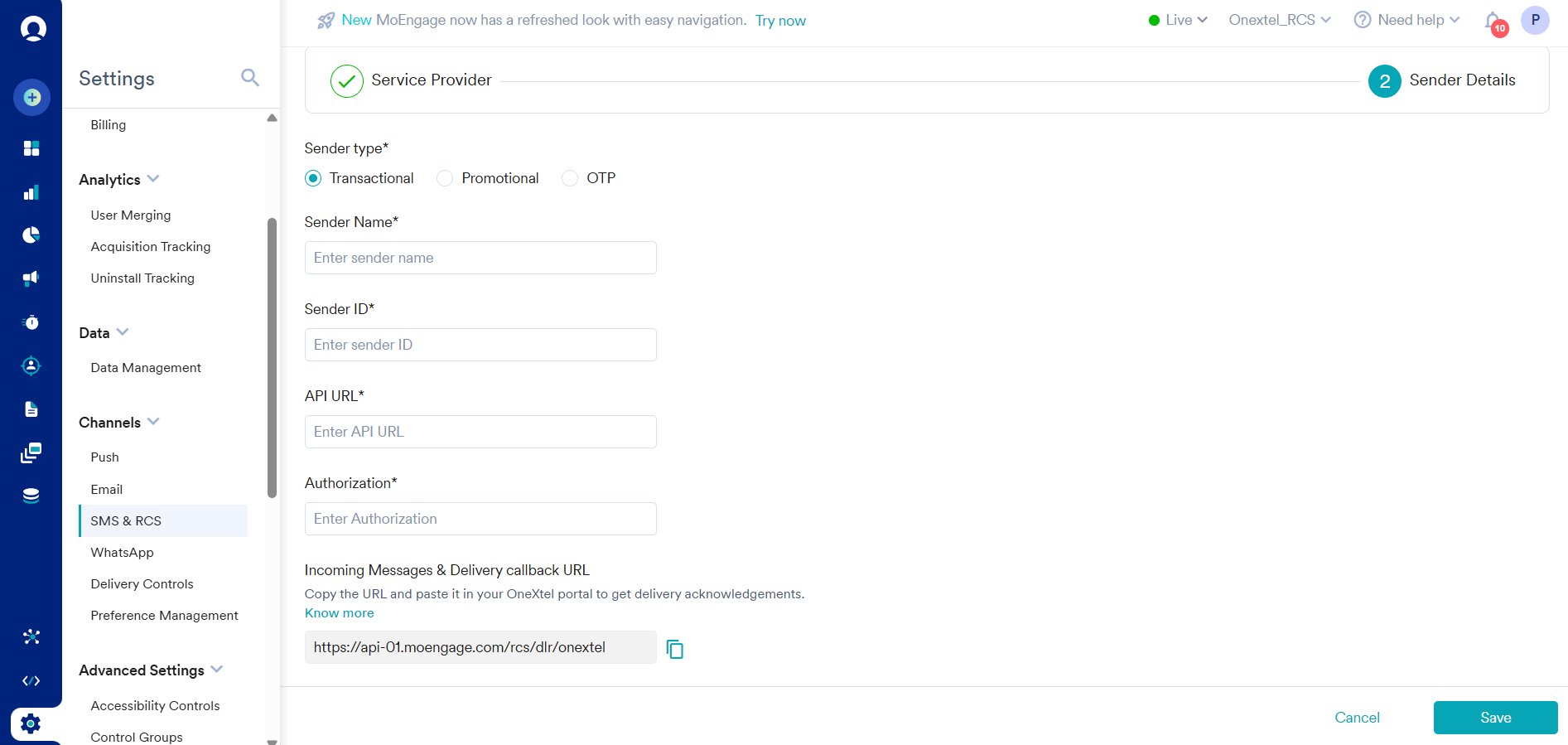 MoEngage's **Sender type** list offers a third option, OTP. RCS supports Promotional and
Transactional only — do not create an OTP sender.
Both **Sender Name** and **Sender ID** must carry the message type as an underscore suffix:
```
Name_Promotional SenderID_Promotional
Name_Transactional SenderID_Transactional
```
**Create one sender per message type.** RCS templates in OneXtel are retrieved per message
category, so you need a separate RCS sender for each message type you send — Promotional
and Transactional. Each sender carries only the templates of its own type, which is why the
type is encoded in the sender name.
**Sender ID** accepts either a single sender profile or a **pool**. A pool groups several
sender profiles so OneXtel can distribute traffic across them.
If you use a pool, **only templates assigned to that pool are available to it.** Choosing
a template that belongs to a different profile leaves the send with nothing to resolve
against. Check which templates the pool carries before you build the campaign — see
[Sender profiles](/guides/rcs-platform/sender-profiles).
MoEngage's **Sender type** list offers a third option, OTP. RCS supports Promotional and
Transactional only — do not create an OTP sender.
Both **Sender Name** and **Sender ID** must carry the message type as an underscore suffix:
```
Name_Promotional SenderID_Promotional
Name_Transactional SenderID_Transactional
```
**Create one sender per message type.** RCS templates in OneXtel are retrieved per message
category, so you need a separate RCS sender for each message type you send — Promotional
and Transactional. Each sender carries only the templates of its own type, which is why the
type is encoded in the sender name.
**Sender ID** accepts either a single sender profile or a **pool**. A pool groups several
sender profiles so OneXtel can distribute traffic across them.
If you use a pool, **only templates assigned to that pool are available to it.** Choosing
a template that belongs to a different profile leaves the send with nothing to resolve
against. Check which templates the pool carries before you build the campaign — see
[Sender profiles](/guides/rcs-platform/sender-profiles).
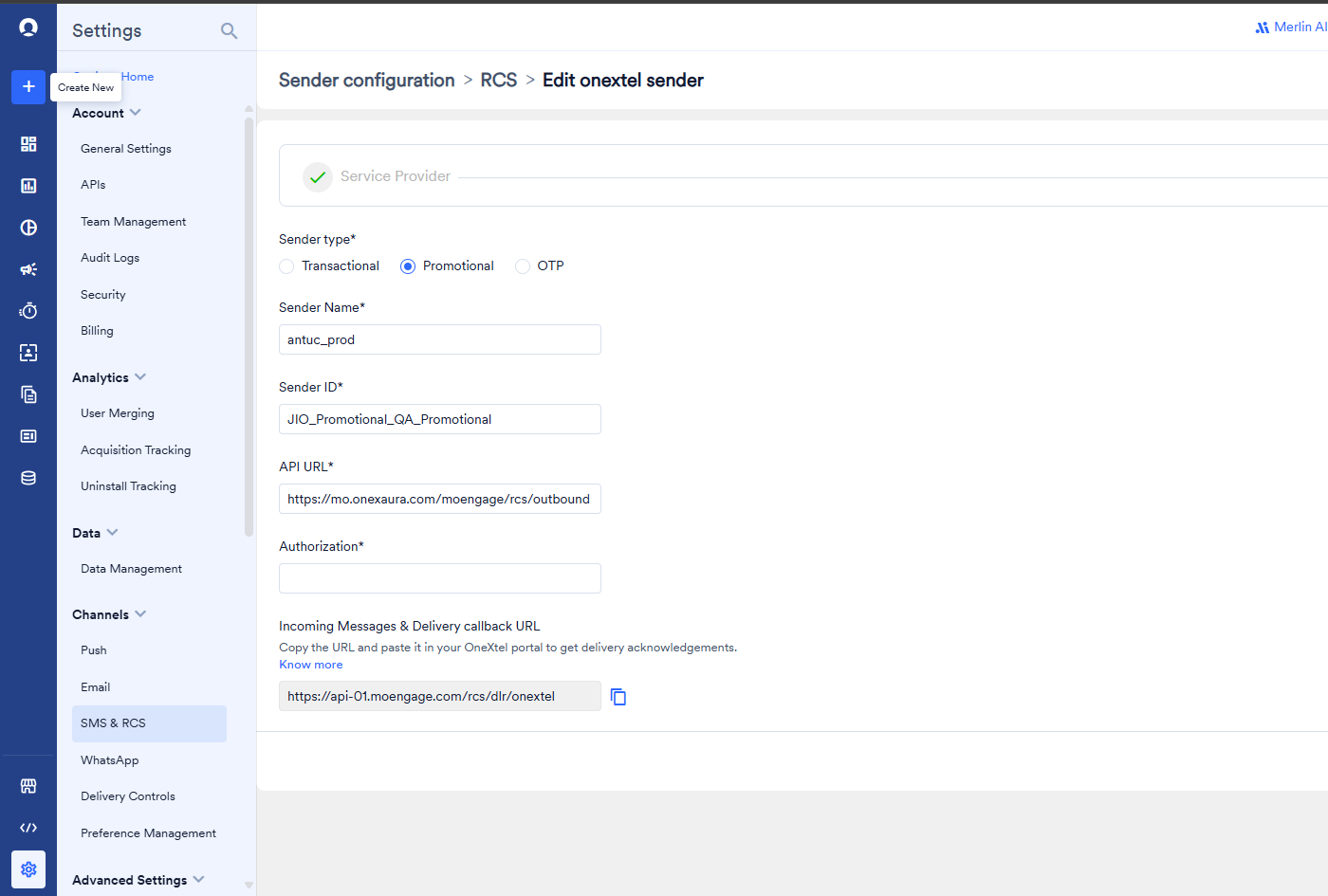 Save the sender. MoEngage then shows an **Incoming Messages & Delivery callback URL** —
copy it, you paste it into OneXtel in
[Part D](#part-d--configure-the-callbacks-before-you-send).
**Copy this URL from your own provider screen. Do not retype it, and do not take it from
a screenshot or another account's setup.** The host depends on which MoEngage region your
account runs in — `api-01`, `api-02`, and so on. The screenshots in this guide show one
region's host, which will not be yours unless you happen to share it. A wrong region is
accepted at save time and then silently never delivers a report.
**Your host matches your dashboard.** MoEngage runs six data centres, `DC-01` to `DC-06`,
and each pairs `dashboard-0N.moengage.com` with `api-0N.moengage.com`. An account that
signs in at `dashboard-03` has its callback URLs on `api-03`.
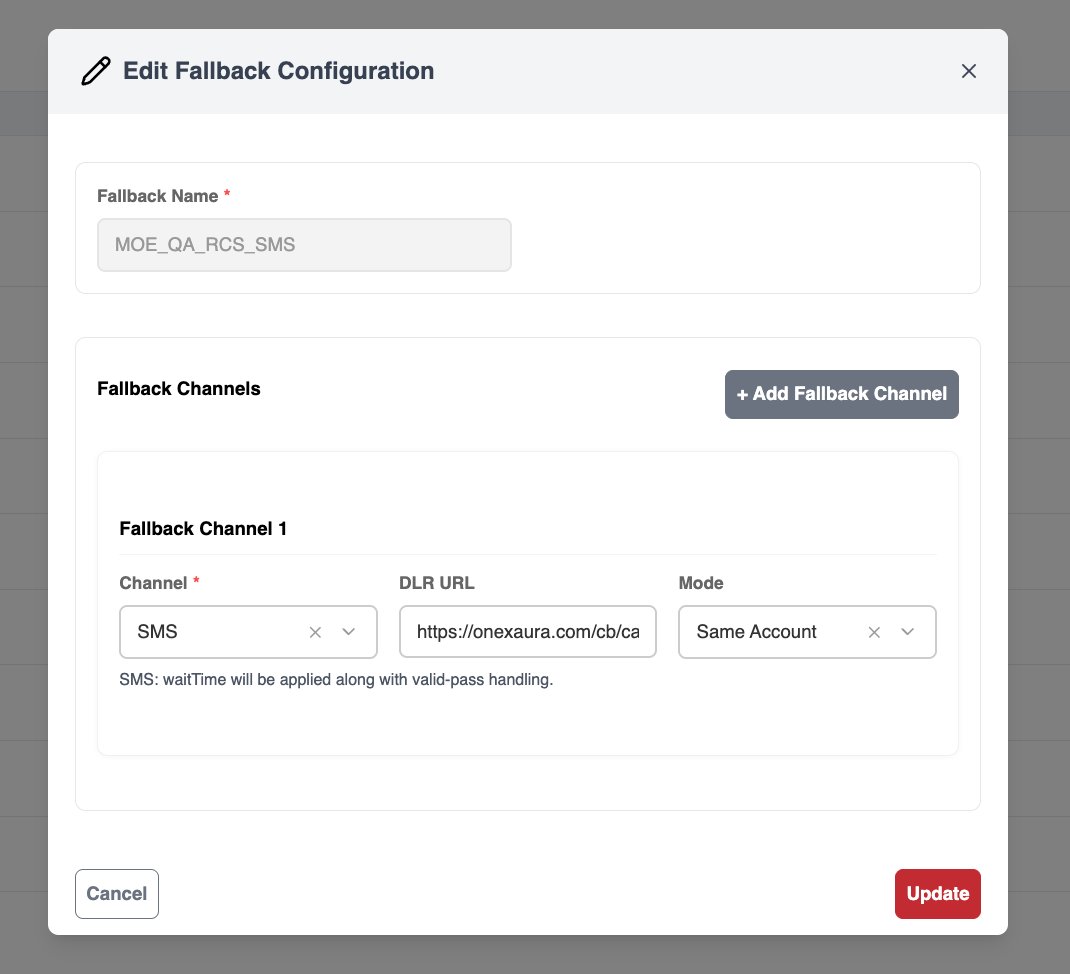
Go to the **Fallback** module, create a new configuration and give it a name. Add **one**
fallback channel, **SMS**, with **Mode** `Same Account`. Leave its **DLR URL** at the default:
the SMS receipt then follows the SMS callback on your API key ([Part D](#part-d--configure-the-callbacks-before-you-send)).
Save.
**List only SMS.** RCS is already the primary channel, so do not add RCS as a fallback
channel. A configuration with RCS first and SMS second never reaches the SMS step: the
failed RCS messages are marked failed and no SMS is sent, with no error anywhere.
OneXtel generates a **Fallback ID** — copy it, you need it in the next step.
Save the sender. MoEngage then shows an **Incoming Messages & Delivery callback URL** —
copy it, you paste it into OneXtel in
[Part D](#part-d--configure-the-callbacks-before-you-send).
**Copy this URL from your own provider screen. Do not retype it, and do not take it from
a screenshot or another account's setup.** The host depends on which MoEngage region your
account runs in — `api-01`, `api-02`, and so on. The screenshots in this guide show one
region's host, which will not be yours unless you happen to share it. A wrong region is
accepted at save time and then silently never delivers a report.
**Your host matches your dashboard.** MoEngage runs six data centres, `DC-01` to `DC-06`,
and each pairs `dashboard-0N.moengage.com` with `api-0N.moengage.com`. An account that
signs in at `dashboard-03` has its callback URLs on `api-03`.
Go to the **Fallback** module, create a new configuration and give it a name. Add **one**
fallback channel, **SMS**, with **Mode** `Same Account`. Leave its **DLR URL** at the default:
the SMS receipt then follows the SMS callback on your API key ([Part D](#part-d--configure-the-callbacks-before-you-send)).
Save.
**List only SMS.** RCS is already the primary channel, so do not add RCS as a fallback
channel. A configuration with RCS first and SMS second never reaches the SMS step: the
failed RCS messages are marked failed and no SMS is sent, with no error anywhere.
OneXtel generates a **Fallback ID** — copy it, you need it in the next step.
 The MoEngage RCS sender form has no fields for delivery or fallback settings, so everything
beyond the API key is packed into its **Authorization** field as tilde-separated values. Use
the shortest form that covers what you need:
| You want | Authorization value |
| - | - |
| RCS only | `` |
| RCS only, with a TTL | `~` |
| RCS with SMS fallback | `~~~~` |
The fallback values are only needed when you want SMS fallback. Without it,
`~` is enough.
For example, with SMS fallback:
```
QkLuVxXI~60s~0004d861-8a30-47c3-90d4-c06eb391ec3a~90~1101234567890123456
```
| Value | What it is |
| - | - |
| `apikey` | The API key already configured for this provider |
| `ttl_Seconds` | How long operators keep trying to deliver the RCS message, in seconds **with the `s` suffix** — for example `60s`. After this the message is marked failed. With fallback, see [Choosing TTL and wait time](#choosing-ttl-and-wait-time) |
| `smsFallbackId` | The Fallback ID from the previous step |
| `fallbackWaitTime_seconds` | How long OneXtel waits for an RCS delivery or failure report before sending the SMS, in seconds **as a plain number** — for example `90`. Defaults to `30` if missing or not numeric |
| `dltEntityId` | The DLT principal entity ID the fallback SMS is registered under. Leave it off when template auto-match is enabled on the API key — see [Template ID and entity ID](#template-id-and-entity-id) |
**Why the entity ID goes here.** MoEngage sends an RCS campaign's fallback SMS inside the
RCS request, and that request carries only the SMS sender, message, and DLT template ID.
The request body you set on the SMS custom service provider, including its `entityid`, is
not used for RCS fallback, and the RCS sender form has no other field that could carry it.
With fallback, the values must be in this order, separated by `~`. There is no separate
fallback section in the MoEngage form — this single field is the whole configuration, so a
missing value or a wrong separator disables fallback silently. Only the last value, the
entity ID, can be left off.
**Template ID and entity ID.** DLT-registered SMS in India needs both a template ID and an
entity ID. You can leave both out only when **template auto-match** is enabled on your OneXtel
API key: OneXtel then matches the SMS content against your registered DLT templates and fills
in both IDs. In that case, drop the entity ID from the Authorization value and leave the SMS
template ID empty in the campaign. Without auto-match, pass both, or the fallback SMS is
rejected. Ask OneXtel support to enable auto-match for the API key.
**Choosing TTL and wait time.** The two clocks start together at send time and do different
jobs: TTL is the operator's deadline to deliver the RCS message, and wait time is how long
OneXtel waits for a delivery report before it sends the SMS. Fallback fires when the wait time
runs out without a delivery report.
| Setting | Example | What happens |
| - | - | - |
| TTL longer than wait time | `90s` TTL, `60` wait | **The wait time overrides the TTL.** The RCS attempt ends when fallback fires at 60 seconds, so the recipient does not get both the RCS message and the SMS |
| TTL at or below wait time | `30s` TTL, `60` wait | The RCS attempt stops at 30 seconds, but fallback still waits the full 60 seconds before the SMS goes out. The recipient waits for the whole wait time |
With fallback, set the wait time to how long you are willing to wait for RCS. A TTL longer
than that has no effect. See [Fallback overview](/guides/omnichannel/fallback-overview#ttl-time-to-live).
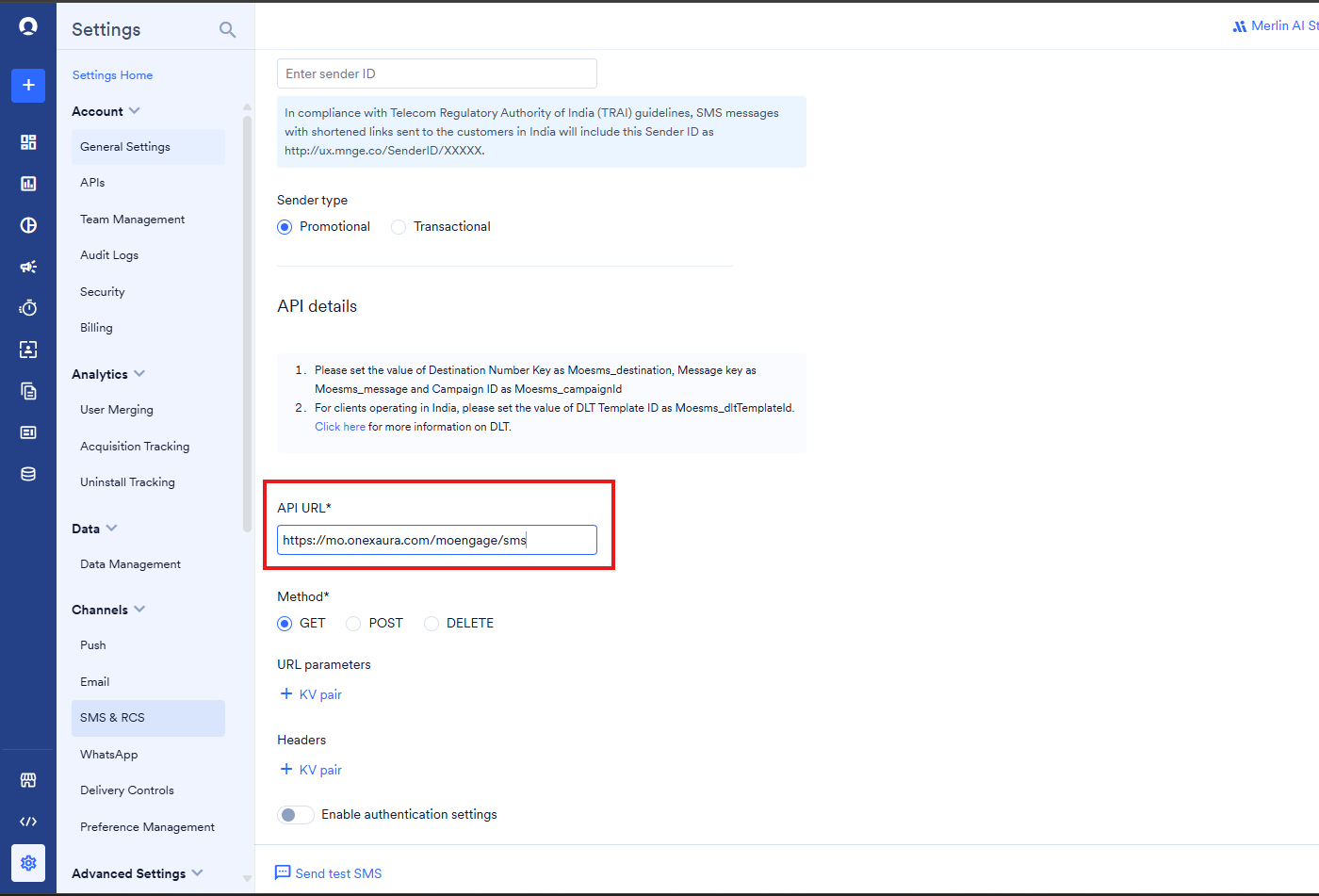
The campaign's **Use SMS as fallback** option lists SMS senders from a separate MoEngage
provider, so one must exist. Go to **Settings → SMS & RCS**, open the **SMS** tab, and click
**Add Custom Service Provider**.
For RCS fallback, MoEngage does not call this provider or use its request body. The fallback
SMS travels inside the RCS request, which is why its entity ID goes in the
[RCS sender Authorization value](#authorization-value). The request body below applies to
plain SMS campaigns sent through this provider.
Give it a name, and set **Sender Name** and **Sender ID** to match the values configured in
OneXtel — the Sender ID must match exactly. Then set the API URL:
```
https://mo.onexaura.com/moengage/sms/outbound
```
The MoEngage RCS sender form has no fields for delivery or fallback settings, so everything
beyond the API key is packed into its **Authorization** field as tilde-separated values. Use
the shortest form that covers what you need:
| You want | Authorization value |
| - | - |
| RCS only | `` |
| RCS only, with a TTL | `~` |
| RCS with SMS fallback | `~~~~` |
The fallback values are only needed when you want SMS fallback. Without it,
`~` is enough.
For example, with SMS fallback:
```
QkLuVxXI~60s~0004d861-8a30-47c3-90d4-c06eb391ec3a~90~1101234567890123456
```
| Value | What it is |
| - | - |
| `apikey` | The API key already configured for this provider |
| `ttl_Seconds` | How long operators keep trying to deliver the RCS message, in seconds **with the `s` suffix** — for example `60s`. After this the message is marked failed. With fallback, see [Choosing TTL and wait time](#choosing-ttl-and-wait-time) |
| `smsFallbackId` | The Fallback ID from the previous step |
| `fallbackWaitTime_seconds` | How long OneXtel waits for an RCS delivery or failure report before sending the SMS, in seconds **as a plain number** — for example `90`. Defaults to `30` if missing or not numeric |
| `dltEntityId` | The DLT principal entity ID the fallback SMS is registered under. Leave it off when template auto-match is enabled on the API key — see [Template ID and entity ID](#template-id-and-entity-id) |
**Why the entity ID goes here.** MoEngage sends an RCS campaign's fallback SMS inside the
RCS request, and that request carries only the SMS sender, message, and DLT template ID.
The request body you set on the SMS custom service provider, including its `entityid`, is
not used for RCS fallback, and the RCS sender form has no other field that could carry it.
With fallback, the values must be in this order, separated by `~`. There is no separate
fallback section in the MoEngage form — this single field is the whole configuration, so a
missing value or a wrong separator disables fallback silently. Only the last value, the
entity ID, can be left off.
**Template ID and entity ID.** DLT-registered SMS in India needs both a template ID and an
entity ID. You can leave both out only when **template auto-match** is enabled on your OneXtel
API key: OneXtel then matches the SMS content against your registered DLT templates and fills
in both IDs. In that case, drop the entity ID from the Authorization value and leave the SMS
template ID empty in the campaign. Without auto-match, pass both, or the fallback SMS is
rejected. Ask OneXtel support to enable auto-match for the API key.
**Choosing TTL and wait time.** The two clocks start together at send time and do different
jobs: TTL is the operator's deadline to deliver the RCS message, and wait time is how long
OneXtel waits for a delivery report before it sends the SMS. Fallback fires when the wait time
runs out without a delivery report.
| Setting | Example | What happens |
| - | - | - |
| TTL longer than wait time | `90s` TTL, `60` wait | **The wait time overrides the TTL.** The RCS attempt ends when fallback fires at 60 seconds, so the recipient does not get both the RCS message and the SMS |
| TTL at or below wait time | `30s` TTL, `60` wait | The RCS attempt stops at 30 seconds, but fallback still waits the full 60 seconds before the SMS goes out. The recipient waits for the whole wait time |
With fallback, set the wait time to how long you are willing to wait for RCS. A TTL longer
than that has no effect. See [Fallback overview](/guides/omnichannel/fallback-overview#ttl-time-to-live).
The campaign's **Use SMS as fallback** option lists SMS senders from a separate MoEngage
provider, so one must exist. Go to **Settings → SMS & RCS**, open the **SMS** tab, and click
**Add Custom Service Provider**.
For RCS fallback, MoEngage does not call this provider or use its request body. The fallback
SMS travels inside the RCS request, which is why its entity ID goes in the
[RCS sender Authorization value](#authorization-value). The request body below applies to
plain SMS campaigns sent through this provider.
Give it a name, and set **Sender Name** and **Sender ID** to match the values configured in
OneXtel — the Sender ID must match exactly. Then set the API URL:
```
https://mo.onexaura.com/moengage/sms/outbound
```
 Set **Method** to `POST`, **Body type** to `Raw`, and paste:
```json theme={null}
{
"key": "YOUR_API_KEY",
"from": "YOUR_SENDER_ID",
"to": "Moesms_destination",
"body": "Moesms_message",
"templateid": "Moesms_dltTemplateId",
"entityid": "YOUR_DLT_ENTITY_ID"
}
```
The `Moesms_` values are MoEngage macros and must be left exactly as written — MoEngage
substitutes them at send time. Replace `from` with your OneXtel sender ID, and `entityid`
with your DLT entity ID.
If template auto-match is enabled on the API key, you can remove the `templateid` and
`entityid` lines. OneXtel then matches the message content to your registered DLT template
instead.
Set **Method** to `POST`, **Body type** to `Raw`, and paste:
```json theme={null}
{
"key": "YOUR_API_KEY",
"from": "YOUR_SENDER_ID",
"to": "Moesms_destination",
"body": "Moesms_message",
"templateid": "Moesms_dltTemplateId",
"entityid": "YOUR_DLT_ENTITY_ID"
}
```
The `Moesms_` values are MoEngage macros and must be left exactly as written — MoEngage
substitutes them at send time. Replace `from` with your OneXtel sender ID, and `entityid`
with your DLT entity ID.
If template auto-match is enabled on the API key, you can remove the `templateid` and
`entityid` lines. OneXtel then matches the message content to your registered DLT template
instead.
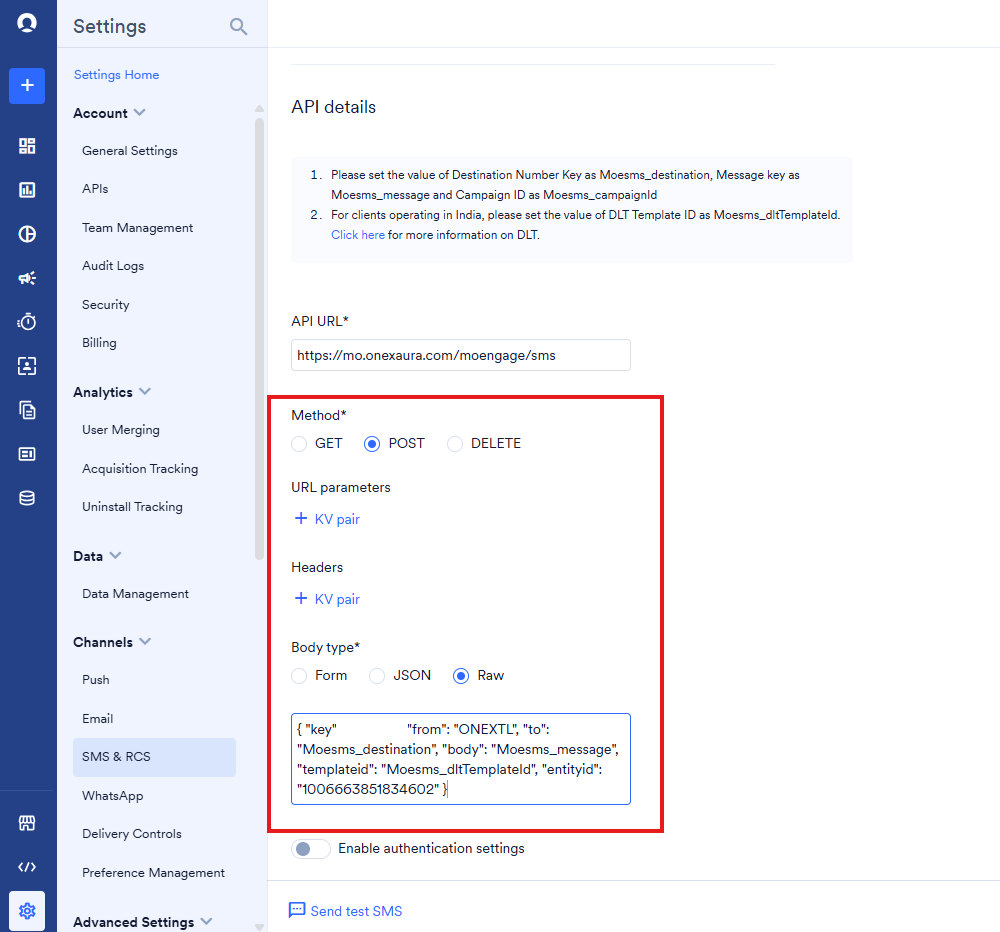 Save.
### Part B — Create templates in MoEngage
Templates are built in OneXtel and recreated in MoEngage. Create the MoEngage template by
selecting the matching **Provider** and **Sender ID**, then copy the message body across from
the OneXtel dashboard.
**The two platforms use different placeholder syntax.** OneXtel wraps parameters in square
brackets; MoEngage wraps them in double curly braces. Copying a body across unchanged leaves the
placeholders unsubstituted, and the message goes out with literal `[custom_param]` text in it.
```text OneXtel theme={null}
Your money transfer of Rs. [custom_param] was successfully completed.
Transaction ID: [custom_param1]. Thank you for using our service.
```
```text MoEngage theme={null}
Your money transfer of Rs. {{custom_param}} was successfully completed.
Transaction ID: {{custom_param1}}. Thank you for using our service.
```
Apply the same conversion to every parameter in the template.
### Part C — Build the campaign
Create or open the campaign in MoEngage and select your OneXtel RCS sender. Under
**Select template**, choose the template you created in Part B. If the template has
placeholders, MoEngage shows a field for each — fill them, using MoEngage personalization
where the value varies per recipient. Media URLs can be personalised the same way.
Fallback is switched on per campaign, not globally. Tick **Use SMS as fallback**, then
choose the SMS sender you created in Part A and enter the SMS template and message content.
The DLT template ID can be left empty only if template auto-match is enabled on the API key.
Save.
### Part B — Create templates in MoEngage
Templates are built in OneXtel and recreated in MoEngage. Create the MoEngage template by
selecting the matching **Provider** and **Sender ID**, then copy the message body across from
the OneXtel dashboard.
**The two platforms use different placeholder syntax.** OneXtel wraps parameters in square
brackets; MoEngage wraps them in double curly braces. Copying a body across unchanged leaves the
placeholders unsubstituted, and the message goes out with literal `[custom_param]` text in it.
```text OneXtel theme={null}
Your money transfer of Rs. [custom_param] was successfully completed.
Transaction ID: [custom_param1]. Thank you for using our service.
```
```text MoEngage theme={null}
Your money transfer of Rs. {{custom_param}} was successfully completed.
Transaction ID: {{custom_param1}}. Thank you for using our service.
```
Apply the same conversion to every parameter in the template.
### Part C — Build the campaign
Create or open the campaign in MoEngage and select your OneXtel RCS sender. Under
**Select template**, choose the template you created in Part B. If the template has
placeholders, MoEngage shows a field for each — fill them, using MoEngage personalization
where the value varies per recipient. Media URLs can be personalised the same way.
Fallback is switched on per campaign, not globally. Tick **Use SMS as fallback**, then
choose the SMS sender you created in Part A and enter the SMS template and message content.
The DLT template ID can be left empty only if template auto-match is enabled on the API key.
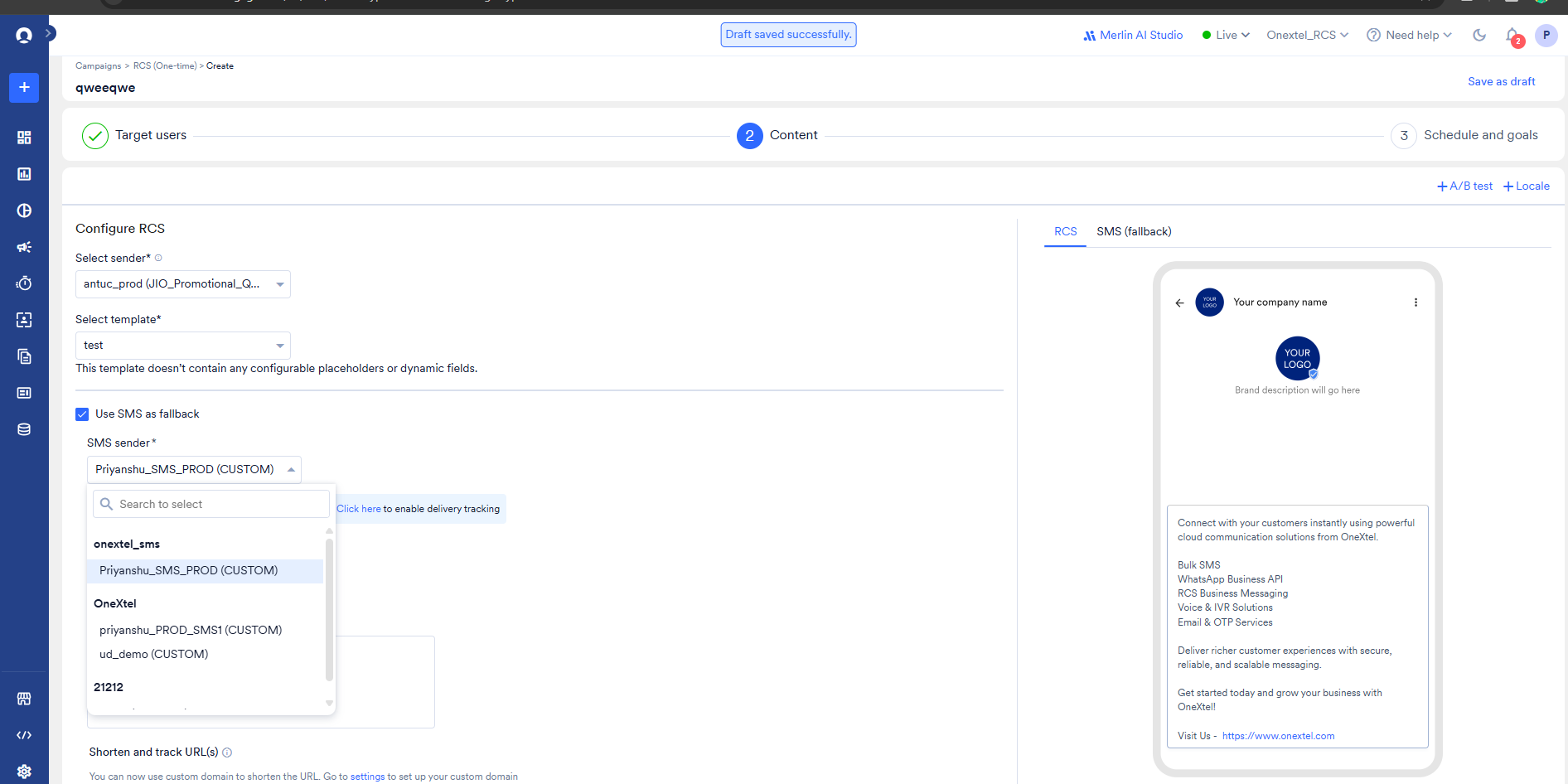 Save the campaign, but do not launch it until the callbacks in Part D are in place —
otherwise the delivery reports and button clicks from the first send never reach MoEngage.
### Part D — Configure the callbacks before you send
Before you launch, create the callbacks in OneXtel that carry delivery reports and button clicks
back to MoEngage. Each uses the **same API key** you entered in the MoEngage sender — callbacks are
set per API key, so a sender on a different key does not pick them up.
In OneXtel, go to **Configuration → Add New Callback**. Give it a title, set **Channel** to
`RCS` and **Callback Format Type** to `MoEngage`, and select the **same API key** you used
in MoEngage.
Under **Request Configuration**, set **Type** to `Delivery Notification` and **HTTP Method**
to `POST`, and enter this URL:
```
https://mo.onexaura.com/moengage/rcs/dlr
```
In the **Header** section, add the key `callback` with the MoEngage callback URL you copied in
Part A as its value — the URL alone. Save.
Do not paste the MoEngage URL into **Callback URL** directly. The report would bypass the
connector, and you would have no record of what OneXtel sent.
Save the campaign, but do not launch it until the callbacks in Part D are in place —
otherwise the delivery reports and button clicks from the first send never reach MoEngage.
### Part D — Configure the callbacks before you send
Before you launch, create the callbacks in OneXtel that carry delivery reports and button clicks
back to MoEngage. Each uses the **same API key** you entered in the MoEngage sender — callbacks are
set per API key, so a sender on a different key does not pick them up.
In OneXtel, go to **Configuration → Add New Callback**. Give it a title, set **Channel** to
`RCS` and **Callback Format Type** to `MoEngage`, and select the **same API key** you used
in MoEngage.
Under **Request Configuration**, set **Type** to `Delivery Notification` and **HTTP Method**
to `POST`, and enter this URL:
```
https://mo.onexaura.com/moengage/rcs/dlr
```
In the **Header** section, add the key `callback` with the MoEngage callback URL you copied in
Part A as its value — the URL alone. Save.
Do not paste the MoEngage URL into **Callback URL** directly. The report would bypass the
connector, and you would have no record of what OneXtel sent.

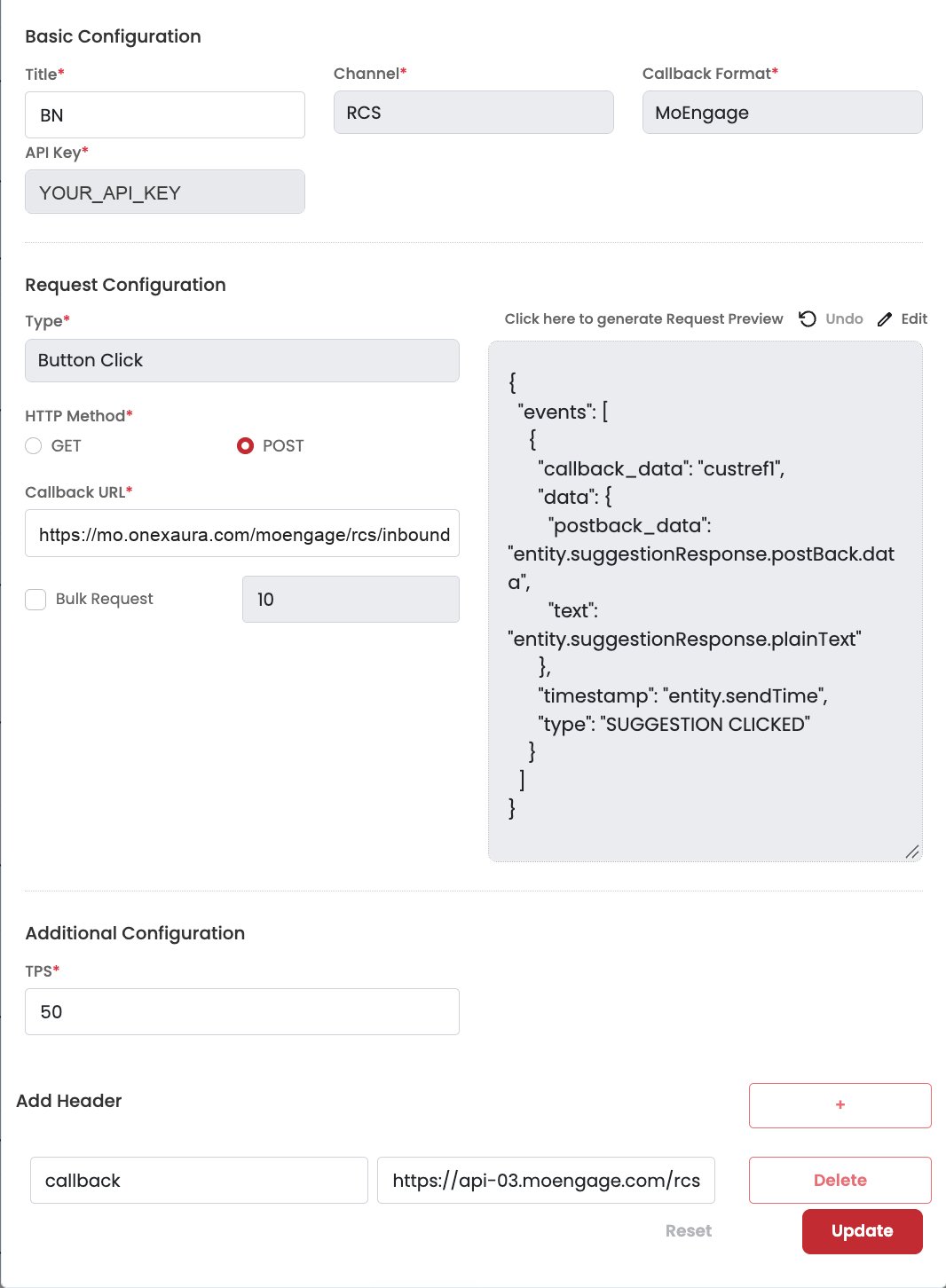
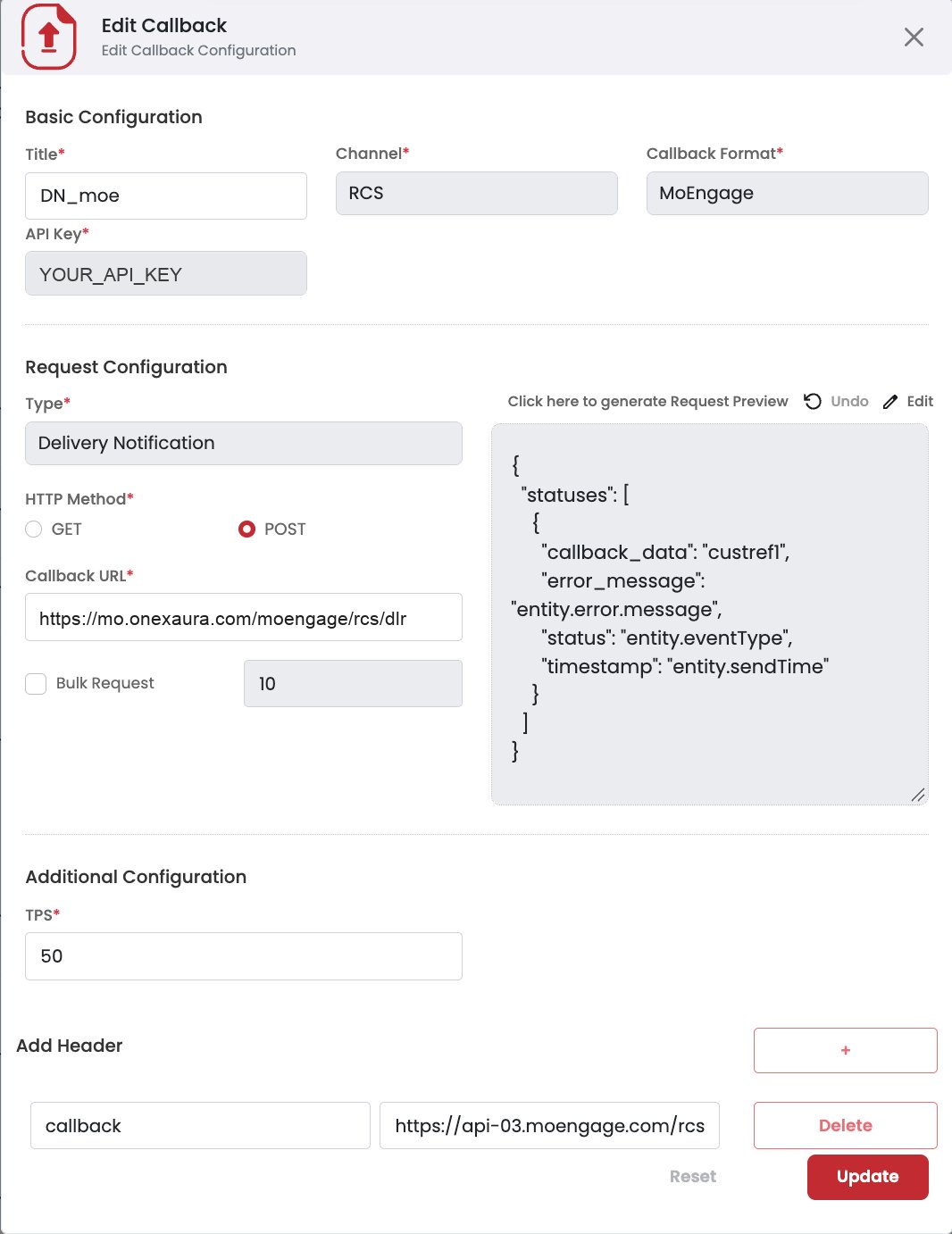 Add a second callback with the same channel, format type, and API key. Set **Type** to
`Button click` and **HTTP Method** to `POST`, and enter this URL:
```
https://mo.onexaura.com/moengage/rcs/inbound
```
In the **Header** section, add the key `callback` with your MoEngage DLR URL as the value —
the same region-specific URL you copied from the sender screen, not one typed from this
page.
Add a second callback with the same channel, format type, and API key. Set **Type** to
`Button click` and **HTTP Method** to `POST`, and enter this URL:
```
https://mo.onexaura.com/moengage/rcs/inbound
```
In the **Header** section, add the key `callback` with your MoEngage DLR URL as the value —
the same region-specific URL you copied from the sender screen, not one typed from this
page.
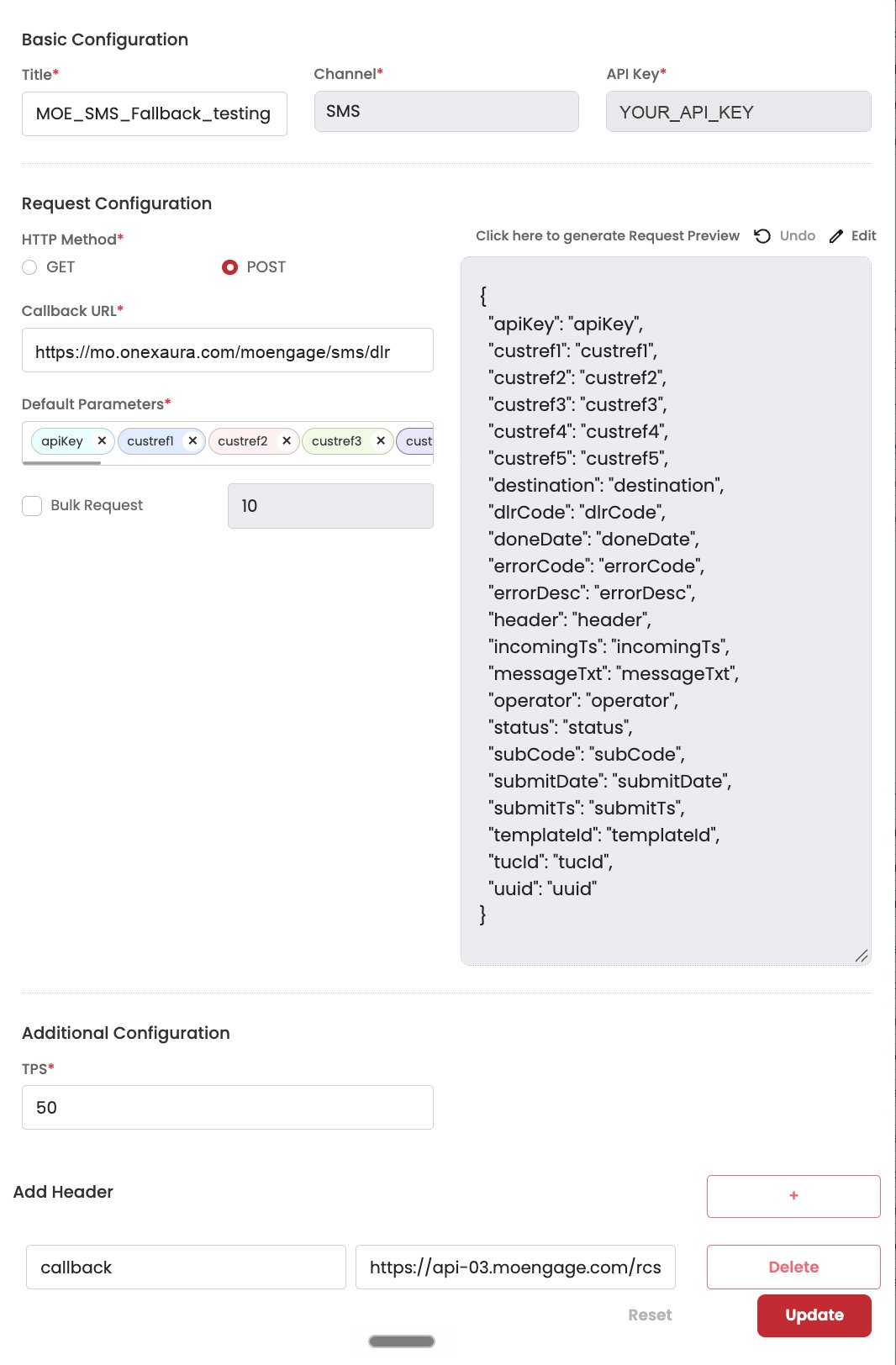
 Add a callback with **Channel** `SMS`, the **same API key** and **HTTP Method** `POST`. The SMS
callback form has no Callback Format field; it lists **Default Parameters** instead. The
connector translates OneXtel's SMS receipt into MoEngage's format:
| Field | Value |
| - | - |
| Callback URL | `https://mo.onexaura.com/moengage/sms/dlr` |
| Default Parameters | keep the defaults, and make sure **`custref1`** is included |
| Header | key `callback`, value = the **RCS** callback URL from the RCS sender screen (Part A) |
`custref1` carries the reference of the RCS message the SMS replaced. Without it the connector
cannot tell a fallback receipt from a plain SMS one, and the report never reaches the RCS
campaign.
Add a callback with **Channel** `SMS`, the **same API key** and **HTTP Method** `POST`. The SMS
callback form has no Callback Format field; it lists **Default Parameters** instead. The
connector translates OneXtel's SMS receipt into MoEngage's format:
| Field | Value |
| - | - |
| Callback URL | `https://mo.onexaura.com/moengage/sms/dlr` |
| Default Parameters | keep the defaults, and make sure **`custref1`** is included |
| Header | key `callback`, value = the **RCS** callback URL from the RCS sender screen (Part A) |
`custref1` carries the reference of the RCS message the SMS replaced. Without it the connector
cannot tell a fallback receipt from a plain SMS one, and the report never reaches the RCS
campaign.
 A fallback SMS is reported on MoEngage's RCS contract, against the RCS message it replaced, so
the header must carry the RCS callback URL — not the SMS provider's. The connector recognises a
fallback receipt by the reference it attached at send time and reports it as `SMS_DELIVERED`
or `SMS_DELIVERY_FAILED`.
Plain SMS campaigns need the **SMS provider's** URL in this same header. Because callbacks are
set per API key, use **separate API keys** for RCS-with-fallback and for plain SMS campaigns.
The header key differs by channel — WhatsApp uses `callback_url`; RCS and SMS use `callback`.
Put the URL alone in the value, not `callback = …`.
Using the wrong key silently breaks callback routing.
### Part E — Test, then launch
A fallback that is misconfigured does not stop the RCS send, so a successful campaign tells you
nothing about whether fallback works. Test each path separately before you launch:
Send the campaign as a test message to a device you control.
The RCS message is delivered, and its delivery report reaches MoEngage.
The SMS fallback actually fires and arrives.
Once both check out, launch the campaign to your full audience.
**Allow about an hour before judging the dashboard.** MoEngage's campaign stats lag behind the
reports it receives. In testing, fallback SMS sent and delivered counts appeared about an hour
after the receipts were forwarded, while the campaign showed zero until then.
**Test sends that never go out.** MoEngage applies the workspace's frequency cap to test
campaigns too. After a few sends in a day, test users are silently removed and the campaign shows
nothing sent; the campaign's delivery funnel shows them dropping out at **Users After FC
Removal**. Tick **Ignore frequency capping** on test campaigns, and leave **Count for the frequency
capping** off.
Plain SMS campaigns use a MoEngage **custom service provider** that points at the connector.
Delivery reports come back through the connector too, which maps OneXtel's code onto MoEngage's
SMS error codes.
If you already set up RCS with SMS fallback, you created this provider in the RCS tab. Check its
request body against Part A below — plain SMS campaigns use it.
| Part | What you do | Where |
| - | - | - |
| [A](#part-a--add-onextel-as-an-sms-provider) | Add OneXtel as an SMS provider, with its request body and response settings | MoEngage |
| [B](#part-b--configure-the-sms-delivery-callback) | Configure the delivery callback | OneXtel |
| [C](#part-c--build-the-sms-campaign) | Build the campaign | MoEngage |
| [D](#part-d--send-a-test-sms-then-launch) | Test, then launch | Both |
### Part A — Add OneXtel as an SMS provider
In the OneXtel portal, go to **API** and click **Show API Key**. Use the key your DLT
sender and templates are registered under.
In MoEngage, go to **Settings → SMS & RCS**, open the **SMS** tab, and click
**Add Custom Service Provider**. Give it a name, and set **Sender Name** and **Sender ID** to
match the values configured in OneXtel — the Sender ID must match exactly. Then set the API
URL:
```
https://mo.onexaura.com/moengage/sms/outbound
```
Set **Method** to `POST`, **Body type** to `Raw`, and paste. MoEngage selects **Form** by
default, so change it before you paste:
```json theme={null}
{
"key": "YOUR_API_KEY",
"from": "YOUR_SENDER_ID",
"to": "Moesms_destination",
"body": "Moesms_message",
"templateid": "Moesms_dltTemplateId",
"entityid": "YOUR_DLT_ENTITY_ID"
}
```
The `Moesms_` values are MoEngage macros and must be left exactly as written — MoEngage
substitutes them at send time. Replace `key` with your API key, `from` with your OneXtel
sender ID, and `entityid` with your DLT entity ID.
You can add these optional fields to the same body:
| Field | Value | Notes |
| - | - | - |
| `type` | `SI`, `OTP` or `SE` | The DLT category your templates are registered under. Case-sensitive; defaults to `SI` |
| `unicode` | `"1"` | For messages with non-ASCII characters. Not detected for you |
| `campaignName` | `"Moesms_campaignId"` | Tags each SMS with the MoEngage campaign in OneXtel reporting |
| `urlTracking` | `"1"` | Turns click tracking on for this provider. Leave it out and your links are sent untouched |
**Keep every value in quotes.** A DLT ID of 19 digits sent as a bare number is rounded
before it arrives, so the connector refuses it with `7001` rather than send the wrong ID.
If template auto-match is enabled on the API key, you can remove the `templateid` and
`entityid` lines. OneXtel then matches the message content to your registered DLT template
instead.
The API key can go in an `apikey` header instead of the body, if your MoEngage form has a
headers section. When both are set, the body wins.
Click tracking is off by default. Your links are sent exactly as written unless you ask for
tracking. Add `"urlTracking": "1"` to the request body to turn it on: OneXtel then rewrites
every link in the SMS into its own short domain and counts the taps, which you see in OneXtel
reporting.
Tracking is opt-in because the rewrite has consequences under DLT. Once it is on, the
**OneXtel short domain** is the one that must be whitelisted on your DLT template, in place of
your own link domain — so switching it on without updating the template registration gets the
message rejected at scrubbing.
Values `"1"`, `"true"`, `"yes"` and `"on"` turn tracking on. Anything else, including a missing
or misspelled value, leaves your links untouched. RCS messages and RCS fallback SMS are never
shortened.
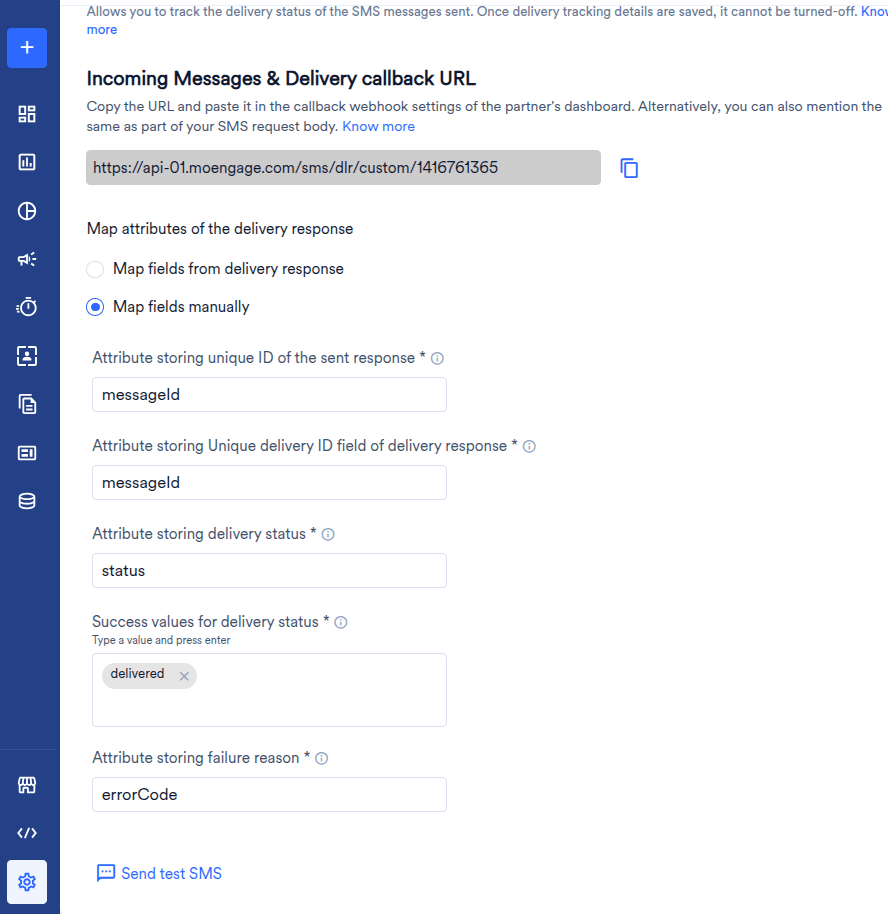
In the provider's delivery-tracking settings, map these attributes. MoEngage matches each
delivery report to its message through the two ID fields, so both must be `messageId`:
| MoEngage field | Value |
| - | - |
| Attribute storing unique ID of the sent response | `messageId` |
| Attribute storing Unique delivery ID field of delivery response | `messageId` |
| Attribute storing delivery status | `status` |
| Success values for delivery status | `delivered` |
| Attribute storing failure reason | `errorCode` |
A fallback SMS is reported on MoEngage's RCS contract, against the RCS message it replaced, so
the header must carry the RCS callback URL — not the SMS provider's. The connector recognises a
fallback receipt by the reference it attached at send time and reports it as `SMS_DELIVERED`
or `SMS_DELIVERY_FAILED`.
Plain SMS campaigns need the **SMS provider's** URL in this same header. Because callbacks are
set per API key, use **separate API keys** for RCS-with-fallback and for plain SMS campaigns.
The header key differs by channel — WhatsApp uses `callback_url`; RCS and SMS use `callback`.
Put the URL alone in the value, not `callback = …`.
Using the wrong key silently breaks callback routing.
### Part E — Test, then launch
A fallback that is misconfigured does not stop the RCS send, so a successful campaign tells you
nothing about whether fallback works. Test each path separately before you launch:
Send the campaign as a test message to a device you control.
The RCS message is delivered, and its delivery report reaches MoEngage.
The SMS fallback actually fires and arrives.
Once both check out, launch the campaign to your full audience.
**Allow about an hour before judging the dashboard.** MoEngage's campaign stats lag behind the
reports it receives. In testing, fallback SMS sent and delivered counts appeared about an hour
after the receipts were forwarded, while the campaign showed zero until then.
**Test sends that never go out.** MoEngage applies the workspace's frequency cap to test
campaigns too. After a few sends in a day, test users are silently removed and the campaign shows
nothing sent; the campaign's delivery funnel shows them dropping out at **Users After FC
Removal**. Tick **Ignore frequency capping** on test campaigns, and leave **Count for the frequency
capping** off.
Plain SMS campaigns use a MoEngage **custom service provider** that points at the connector.
Delivery reports come back through the connector too, which maps OneXtel's code onto MoEngage's
SMS error codes.
If you already set up RCS with SMS fallback, you created this provider in the RCS tab. Check its
request body against Part A below — plain SMS campaigns use it.
| Part | What you do | Where |
| - | - | - |
| [A](#part-a--add-onextel-as-an-sms-provider) | Add OneXtel as an SMS provider, with its request body and response settings | MoEngage |
| [B](#part-b--configure-the-sms-delivery-callback) | Configure the delivery callback | OneXtel |
| [C](#part-c--build-the-sms-campaign) | Build the campaign | MoEngage |
| [D](#part-d--send-a-test-sms-then-launch) | Test, then launch | Both |
### Part A — Add OneXtel as an SMS provider
In the OneXtel portal, go to **API** and click **Show API Key**. Use the key your DLT
sender and templates are registered under.
In MoEngage, go to **Settings → SMS & RCS**, open the **SMS** tab, and click
**Add Custom Service Provider**. Give it a name, and set **Sender Name** and **Sender ID** to
match the values configured in OneXtel — the Sender ID must match exactly. Then set the API
URL:
```
https://mo.onexaura.com/moengage/sms/outbound
```
Set **Method** to `POST`, **Body type** to `Raw`, and paste. MoEngage selects **Form** by
default, so change it before you paste:
```json theme={null}
{
"key": "YOUR_API_KEY",
"from": "YOUR_SENDER_ID",
"to": "Moesms_destination",
"body": "Moesms_message",
"templateid": "Moesms_dltTemplateId",
"entityid": "YOUR_DLT_ENTITY_ID"
}
```
The `Moesms_` values are MoEngage macros and must be left exactly as written — MoEngage
substitutes them at send time. Replace `key` with your API key, `from` with your OneXtel
sender ID, and `entityid` with your DLT entity ID.
You can add these optional fields to the same body:
| Field | Value | Notes |
| - | - | - |
| `type` | `SI`, `OTP` or `SE` | The DLT category your templates are registered under. Case-sensitive; defaults to `SI` |
| `unicode` | `"1"` | For messages with non-ASCII characters. Not detected for you |
| `campaignName` | `"Moesms_campaignId"` | Tags each SMS with the MoEngage campaign in OneXtel reporting |
| `urlTracking` | `"1"` | Turns click tracking on for this provider. Leave it out and your links are sent untouched |
**Keep every value in quotes.** A DLT ID of 19 digits sent as a bare number is rounded
before it arrives, so the connector refuses it with `7001` rather than send the wrong ID.
If template auto-match is enabled on the API key, you can remove the `templateid` and
`entityid` lines. OneXtel then matches the message content to your registered DLT template
instead.
The API key can go in an `apikey` header instead of the body, if your MoEngage form has a
headers section. When both are set, the body wins.
Click tracking is off by default. Your links are sent exactly as written unless you ask for
tracking. Add `"urlTracking": "1"` to the request body to turn it on: OneXtel then rewrites
every link in the SMS into its own short domain and counts the taps, which you see in OneXtel
reporting.
Tracking is opt-in because the rewrite has consequences under DLT. Once it is on, the
**OneXtel short domain** is the one that must be whitelisted on your DLT template, in place of
your own link domain — so switching it on without updating the template registration gets the
message rejected at scrubbing.
Values `"1"`, `"true"`, `"yes"` and `"on"` turn tracking on. Anything else, including a missing
or misspelled value, leaves your links untouched. RCS messages and RCS fallback SMS are never
shortened.
In the provider's delivery-tracking settings, map these attributes. MoEngage matches each
delivery report to its message through the two ID fields, so both must be `messageId`:
| MoEngage field | Value |
| - | - |
| Attribute storing unique ID of the sent response | `messageId` |
| Attribute storing Unique delivery ID field of delivery response | `messageId` |
| Attribute storing delivery status | `status` |
| Success values for delivery status | `delivered` |
| Attribute storing failure reason | `errorCode` |
 A send the connector or OneXtel refuses comes back as HTTP `401` or `400`, with `status` set to
`failure` and an `errorCode` from `7000` to `7004` — see [Error code mapping](#error-code-mapping).
Save the provider. MoEngage then shows its **SMS delivery tracking URL**, of the form
`https://api-0N.moengage.com/sms/dlr/custom/`. Copy it — you paste it into OneXtel in
[Part B](#part-b--configure-the-sms-delivery-callback).
**Copy this URL from your own provider screen.** The `api-0N` host matches the data centre
of your MoEngage dashboard, and the ID at the end belongs to the provider (connector): senders
under one connector share it, but another connector in the same workspace has a different ID.
A URL copied from another account or connector is accepted at save time and then silently
never credits a report.
### Part B — Configure the SMS delivery callback
In OneXtel, go to **Configuration → Add New Callback** and add a callback with the **same API
key** you put in the provider body:
| Field | Value |
| - | - |
| Channel | `SMS` |
| HTTP Method | `POST` |
| Callback URL | `https://mo.onexaura.com/moengage/sms/dlr` |
| Default Parameters | keep the defaults (`apiKey`, `custref1`–`custref5`, `destination`, `status`, `errorCode`, …) |
| Header | Key `callback`, value = the SMS delivery tracking URL from Part A, and nothing else |
The header carries MoEngage's own URL, so one connector can serve many MoEngage accounts.
**Without the `callback` header, your reports do not reach your MoEngage account.** Check the
header on this callback specifically, and never save it with an empty header row.
The header **value** is the URL alone, for example
`https://api-01.moengage.com/sms/dlr/custom/2612531631`. Do not type `callback = …` into the value
field. MoEngage answers every report with success, even one it cannot match, so a wrong value is
only visible as a Delivered count that stays at zero.
Do not share this API key with RCS-with-fallback campaigns. Their SMS delivery callback needs the
**RCS** callback URL in the same header, and OneXtel uses only one SMS delivery callback per key — see
the RCS tab, **Configure the SMS delivery callback (SMS fallback)**.
### Part C — Build the SMS campaign
Create an SMS campaign in MoEngage and select the OneXtel sender from Part A.
Enter the message exactly as registered on DLT, using MoEngage personalization for its
variables, and set the DLT template ID — MoEngage passes it as `Moesms_dltTemplateId`. It
can be left empty only if template auto-match is enabled on the API key.
Save the campaign, but do not launch it until the Part B callback is in place — otherwise
the delivery reports from the first send never reach MoEngage.
### Part D — Send a test SMS, then launch
Send the campaign as a test to a device you control. MoEngage's **Send test SMS** on the
provider screen works too.
The provider reply carries a `messageId`. A failure reply carries a `7000`–`7004` code
instead.
The SMS arrives, and its delivered status appears in the MoEngage campaign report. Reports
can take up to 15 minutes to show.
Once both check out, launch the campaign to your full audience.
The header key differs by channel — WhatsApp uses `callback_url`; RCS and SMS use `callback`.
Using the wrong one silently breaks callback routing.
## Error code mapping
MoEngage's SMS and WhatsApp providers use five failure codes. The connector returns them on send
replies, and — for SMS — on every delivery report:
| Code | MoEngage meaning |
| - | - |
| `7000` | Invalid credentials |
| `7001` | Invalid template parameters |
| `7002` | Invalid phone number |
| `7003` | Phone number not subscribed to receiving messages |
| `7004` | Any other error |
**Delivery reports**
WhatsApp delivery reports go straight from OneXtel to MoEngage, on the callback URL MoEngage
generated for your sender, without passing through the connector. For what a failure code means,
see [WhatsApp error codes](/api-reference/whatsapp/error-codes).
**Send replies**
| Situation | MoEngage code |
| - | - |
| No Authorization value on the sender | `7000` |
| `from` or `to` missing from the payload | `7002` |
| Message ID, template or template name missing from the payload | `7004` |
| OneXtel refused the request — including a rejected API key | `7004` |
**Delivery reports**
RCS delivery reports reach MoEngage on its RCS message-status contract, either straight from
OneXtel or through the connector's `/moengage/rcs/dlr`. Through the connector, a delivery is
`RCS_DELIVERED`, a read `RCS_READ`, a sent-only event `RCS_SENT` (never counted as delivered), and
a failure `RCS_DELIVERY_FAILED` with OneXtel's reason. For what an operator code means, see
[RCS error codes](/api-reference/rcs/error-codes). Button clicks go through the connector and reach
MoEngage as `SUGGESTION_CLICKED` events.
**Send replies**
RCS replies carry a status per message rather than a numbered code:
| Situation | Reply |
| - | - |
| Accepted | `SUCCESS` |
| No API key in the Authorization value | `FAILURE` — `Invalid credentials` |
| No messages in the payload | `FAILURE` — `Invalid payload` |
| OneXtel refused the request | `FAILURE` — with the HTTP error OneXtel returned |
The SMS leg of an RCS fallback reports through the SMS delivery callback and reaches MoEngage as
`SMS_DELIVERED` or `SMS_DELIVERY_FAILED` against the original RCS message.
**Delivery reports**
A report is `delivered` only when OneXtel's code is `000`. Every other code is reported as
`failed`, with a MoEngage code:
| MoEngage code | OneXtel codes | What they have in common |
| - | - | - |
| `7002` | `108`, `115`, `142`, `143`, `972` | The number is invalid or unknown |
| `7003` | `109`, `218`, `974`, `976`, `978` | The number is on DND or a blacklist |
| `7001` | `107`, `131`, `141`, `201`, `203`–`211`, `213`–`216`, `220`, `222`, `223`, `225`–`227`, `971`, `975`, `977`, `979`–`981`, `989` | Sender ID, DLT registration or content problems |
| `7000` | `990`–`993` | The sending account is disabled or expired |
| `7004` | Every other code — for example an absent handset, network congestion, expiry, `982` no balance or `987` credit limit | Anything else |
Interim receipts are not forwarded: `111` (delivery awaited), and the `SUBMITTED` receipt OneXtel
posts when it hands the SMS to the operator. MoEngage only ever sees the final report, so a
message still in flight is never counted as failed. For what each OneXtel
code means, see [India SMS error codes](/api-reference/sms/error-codes).
**Send replies**
Every accepted send gets HTTP `200` with `status: "success"` and a `messageId`. A refused send gets
HTTP `401` (code `7000`) or `400` (every other code), with `status: "failure"`, an `errorCode` and a
`description`:
| Situation | MoEngage code |
| - | - |
| No API key in the body or headers, or OneXtel rejected it | `7000` |
| `to` missing, or OneXtel rejected the recipient | `7002` |
| `from` or `body` missing; an invalid `type`; an ID sent as a bare number; or OneXtel rejected the template, entity or DLT details | `7001` |
| Any other rejection | `7004` |
`7003` is never returned on a send — only on a delivery report. OneXtel's own reason is always in
`description`.
MoEngage decides whether a send failed from the HTTP status alone. A refused send therefore appears
in the campaign report as a send failure named after the status, **Unauthorized** or **Bad
Request**. The `7000`–`7004` code and the description are in the reply body, not in MoEngage's
report.
## Limitations
**All channels**
* **Template name and template ID must both match exactly** between MoEngage and OneXtel. A
change to either on either side breaks the send.
* **Variable names must match the keys in the message payload.**
* **Callbacks time out after 5 seconds** and are retried up to three times. If MoEngage does
not acknowledge within that window, the callback is dropped rather than queued for later
redelivery.
- **Quick Reply or CTA, not both.** MoEngage does not support templates combining quick-reply
and call-to-action buttons.
- **Static button data is not included** in the MoEngage payload.
- **Click events are not available.** MoEngage exposes no API to receive them, so link clicks
cannot be written back into MoEngage reporting. Use
[OneXtel reporting](/guides/rcs-platform/reports-detail) for click data.
* **Inbound messages are not supported** by MoEngage. Suggestion interaction callbacks are
returned, but free-form customer replies cannot be surfaced in MoEngage.
* **Only template names and parameters are passed** to OneXtel — the template body itself is
resolved on the OneXtel side.
* **Audio and PDF are not supported** by MoEngage on RCS.
* **Carousel templates are not yet available** — see
[Coming soon](/plugins/overview#coming-soon).
* **Inbound SMS is not supported.** Replies to an SMS are not relayed to MoEngage.
* **India DLT traffic.** The connector sends to OneXtel's India platform. Numbers are passed as
MoEngage supplies them, so store them with the country code — `91XXXXXXXXXX`.
* **`unicode` is not detected for you.** Add it to the request body when your templates use
non-ASCII characters.
* **Delivery awaited is not reported.** MoEngage sees a message only once it has a final outcome.
* **Delivery reports go through the connector, never straight to MoEngage.** OneXtel posts each
receipt to `https://mo.onexaura.com/moengage/sms/dlr`, and the connector translates it and
forwards it to the MoEngage URL in the callback's `callback` header. A callback pointed at the
MoEngage URL directly is accepted by MoEngage but never matched to a message.
## Get support
If a campaign does not behave as this page describes, email
[omni.tech@onextel.com](mailto:omni.tech@onextel.com) with the plugin name (MoEngage), the
channel, and what you saw. To let OneXtel see exactly what MoEngage sent and what OneXtel
answered:
Support will give you a logging version of the connector URL for the affected channel.
In MoEngage, open the OneXtel sender and replace the **API URL** with the logging URL.
Nothing else changes.
Send the campaign to a small test audience.
Reply to support with the MoEngage campaign ID. OneXtel matches it against the logged
requests and responses and comes back with the exact cause.
Switch the API URL back to the normal connector URL once the issue is closed.
## Related
* [RCS API overview](/api-reference/rcs/overview)
* [RCS operator error codes](/api-reference/rcs/error-codes)
* [Configure fallback](/guides/omnichannel/configure-fallback)
* [India SMS error codes](/api-reference/sms/error-codes)
* [WhatsApp error codes](/api-reference/whatsapp/error-codes)
* [All plugins](/plugins/overview)
This documentation is built and hosted on [Mintlify](https://mintlify.com), a developer documentation platform.
A send the connector or OneXtel refuses comes back as HTTP `401` or `400`, with `status` set to
`failure` and an `errorCode` from `7000` to `7004` — see [Error code mapping](#error-code-mapping).
Save the provider. MoEngage then shows its **SMS delivery tracking URL**, of the form
`https://api-0N.moengage.com/sms/dlr/custom/`. Copy it — you paste it into OneXtel in
[Part B](#part-b--configure-the-sms-delivery-callback).
**Copy this URL from your own provider screen.** The `api-0N` host matches the data centre
of your MoEngage dashboard, and the ID at the end belongs to the provider (connector): senders
under one connector share it, but another connector in the same workspace has a different ID.
A URL copied from another account or connector is accepted at save time and then silently
never credits a report.
### Part B — Configure the SMS delivery callback
In OneXtel, go to **Configuration → Add New Callback** and add a callback with the **same API
key** you put in the provider body:
| Field | Value |
| - | - |
| Channel | `SMS` |
| HTTP Method | `POST` |
| Callback URL | `https://mo.onexaura.com/moengage/sms/dlr` |
| Default Parameters | keep the defaults (`apiKey`, `custref1`–`custref5`, `destination`, `status`, `errorCode`, …) |
| Header | Key `callback`, value = the SMS delivery tracking URL from Part A, and nothing else |
The header carries MoEngage's own URL, so one connector can serve many MoEngage accounts.
**Without the `callback` header, your reports do not reach your MoEngage account.** Check the
header on this callback specifically, and never save it with an empty header row.
The header **value** is the URL alone, for example
`https://api-01.moengage.com/sms/dlr/custom/2612531631`. Do not type `callback = …` into the value
field. MoEngage answers every report with success, even one it cannot match, so a wrong value is
only visible as a Delivered count that stays at zero.
Do not share this API key with RCS-with-fallback campaigns. Their SMS delivery callback needs the
**RCS** callback URL in the same header, and OneXtel uses only one SMS delivery callback per key — see
the RCS tab, **Configure the SMS delivery callback (SMS fallback)**.
### Part C — Build the SMS campaign
Create an SMS campaign in MoEngage and select the OneXtel sender from Part A.
Enter the message exactly as registered on DLT, using MoEngage personalization for its
variables, and set the DLT template ID — MoEngage passes it as `Moesms_dltTemplateId`. It
can be left empty only if template auto-match is enabled on the API key.
Save the campaign, but do not launch it until the Part B callback is in place — otherwise
the delivery reports from the first send never reach MoEngage.
### Part D — Send a test SMS, then launch
Send the campaign as a test to a device you control. MoEngage's **Send test SMS** on the
provider screen works too.
The provider reply carries a `messageId`. A failure reply carries a `7000`–`7004` code
instead.
The SMS arrives, and its delivered status appears in the MoEngage campaign report. Reports
can take up to 15 minutes to show.
Once both check out, launch the campaign to your full audience.
The header key differs by channel — WhatsApp uses `callback_url`; RCS and SMS use `callback`.
Using the wrong one silently breaks callback routing.
## Error code mapping
MoEngage's SMS and WhatsApp providers use five failure codes. The connector returns them on send
replies, and — for SMS — on every delivery report:
| Code | MoEngage meaning |
| - | - |
| `7000` | Invalid credentials |
| `7001` | Invalid template parameters |
| `7002` | Invalid phone number |
| `7003` | Phone number not subscribed to receiving messages |
| `7004` | Any other error |
**Delivery reports**
WhatsApp delivery reports go straight from OneXtel to MoEngage, on the callback URL MoEngage
generated for your sender, without passing through the connector. For what a failure code means,
see [WhatsApp error codes](/api-reference/whatsapp/error-codes).
**Send replies**
| Situation | MoEngage code |
| - | - |
| No Authorization value on the sender | `7000` |
| `from` or `to` missing from the payload | `7002` |
| Message ID, template or template name missing from the payload | `7004` |
| OneXtel refused the request — including a rejected API key | `7004` |
**Delivery reports**
RCS delivery reports reach MoEngage on its RCS message-status contract, either straight from
OneXtel or through the connector's `/moengage/rcs/dlr`. Through the connector, a delivery is
`RCS_DELIVERED`, a read `RCS_READ`, a sent-only event `RCS_SENT` (never counted as delivered), and
a failure `RCS_DELIVERY_FAILED` with OneXtel's reason. For what an operator code means, see
[RCS error codes](/api-reference/rcs/error-codes). Button clicks go through the connector and reach
MoEngage as `SUGGESTION_CLICKED` events.
**Send replies**
RCS replies carry a status per message rather than a numbered code:
| Situation | Reply |
| - | - |
| Accepted | `SUCCESS` |
| No API key in the Authorization value | `FAILURE` — `Invalid credentials` |
| No messages in the payload | `FAILURE` — `Invalid payload` |
| OneXtel refused the request | `FAILURE` — with the HTTP error OneXtel returned |
The SMS leg of an RCS fallback reports through the SMS delivery callback and reaches MoEngage as
`SMS_DELIVERED` or `SMS_DELIVERY_FAILED` against the original RCS message.
**Delivery reports**
A report is `delivered` only when OneXtel's code is `000`. Every other code is reported as
`failed`, with a MoEngage code:
| MoEngage code | OneXtel codes | What they have in common |
| - | - | - |
| `7002` | `108`, `115`, `142`, `143`, `972` | The number is invalid or unknown |
| `7003` | `109`, `218`, `974`, `976`, `978` | The number is on DND or a blacklist |
| `7001` | `107`, `131`, `141`, `201`, `203`–`211`, `213`–`216`, `220`, `222`, `223`, `225`–`227`, `971`, `975`, `977`, `979`–`981`, `989` | Sender ID, DLT registration or content problems |
| `7000` | `990`–`993` | The sending account is disabled or expired |
| `7004` | Every other code — for example an absent handset, network congestion, expiry, `982` no balance or `987` credit limit | Anything else |
Interim receipts are not forwarded: `111` (delivery awaited), and the `SUBMITTED` receipt OneXtel
posts when it hands the SMS to the operator. MoEngage only ever sees the final report, so a
message still in flight is never counted as failed. For what each OneXtel
code means, see [India SMS error codes](/api-reference/sms/error-codes).
**Send replies**
Every accepted send gets HTTP `200` with `status: "success"` and a `messageId`. A refused send gets
HTTP `401` (code `7000`) or `400` (every other code), with `status: "failure"`, an `errorCode` and a
`description`:
| Situation | MoEngage code |
| - | - |
| No API key in the body or headers, or OneXtel rejected it | `7000` |
| `to` missing, or OneXtel rejected the recipient | `7002` |
| `from` or `body` missing; an invalid `type`; an ID sent as a bare number; or OneXtel rejected the template, entity or DLT details | `7001` |
| Any other rejection | `7004` |
`7003` is never returned on a send — only on a delivery report. OneXtel's own reason is always in
`description`.
MoEngage decides whether a send failed from the HTTP status alone. A refused send therefore appears
in the campaign report as a send failure named after the status, **Unauthorized** or **Bad
Request**. The `7000`–`7004` code and the description are in the reply body, not in MoEngage's
report.
## Limitations
**All channels**
* **Template name and template ID must both match exactly** between MoEngage and OneXtel. A
change to either on either side breaks the send.
* **Variable names must match the keys in the message payload.**
* **Callbacks time out after 5 seconds** and are retried up to three times. If MoEngage does
not acknowledge within that window, the callback is dropped rather than queued for later
redelivery.
- **Quick Reply or CTA, not both.** MoEngage does not support templates combining quick-reply
and call-to-action buttons.
- **Static button data is not included** in the MoEngage payload.
- **Click events are not available.** MoEngage exposes no API to receive them, so link clicks
cannot be written back into MoEngage reporting. Use
[OneXtel reporting](/guides/rcs-platform/reports-detail) for click data.
* **Inbound messages are not supported** by MoEngage. Suggestion interaction callbacks are
returned, but free-form customer replies cannot be surfaced in MoEngage.
* **Only template names and parameters are passed** to OneXtel — the template body itself is
resolved on the OneXtel side.
* **Audio and PDF are not supported** by MoEngage on RCS.
* **Carousel templates are not yet available** — see
[Coming soon](/plugins/overview#coming-soon).
* **Inbound SMS is not supported.** Replies to an SMS are not relayed to MoEngage.
* **India DLT traffic.** The connector sends to OneXtel's India platform. Numbers are passed as
MoEngage supplies them, so store them with the country code — `91XXXXXXXXXX`.
* **`unicode` is not detected for you.** Add it to the request body when your templates use
non-ASCII characters.
* **Delivery awaited is not reported.** MoEngage sees a message only once it has a final outcome.
* **Delivery reports go through the connector, never straight to MoEngage.** OneXtel posts each
receipt to `https://mo.onexaura.com/moengage/sms/dlr`, and the connector translates it and
forwards it to the MoEngage URL in the callback's `callback` header. A callback pointed at the
MoEngage URL directly is accepted by MoEngage but never matched to a message.
## Get support
If a campaign does not behave as this page describes, email
[omni.tech@onextel.com](mailto:omni.tech@onextel.com) with the plugin name (MoEngage), the
channel, and what you saw. To let OneXtel see exactly what MoEngage sent and what OneXtel
answered:
Support will give you a logging version of the connector URL for the affected channel.
In MoEngage, open the OneXtel sender and replace the **API URL** with the logging URL.
Nothing else changes.
Send the campaign to a small test audience.
Reply to support with the MoEngage campaign ID. OneXtel matches it against the logged
requests and responses and comes back with the exact cause.
Switch the API URL back to the normal connector URL once the issue is closed.
## Related
* [RCS API overview](/api-reference/rcs/overview)
* [RCS operator error codes](/api-reference/rcs/error-codes)
* [Configure fallback](/guides/omnichannel/configure-fallback)
* [India SMS error codes](/api-reference/sms/error-codes)
* [WhatsApp error codes](/api-reference/whatsapp/error-codes)
* [All plugins](/plugins/overview)
This documentation is built and hosted on [Mintlify](https://mintlify.com), a developer documentation platform.