> ## Documentation Index
> Fetch the complete documentation index at: https://onextel-09023014.mintlify.site/llms.txt
> Use this file to discover all available pages before exploring further.
# Zoho CRM- WA and RCS
This guide walks you through installing the OneXtel app in Zoho CRM and configuring it so your agents can send and receive RCS and WhatsApp messages directly from CRM records and workflows.
**Step 1: Install the OneXtel Application**
Install the OneXtel application from the Zoho CRM Marketplace.
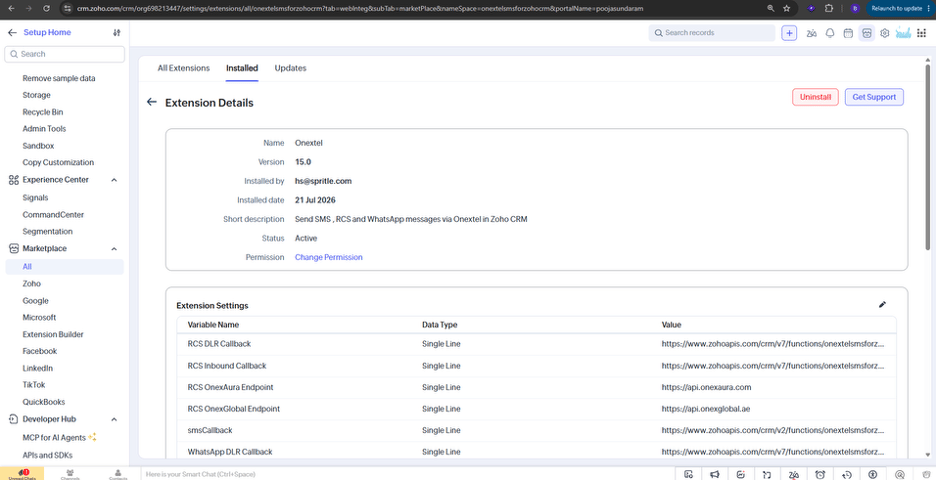 ## **Step 2: Configure DLR and Inbound Callbacks**
### **WhatsApp Callback Configuration**
1. Copy the callback URLs generated for **WhatsApp Inbound Callback** and **WhatsApp DLR Callback**.
2. Add these URLs in the OneXtel portal, under the API key you are using.
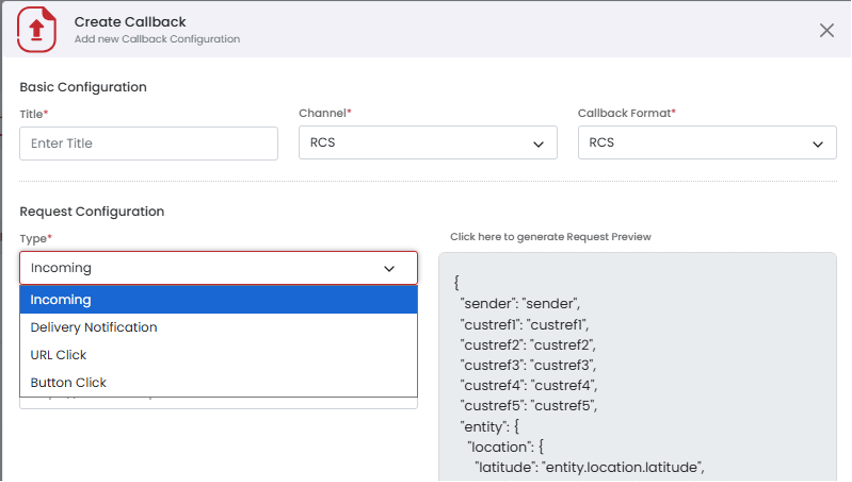
3. Configure the **WhatsApp DLR URL** as the callback for all three notification types:
○ Delivery Notification
○ URL Click
○ Button Click
4. Add the **WhatsApp Inbound URL** under the "Incoming" type in the OneXtel portal.
**Note:** Incoming callbacks cannot be configured per API key — this is an account-level configuration. All callback formats must be set to **Meta**.
## **Step 2: Configure DLR and Inbound Callbacks**
### **WhatsApp Callback Configuration**
1. Copy the callback URLs generated for **WhatsApp Inbound Callback** and **WhatsApp DLR Callback**.
2. Add these URLs in the OneXtel portal, under the API key you are using.
3. Configure the **WhatsApp DLR URL** as the callback for all three notification types:
○ Delivery Notification
○ URL Click
○ Button Click
4. Add the **WhatsApp Inbound URL** under the "Incoming" type in the OneXtel portal.
**Note:** Incoming callbacks cannot be configured per API key — this is an account-level configuration. All callback formats must be set to **Meta**.
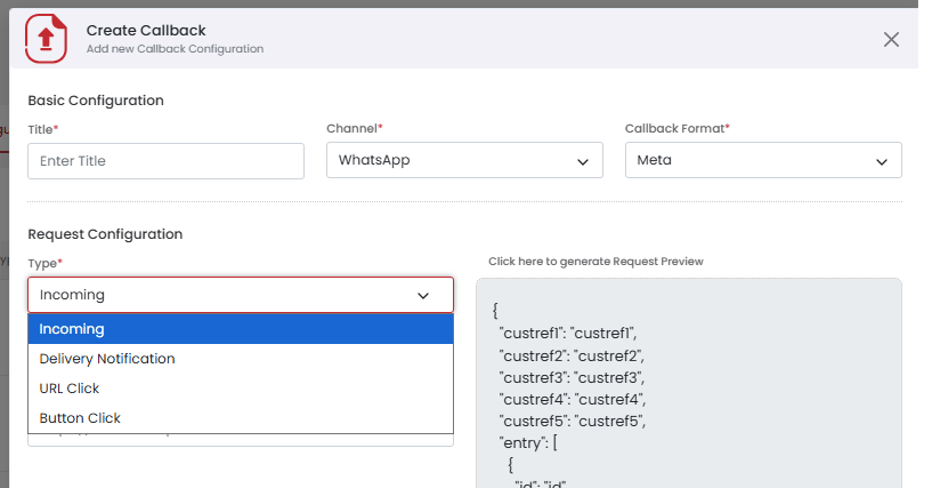 ### **RCS Callback Configuration**
1. Copy the callback URLs generated for **RCS Inbound Callback** and **RCS DLR Callback**.
2. Add these URLs in the OneXtel portal, under the API key you are using.
3. Configure the **RCS DLR URL** as the callback for all three notification types:
○ Delivery Notification
○ URL Click
○ Button Click
4. Add the **RCS Inbound URL** under the "Incoming" type in the OneXtel portal.
**Note:** Incoming callbacks cannot be configured per API key — this is an account-level configuration. All callback formats must be set to **RCS**.
### **RCS Callback Configuration**
1. Copy the callback URLs generated for **RCS Inbound Callback** and **RCS DLR Callback**.
2. Add these URLs in the OneXtel portal, under the API key you are using.
3. Configure the **RCS DLR URL** as the callback for all three notification types:
○ Delivery Notification
○ URL Click
○ Button Click
4. Add the **RCS Inbound URL** under the "Incoming" type in the OneXtel portal.
**Note:** Incoming callbacks cannot be configured per API key — this is an account-level configuration. All callback formats must be set to **RCS**.
 **Step 3: Account Configuration**
### **WhatsApp Account Setup**
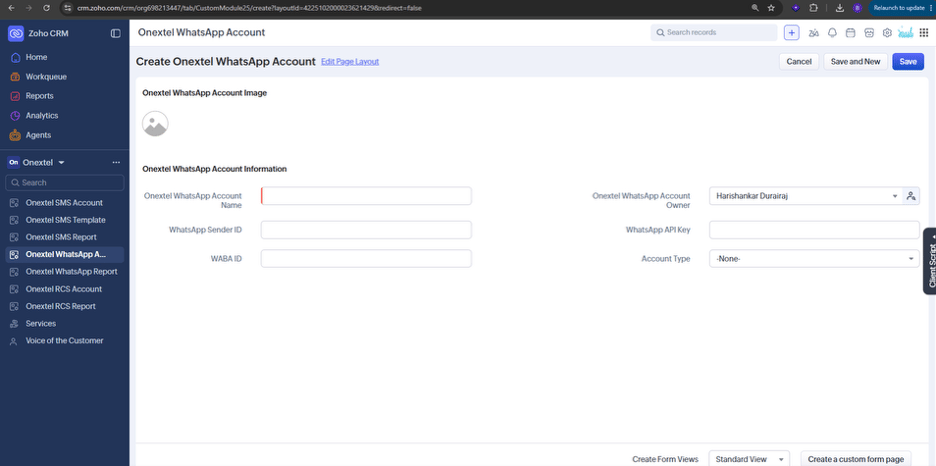
1. Go to the **OneXtel WhatsApp Account** custom module and click **Create OneXtel WhatsApp Account**.
2. Provide the following account details:
○ OneXtel WhatsApp Account Name
○ WhatsApp Sender ID
○ WhatsApp API Key
○ WABA ID
○ Account Type (OnexAura or OnexGlobal)
Make sure the API key you add here has its callback URLs already configured as described in Step 2.
**Step 3: Account Configuration**
### **WhatsApp Account Setup**
1. Go to the **OneXtel WhatsApp Account** custom module and click **Create OneXtel WhatsApp Account**.
2. Provide the following account details:
○ OneXtel WhatsApp Account Name
○ WhatsApp Sender ID
○ WhatsApp API Key
○ WABA ID
○ Account Type (OnexAura or OnexGlobal)
Make sure the API key you add here has its callback URLs already configured as described in Step 2.
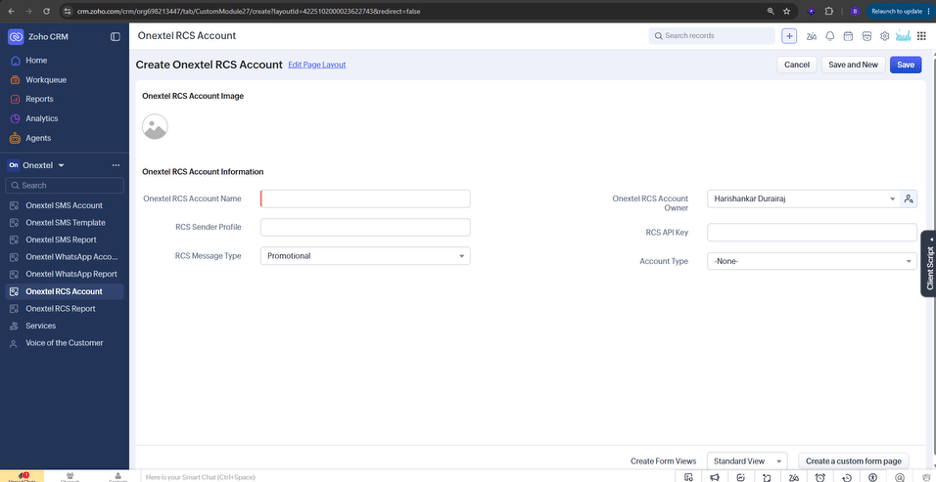
 \*\* RCS Account Setup\*\*
1. Go to the CRM dashboard and open the **OneXtel** module.
2. Locate the custom module named **OneXtel RCS Account** and click **Create OneXtel RCS Account**.
3. Provide the following account details:
○ OneXtel RCS Account Name
○ RCS Sender Profile
○ RCS API Key
○ RCS Message Type
○ Account Type (OnexAura or OnexGlobal)
4. Click **Save**.
Make sure the API key you add here has its callback URLs already configured as described in Step 2.
\*\* RCS Account Setup\*\*
1. Go to the CRM dashboard and open the **OneXtel** module.
2. Locate the custom module named **OneXtel RCS Account** and click **Create OneXtel RCS Account**.
3. Provide the following account details:
○ OneXtel RCS Account Name
○ RCS Sender Profile
○ RCS API Key
○ RCS Message Type
○ Account Type (OnexAura or OnexGlobal)
4. Click **Save**.
Make sure the API key you add here has its callback URLs already configured as described in Step 2.
 ## **Step 4: Send Messages**
Messages can be sent from the following supported modules: **Contacts**, **Accounts**, and **Leads** — either on a per-record basis or through automated workflows.
**Send WhatsApp Message (Record Basis)**
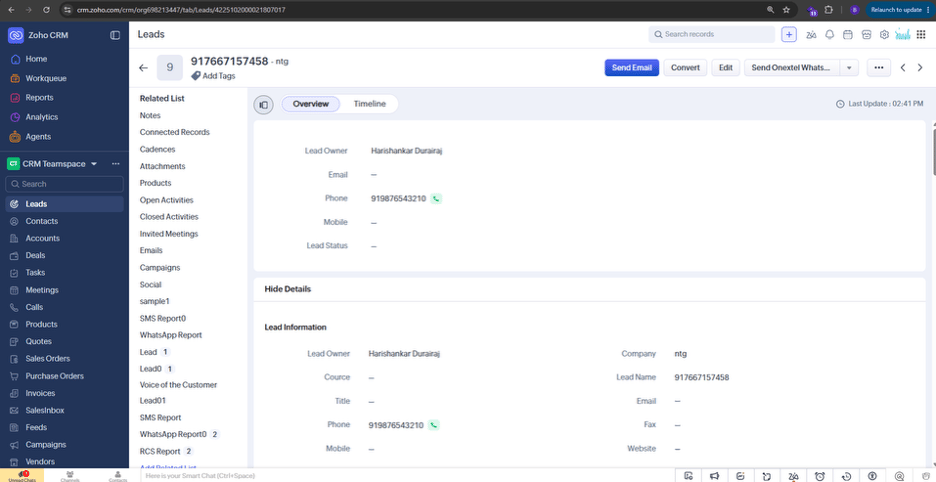
1. Open any record in a supported module (Leads/Contacts/Accounts).
2. Click **Send OneXtel WhatsApp** at the top right of the record.
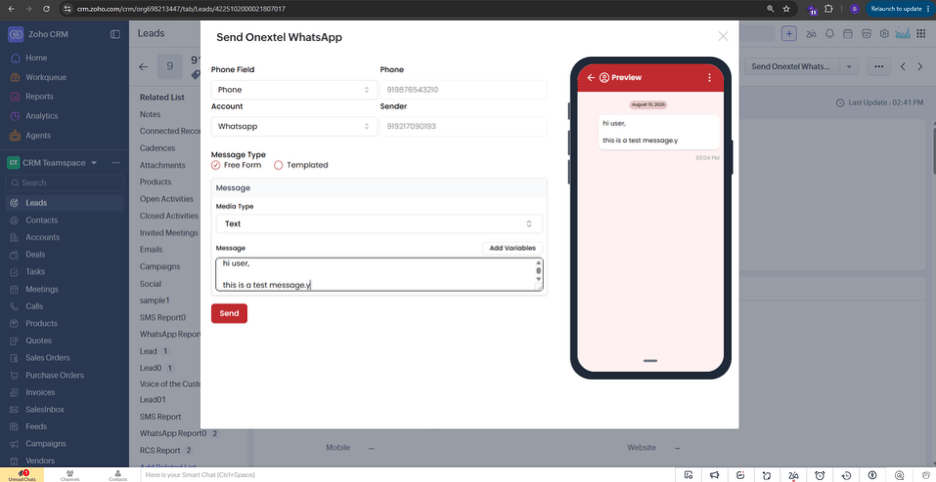
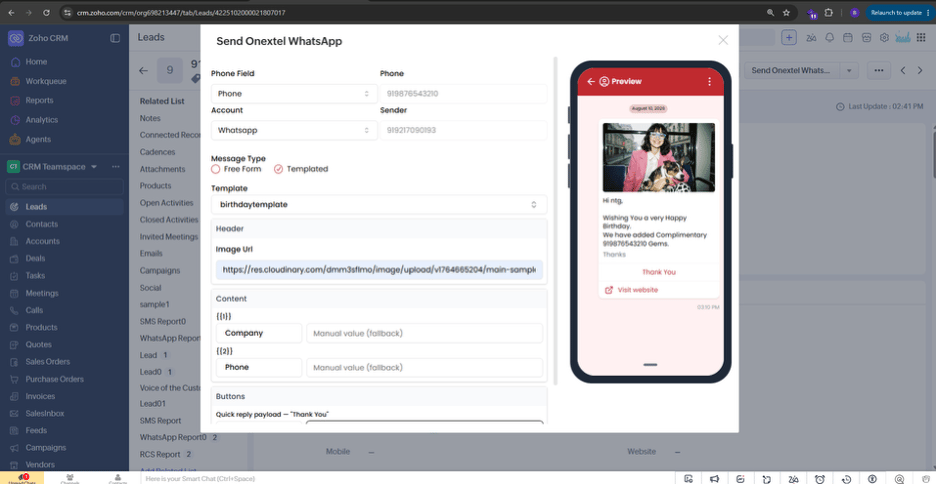
3. In the panel that opens:
○ Select the phone number field from the module data.
○ Select the configured WhatsApp account.
○ Choose either a **Free Form Message** or a **Templated Message**.
○ Map the media URL (if applicable) and map variables to module data. If a module field is empty, enter the value manually in the **Manual Fallback** field.
4. Click **Send**.
## **Step 4: Send Messages**
Messages can be sent from the following supported modules: **Contacts**, **Accounts**, and **Leads** — either on a per-record basis or through automated workflows.
**Send WhatsApp Message (Record Basis)**
1. Open any record in a supported module (Leads/Contacts/Accounts).
2. Click **Send OneXtel WhatsApp** at the top right of the record.
3. In the panel that opens:
○ Select the phone number field from the module data.
○ Select the configured WhatsApp account.
○ Choose either a **Free Form Message** or a **Templated Message**.
○ Map the media URL (if applicable) and map variables to module data. If a module field is empty, enter the value manually in the **Manual Fallback** field.
4. Click **Send**.
 ###
###
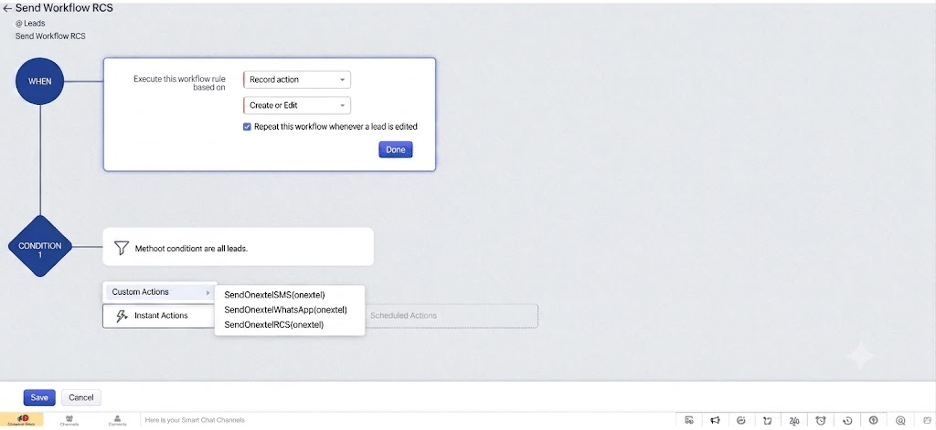
**Send WhatsApp Message (Workflow Basis)**
1. Go to **Zoho CRM Dashboard > Settings > Automation > Workflow Rules > Create Rule**.
2. Select the module for which you want to send WhatsApp messages, and provide a rule name and description.
3. Set the execution point based on the record action, and configure conditions as needed.
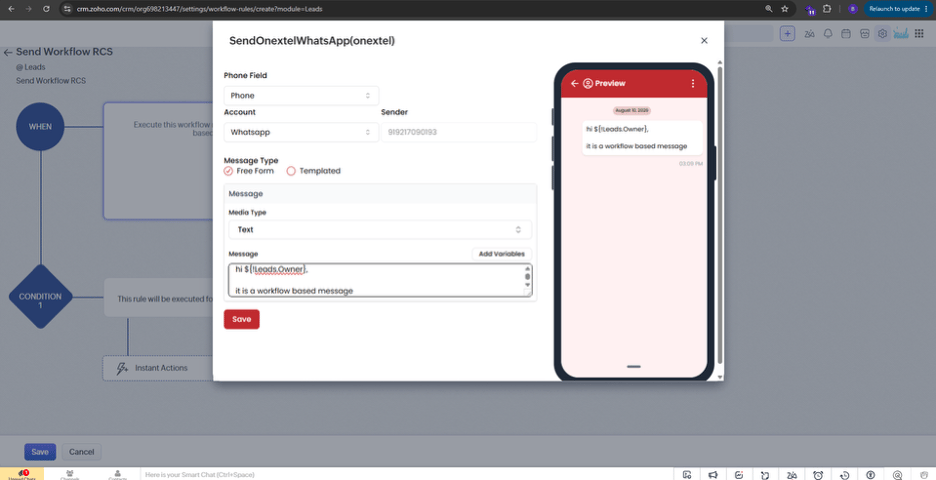
4. Add action: **Instant Action > Custom Action > SendOnextelWhatsApp**.
5. Configure the phone field, account, and Free Form/Template message — same as the record-basis setup — and add fallback values to prevent message failure if a mapped field is empty or undefined at execution.
6. Click **Save**. The message will be sent automatically according to the workflow configuration.
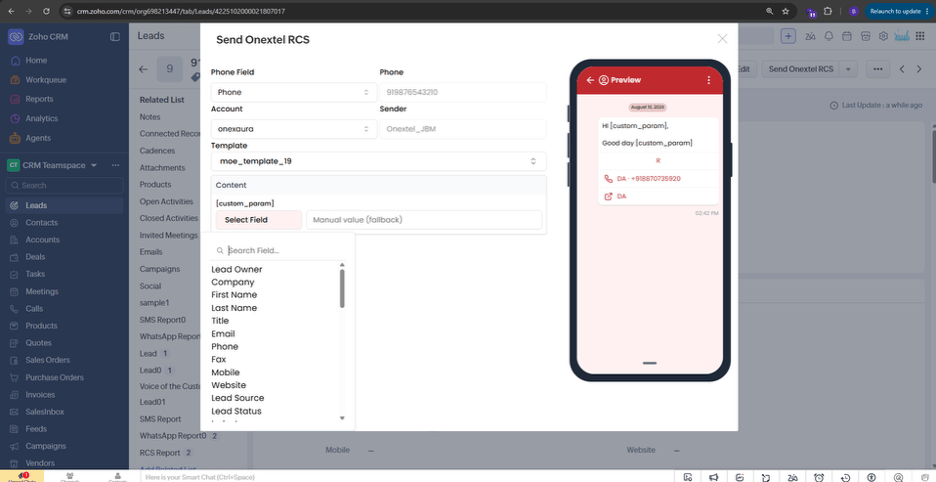
**Send RCS Message (Record Basis)**
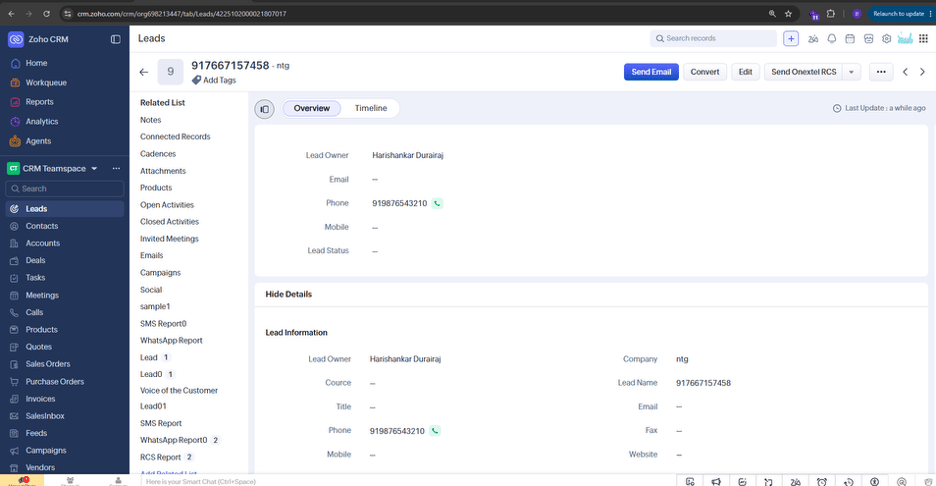
1. Open any record in a supported module (Leads/Contacts/Accounts).
2. Click **Send OneXtel RCS** at the top right of the record.
3. In the panel that opens:
○ Select the phone number field from the module data.
○ Select the configured RCS account.
○ Map the message variables to module data. If a module field is empty, enter the value manually in the **Manual Fallback** field.
4. Click **Send**.
 **Send RCS Message (Workflow Basis)**
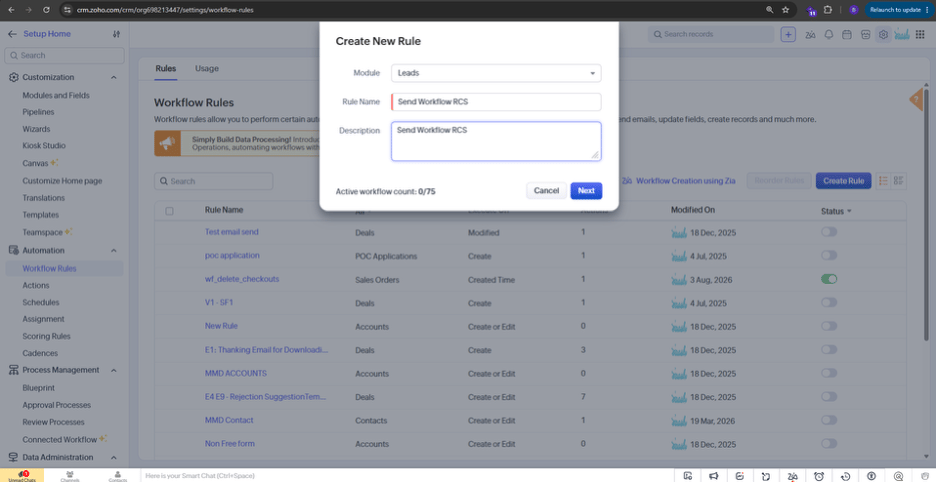
1. Go to **Zoho CRM Dashboard > Settings > Automation > Workflow Rules > Create Rules**.
2. Select the module for which you want to send RCS messages, and provide a rule name and description.
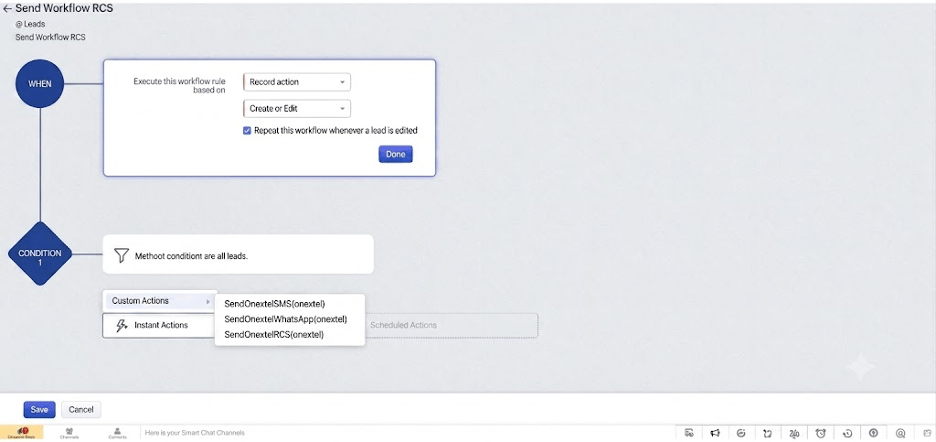
3. Set the execution point based on the record action, and configure conditions as needed.
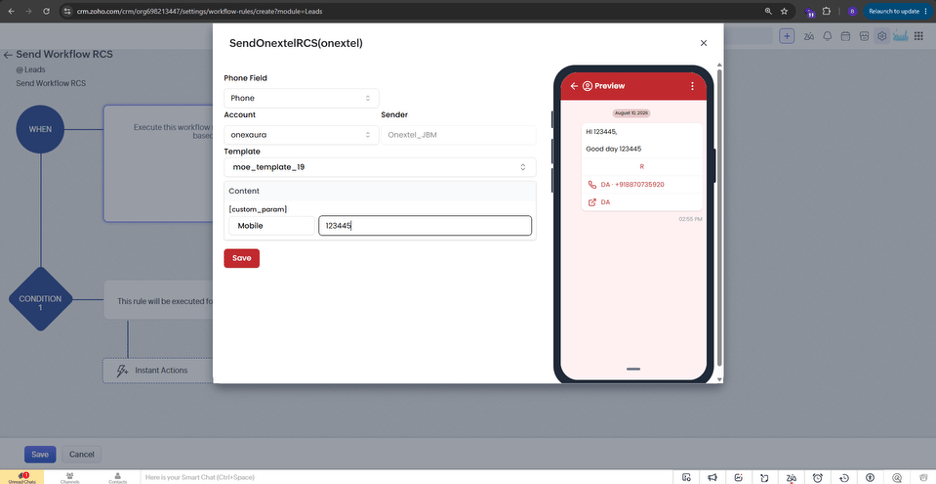
4. Add action: **Instant Action > Custom Action > SendOnextelRCS**.
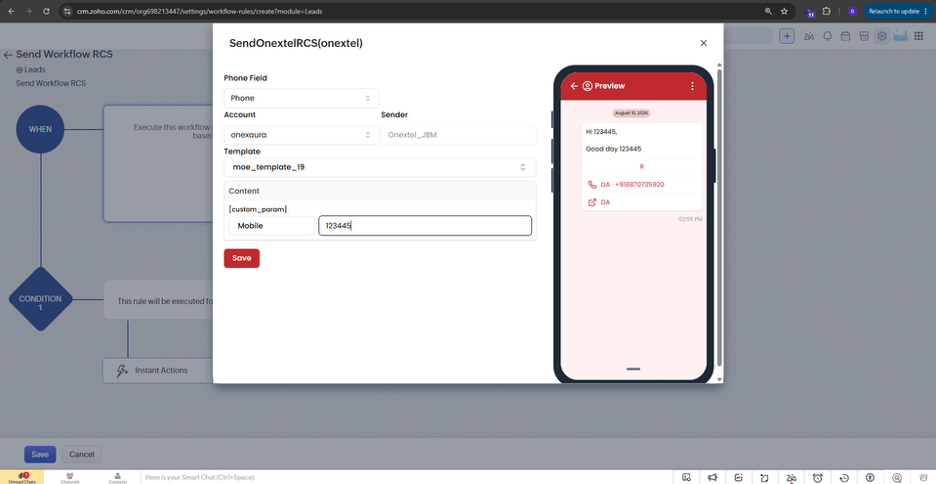
5. Configure the phone field, account, and template — same as the record-basis setup — and add fallback values to prevent message failure if a mapped field is empty or undefined at execution.
6. Click **Save**.
The message will be sent automatically according to the workflow configuration.
**Send RCS Message (Workflow Basis)**
1. Go to **Zoho CRM Dashboard > Settings > Automation > Workflow Rules > Create Rules**.
2. Select the module for which you want to send RCS messages, and provide a rule name and description.
3. Set the execution point based on the record action, and configure conditions as needed.
4. Add action: **Instant Action > Custom Action > SendOnextelRCS**.
5. Configure the phone field, account, and template — same as the record-basis setup — and add fallback values to prevent message failure if a mapped field is empty or undefined at execution.
6. Click **Save**.
The message will be sent automatically according to the workflow configuration.
 **Step 5: DLR Reports**
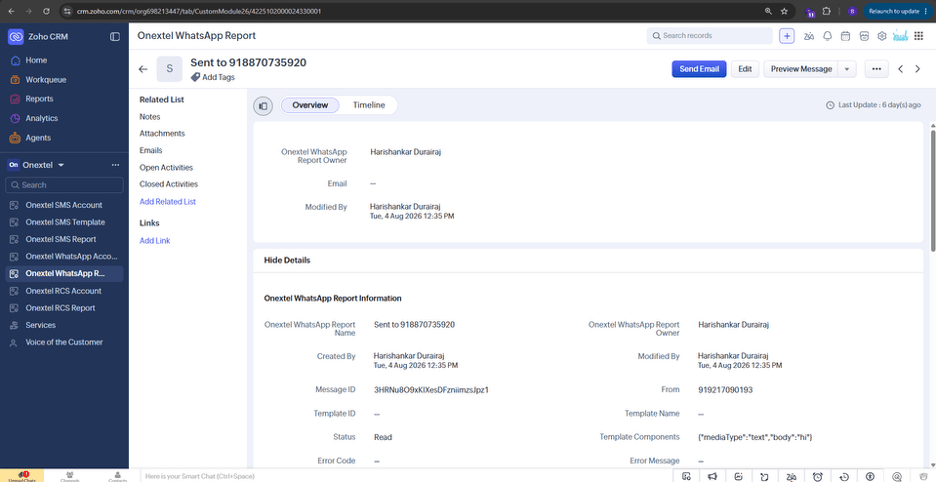
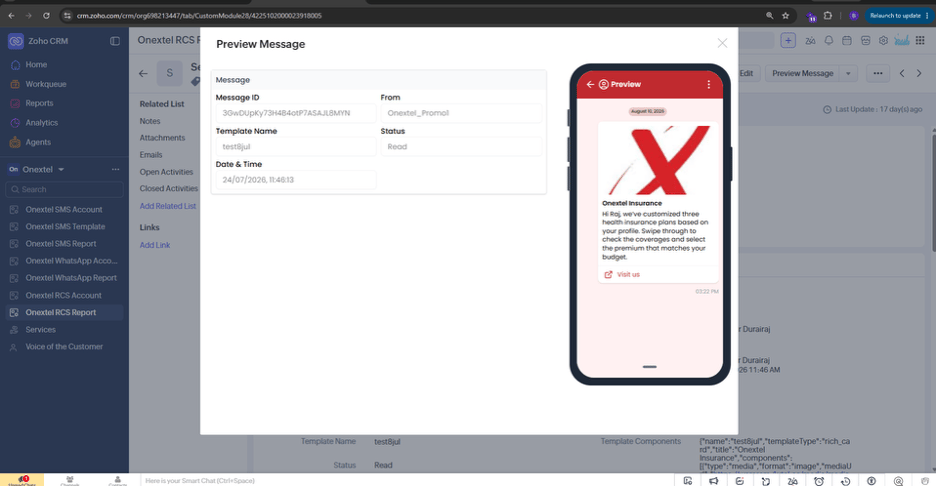
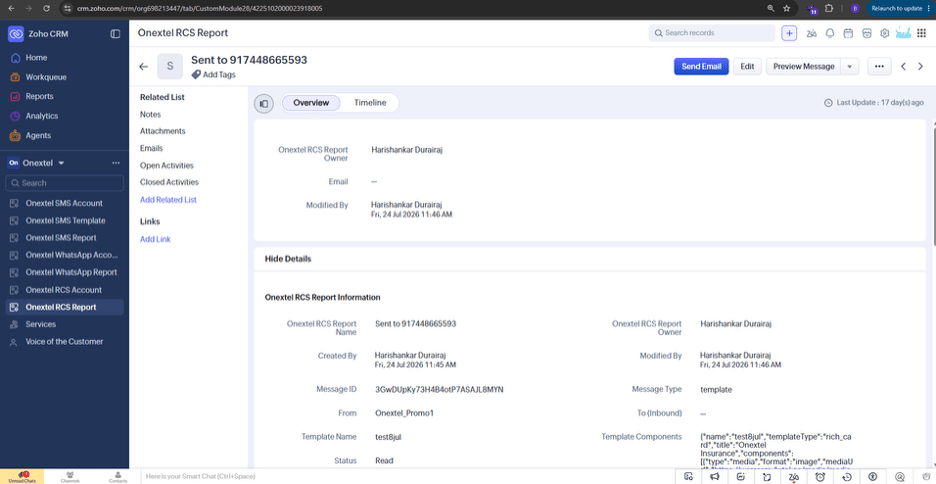
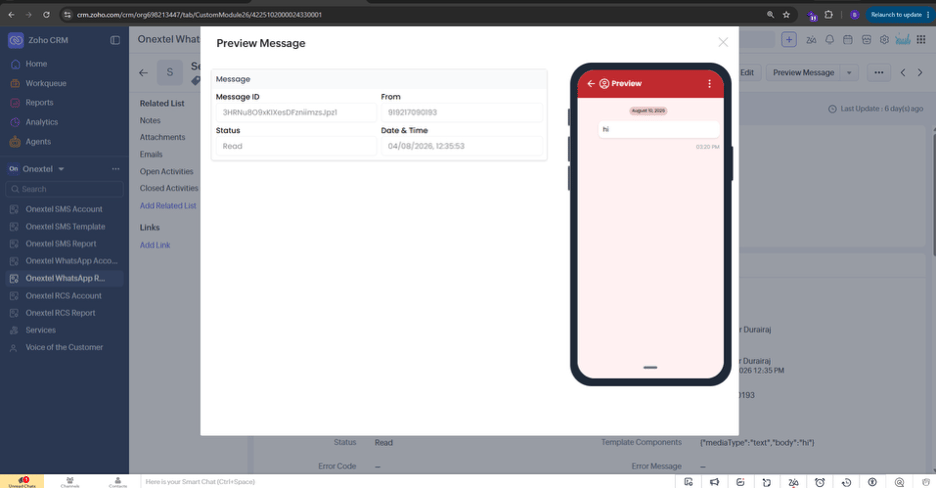
All messages sent via RCS and WhatsApp — whether triggered on a record basis or through a workflow — are logged in the **OneXtel RCS Report** and **OneXtel WhatsApp Report** modules, along with their status (Sent, Failed, Delivered, or Read).
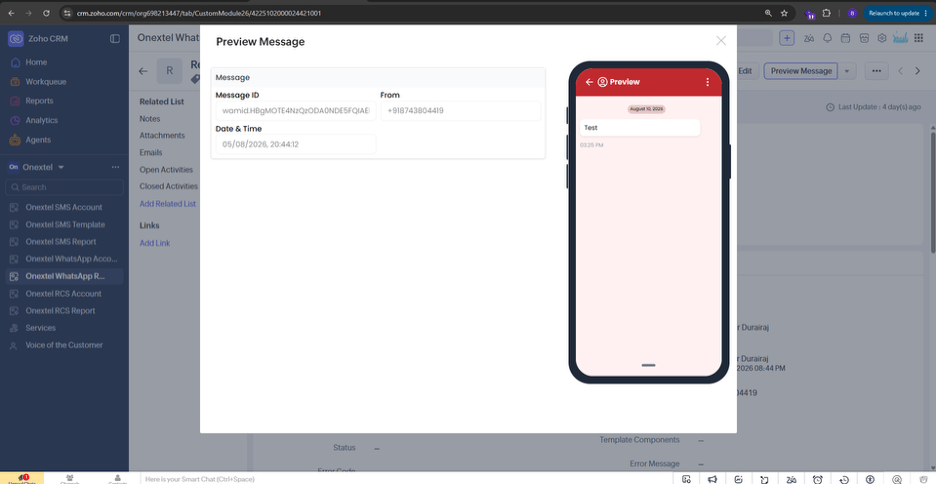
Each entry can be previewed using the **Preview Message** button at the top right of the report.
**Step 5: DLR Reports**
All messages sent via RCS and WhatsApp — whether triggered on a record basis or through a workflow — are logged in the **OneXtel RCS Report** and **OneXtel WhatsApp Report** modules, along with their status (Sent, Failed, Delivered, or Read).
Each entry can be previewed using the **Preview Message** button at the top right of the report.
 ## **Step 6: Inbound Message Reports**
Inbound messages received via RCS and WhatsApp are also logged in the **OneXtel RCS Report** and **OneXtel WhatsApp Report** modules, with a preview option available for each message.
## **Step 6: Inbound Message Reports**
Inbound messages received via RCS and WhatsApp are also logged in the **OneXtel RCS Report** and **OneXtel WhatsApp Report** modules, with a preview option available for each message.
 This documentation is built and hosted on [Mintlify](https://mintlify.com), a developer documentation platform.