Step 1: Install the OneXtel Application Install the OneXtel application from the Zoho CRM Marketplace.
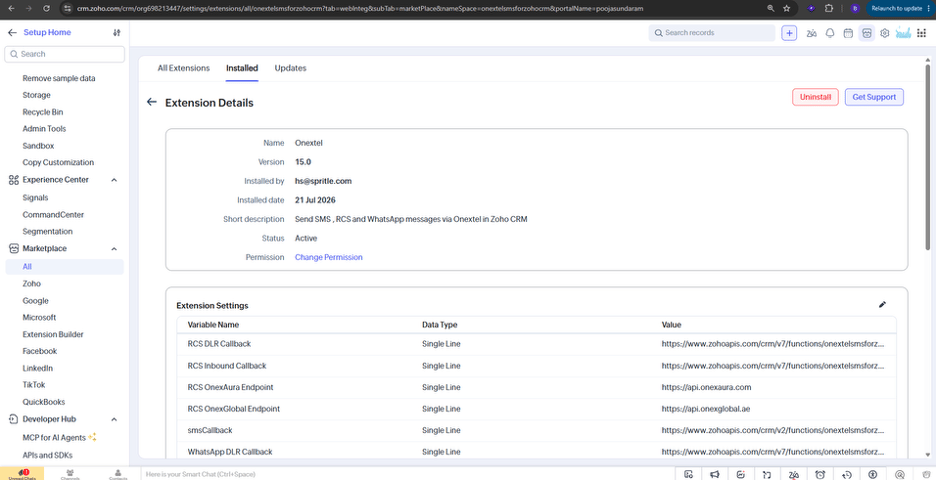
Step 2: Configure DLR and Inbound Callbacks
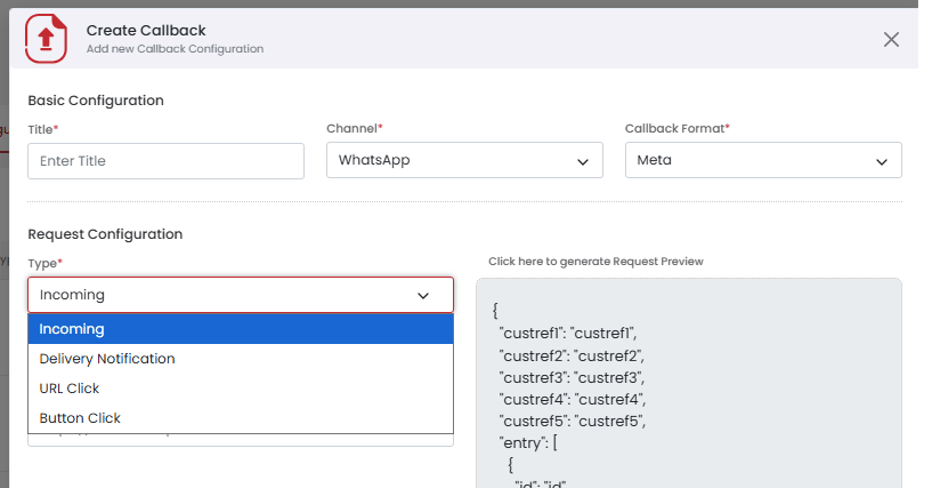
WhatsApp Callback Configuration
- Copy the callback URLs generated for WhatsApp Inbound Callback and WhatsApp DLR Callback.
- Add these URLs in the OneXtel portal, under the API key you are using.
- Configure the WhatsApp DLR URL as the callback for all three notification types:
- Add the WhatsApp Inbound URL under the “Incoming” type in the OneXtel portal.
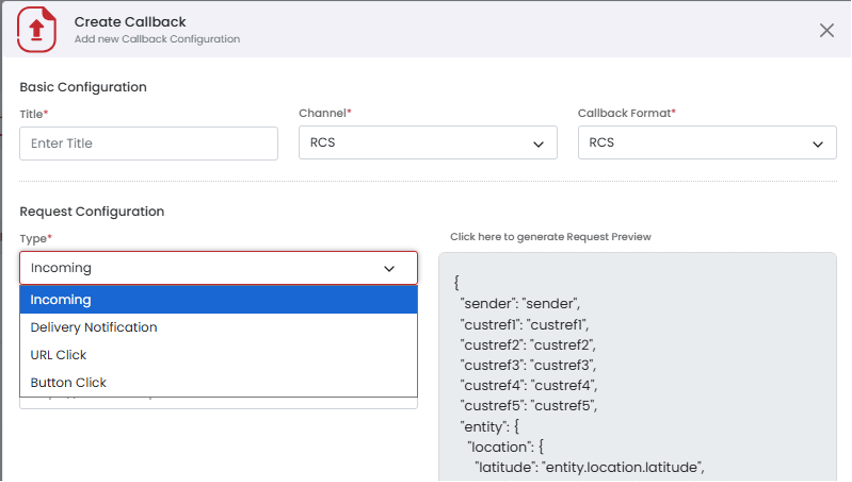
RCS Callback Configuration
- Copy the callback URLs generated for RCS Inbound Callback and RCS DLR Callback.
- Add these URLs in the OneXtel portal, under the API key you are using.
- Configure the RCS DLR URL as the callback for all three notification types:
- Add the RCS Inbound URL under the “Incoming” type in the OneXtel portal.
WhatsApp Account Setup
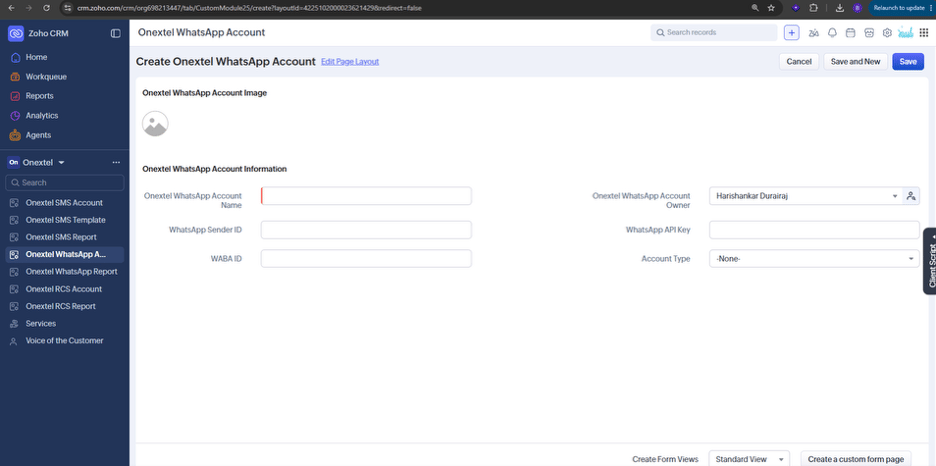
- Go to the OneXtel WhatsApp Account custom module and click Create OneXtel WhatsApp Account.
- Provide the following account details:
- Go to the CRM dashboard and open the OneXtel module.
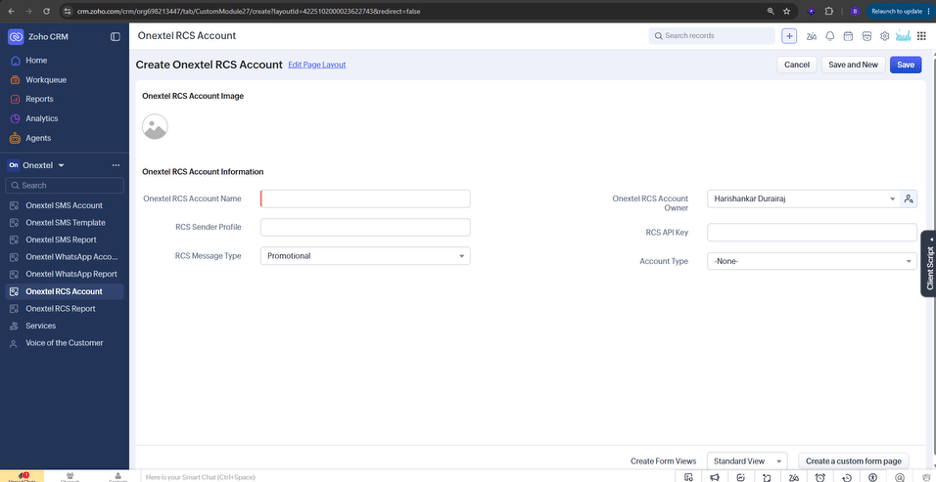
- Locate the custom module named OneXtel RCS Account and click Create OneXtel RCS Account.
- Provide the following account details:
- Click Save.
Step 4: Send Messages
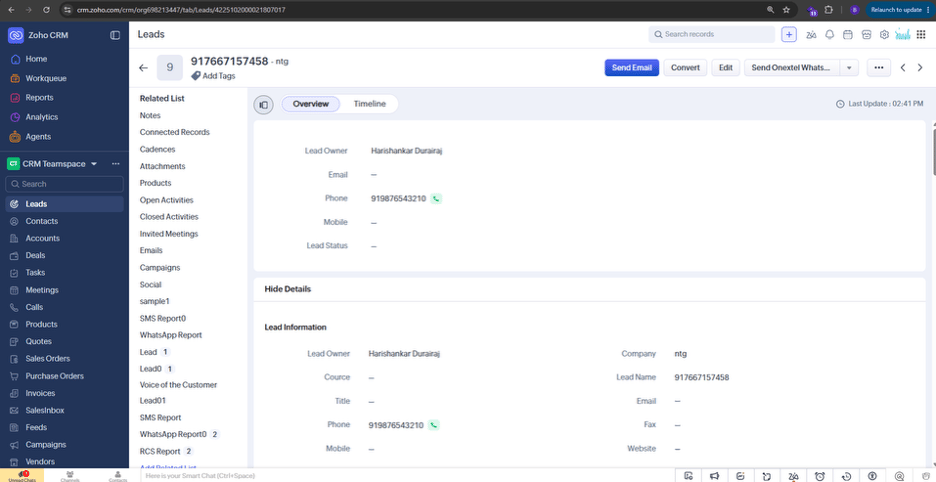
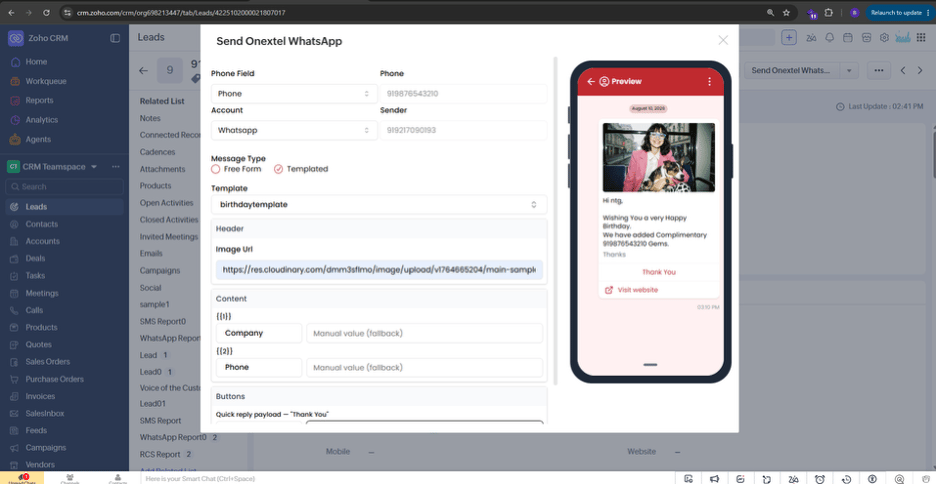
Messages can be sent from the following supported modules: Contacts, Accounts, and Leads — either on a per-record basis or through automated workflows. Send WhatsApp Message (Record Basis)- Open any record in a supported module (Leads/Contacts/Accounts).
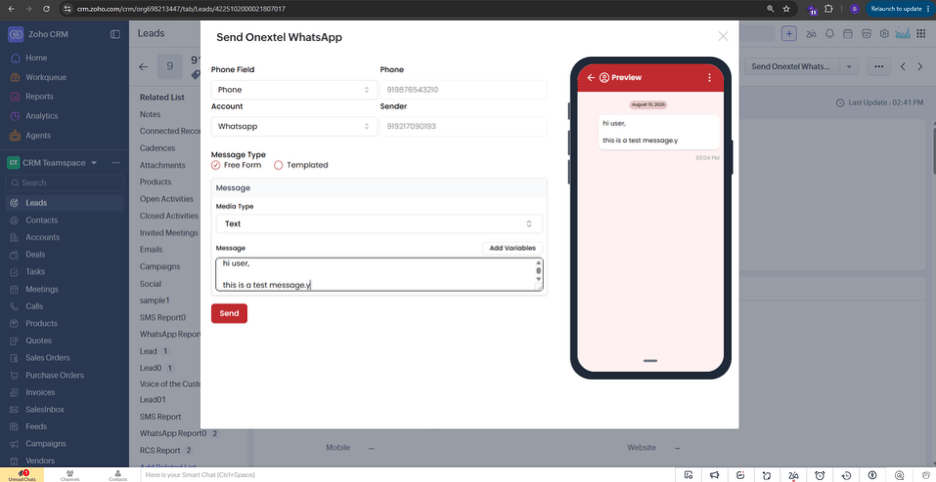
- Click Send OneXtel WhatsApp at the top right of the record.
- In the panel that opens:
- Click Send.
Send WhatsApp Message (Workflow Basis)
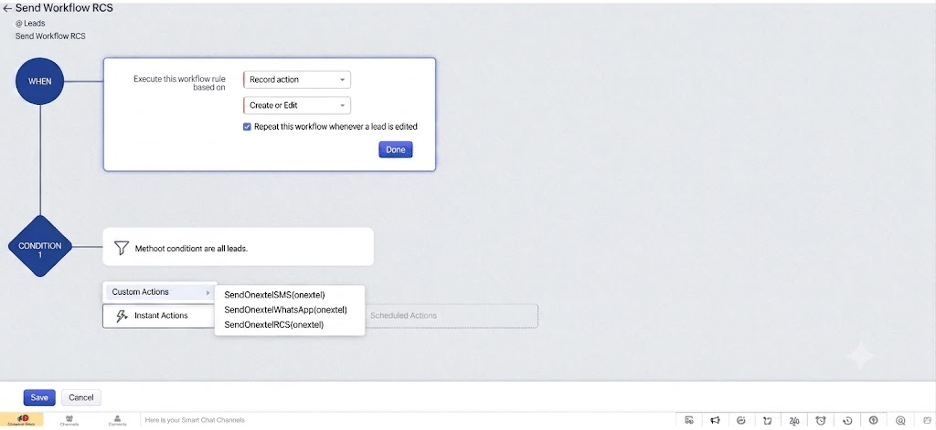
- Go to Zoho CRM Dashboard > Settings > Automation > Workflow Rules > Create Rule.
- Select the module for which you want to send WhatsApp messages, and provide a rule name and description.
- Set the execution point based on the record action, and configure conditions as needed.
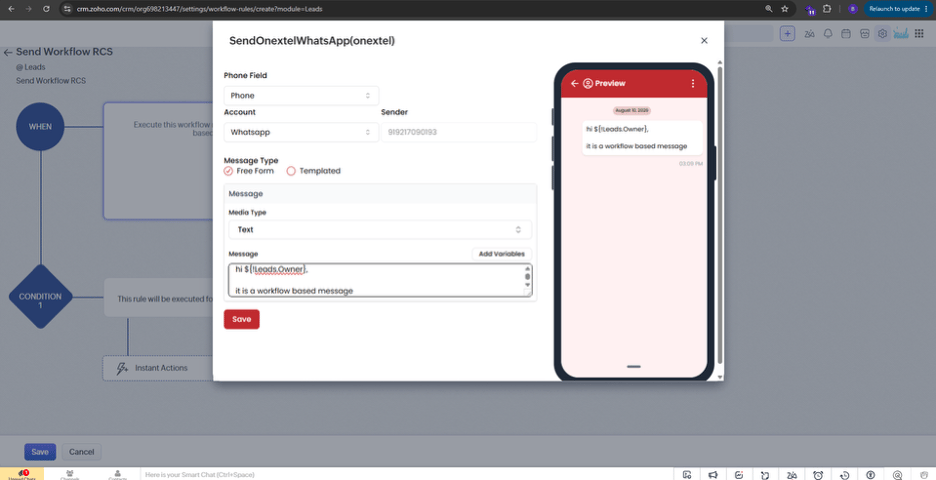
- Add action: Instant Action > Custom Action > SendOnextelWhatsApp.
- Configure the phone field, account, and Free Form/Template message — same as the record-basis setup — and add fallback values to prevent message failure if a mapped field is empty or undefined at execution.
- Click Save. The message will be sent automatically according to the workflow configuration.
Send RCS Message (Record Basis)
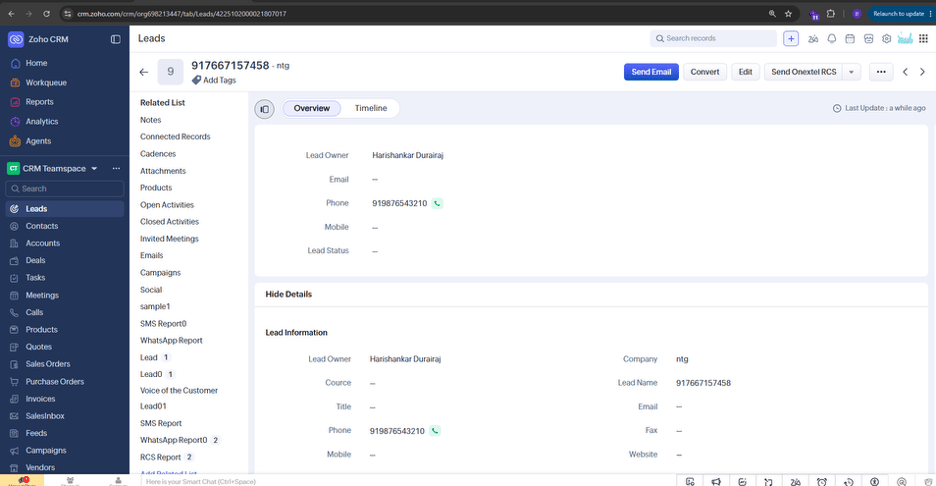
- Open any record in a supported module (Leads/Contacts/Accounts).
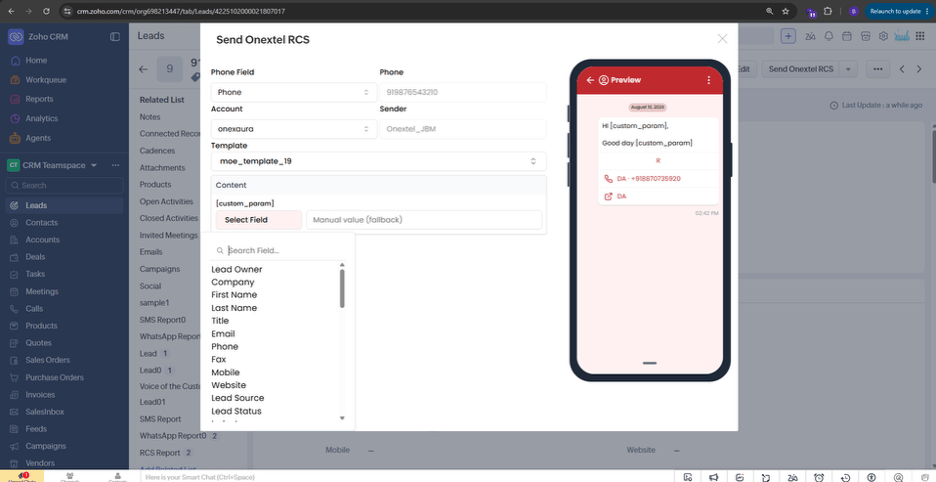
- Click Send OneXtel RCS at the top right of the record.
- In the panel that opens:
- Click Send.
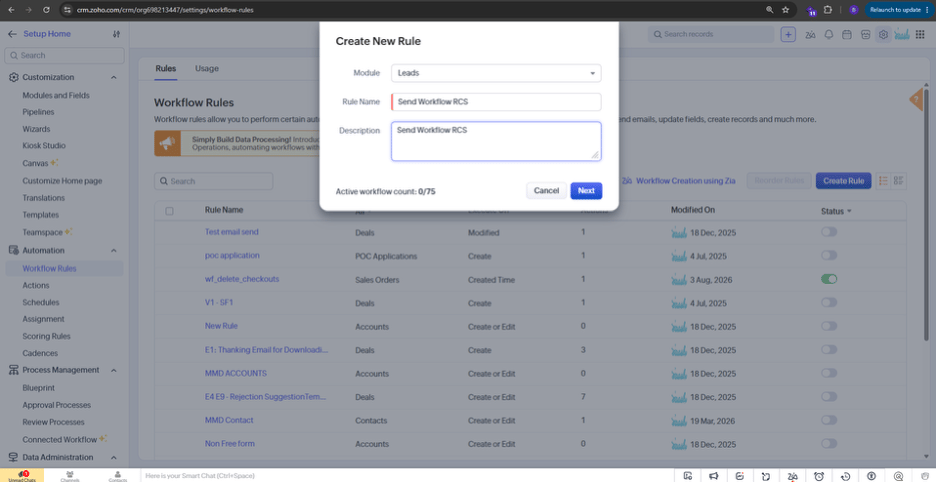
- Go to Zoho CRM Dashboard > Settings > Automation > Workflow Rules > Create Rules.
- Select the module for which you want to send RCS messages, and provide a rule name and description.
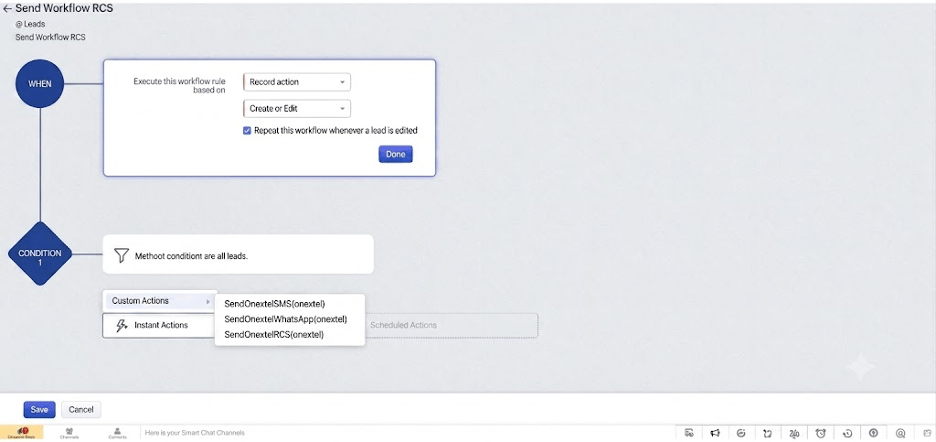
- Set the execution point based on the record action, and configure conditions as needed.
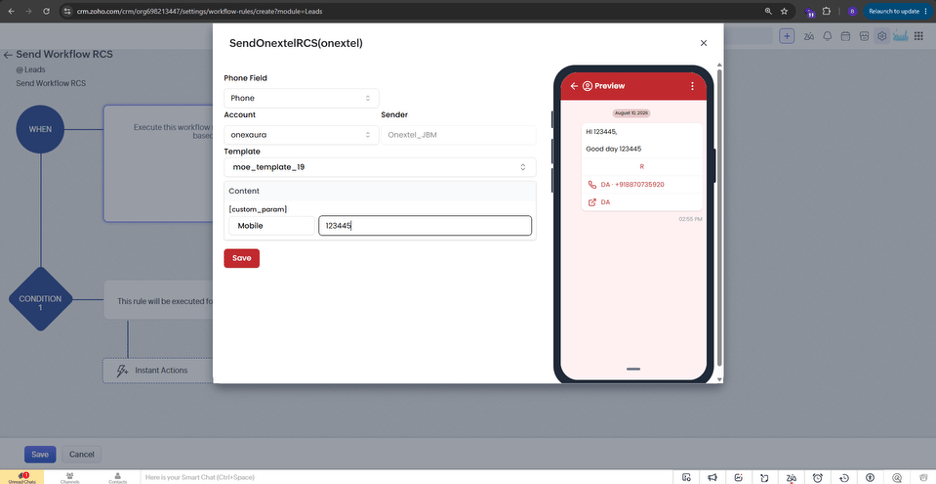
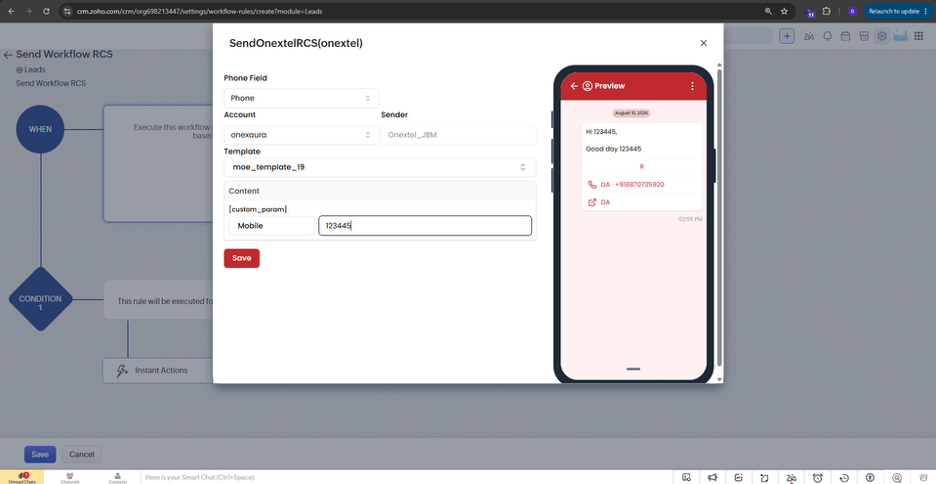
- Add action: Instant Action > Custom Action > SendOnextelRCS.
- Configure the phone field, account, and template — same as the record-basis setup — and add fallback values to prevent message failure if a mapped field is empty or undefined at execution.
- Click Save.
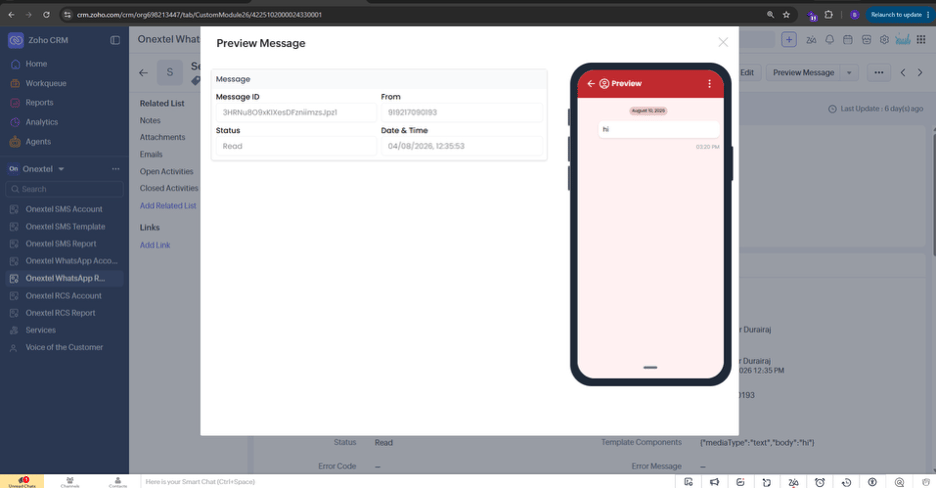
Step 6: Inbound Message Reports
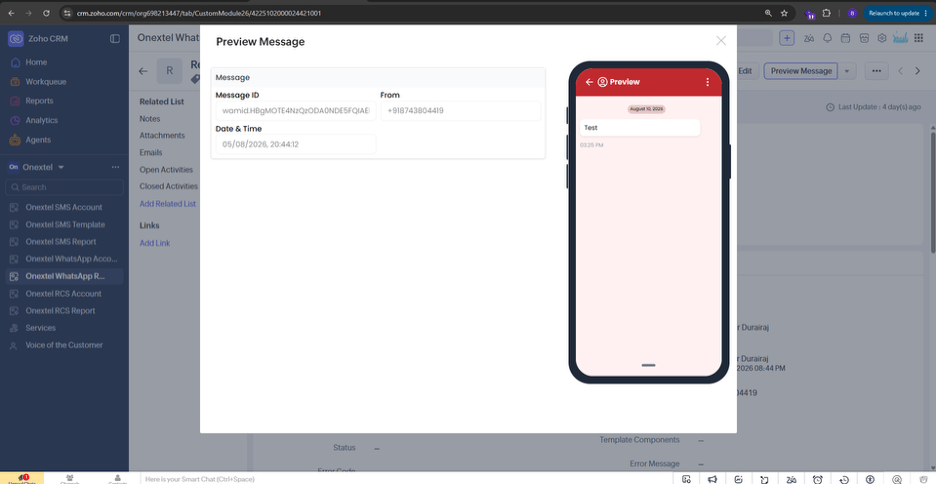
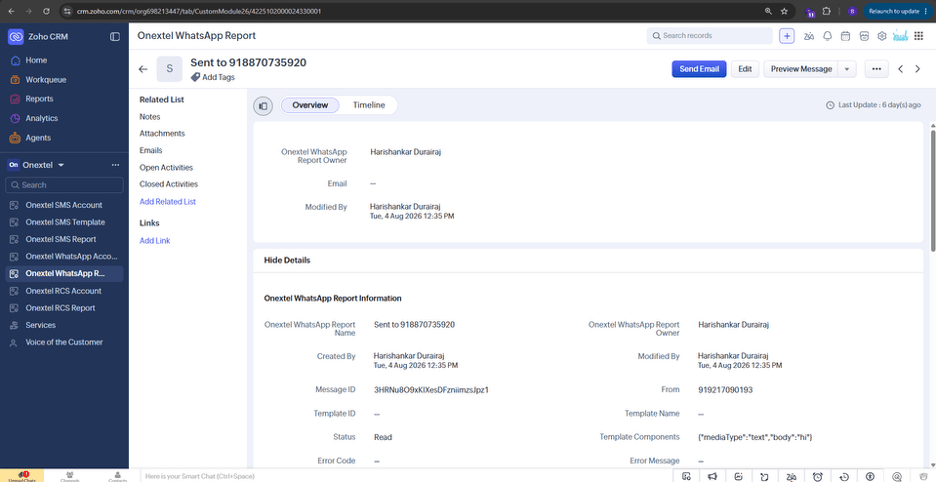
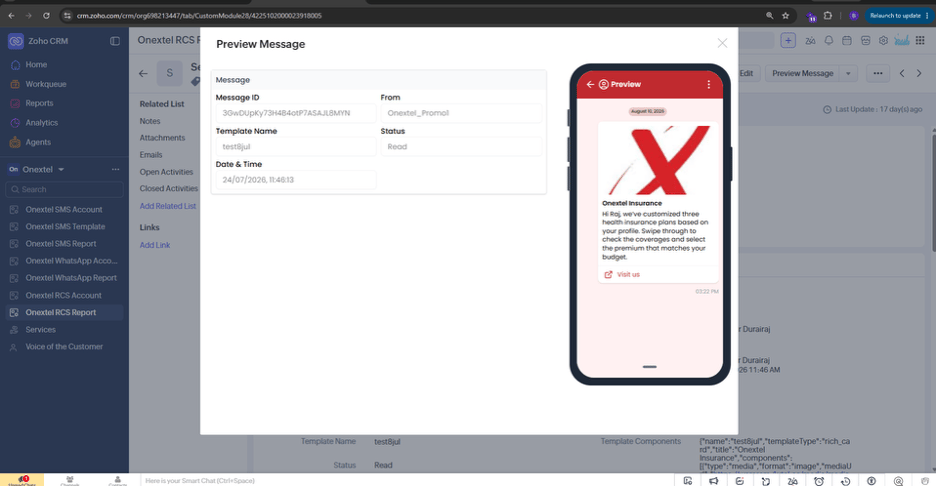
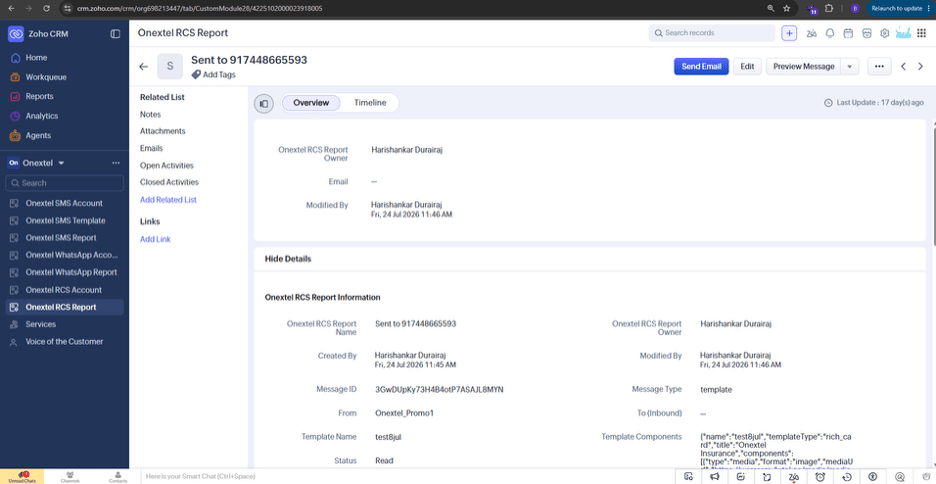
Inbound messages received via RCS and WhatsApp are also logged in the OneXtel RCS Report and OneXtel WhatsApp Report modules, with a preview option available for each message.