

View allocation by account
1
Open Credits
In the left pane, click Credits. The Userwise Allocation tab opens by default.
2
Search
Enter the TUC Name in the search box, set the credit limit, and click Search. The
account’s credit information is displayed.
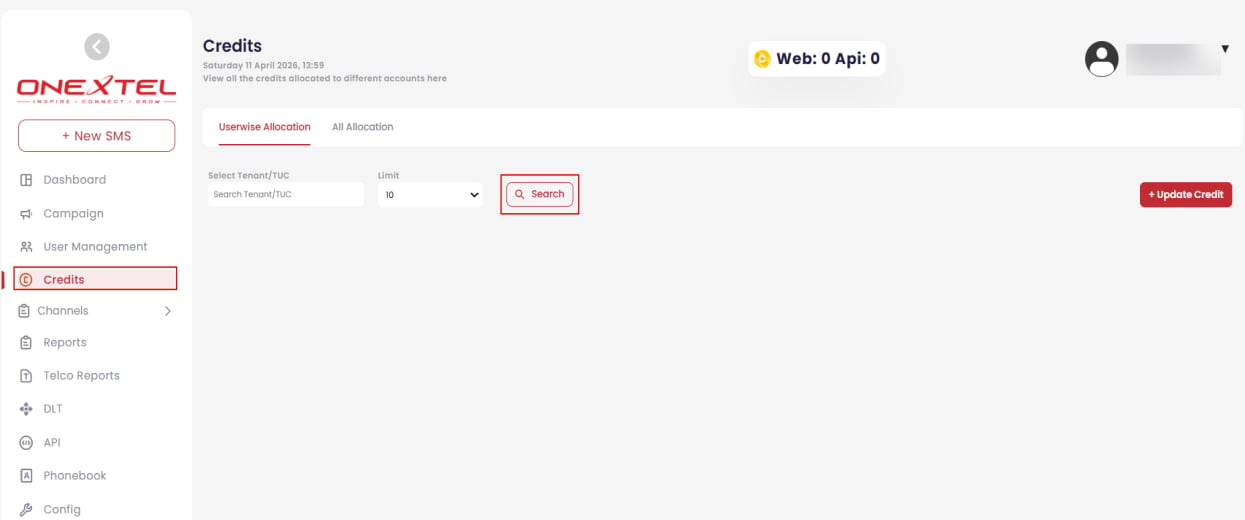
Credits — Userwise Allocation
Review allocation history
The All Allocation tab shows the full history of credit movements, which is where to look when a balance is lower than expected.1
Open the tab
Click Credits, then select the All Allocation tab.
2
Set the period
Enter a From date and To date to see allocation updates for that period, then click
Search.
Add or deduct credits
1
Start the update
Click Credits, and on the Userwise Allocation tab click + Update Credit.
2
Select the account
Choose the TUC from the dropdown. The Update button stays disabled until a TUC is
selected.
3
Choose the credit type
Select the Credit Type for this movement.
4
Set the direction and amount
Select Add-Credits or Deduct-Credits, then enter the number of credits.
5
Record why
Enter a Remark explaining the movement.
6
Update
Click Update.
The Remark field is what makes the allocation history readable months later. A movement with no
explanation is indistinguishable from an error when you are reconciling a balance — fill it in
even for routine top-ups.