

Add a notification
1
Open Notification
In the left pane, click Notification.
2
Start a new one
Click + Add Notification.
3
Enter the details
Enter the Subject and Content, then choose whether it applies to a particular TUC or
to all of them.
4
Save
Click Add.
View notifications
In the left pane, click Notification, then Show Notification to list them.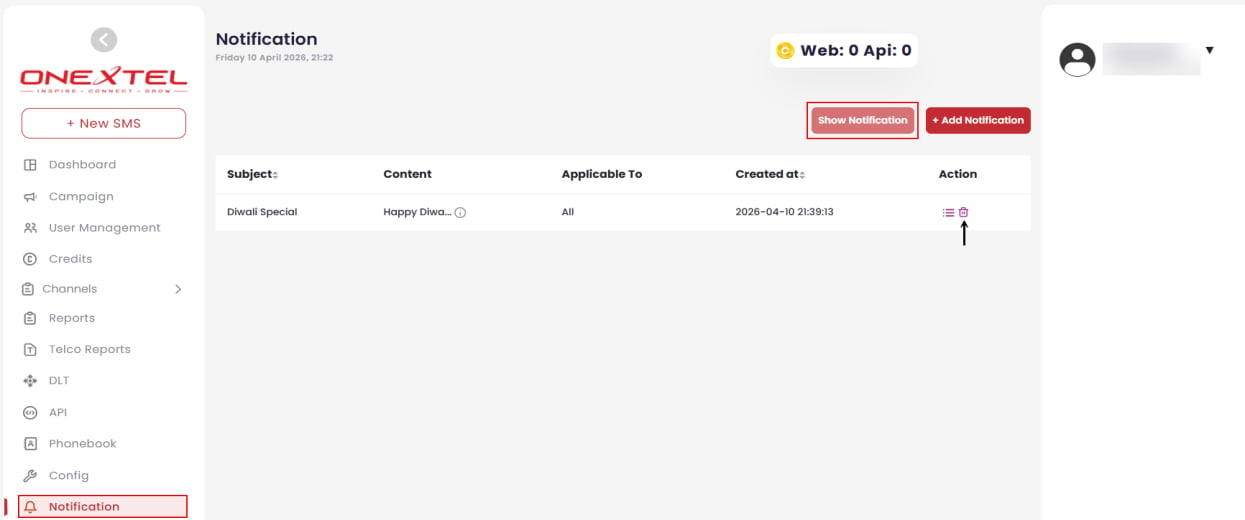
Notification list
Edit a notification
1
Open the list
Click Notification, then Show Notification.
2
Open the edit action
In the Action column, click the ellipsis (…) icon.
3
Save
Make your changes and click Update.
Delete a notification
1
Open the list
Click Notification, then Show Notification.
2
Delete
In the Action column, click the Delete icon next to the notification.
3
Confirm
A warning appears. Click Delete.
Related
- Account settings — for personal credit alerts
- Platform overview